
Creating a reservation
The seven places a booking can be started from, the form itself field by field, and the two sources that create one without you.
A reservation reaches SupremeStay one of two ways: somebody here types it in, or it arrives on its own from a guest booking online. Both end up as the same record — the difference is only who filled the form in.
What is worth knowing is that the back office offers seven different starting points. They all open the same form, but each arrives with a different amount already filled in, and choosing the right one is the difference between a booking that takes twenty seconds and one that takes two minutes of typing dates you already knew.
The two that need nobody
| Source | What happens |
|---|---|
| Your booking engine | A guest books on your own site. The reservation appears straight away, already paid or deposited according to your payment policy. See Direct booking on your website for what the guest sees at each step. |
| An OTA, through the channel manager | Booking.com, Agoda, Expedia and the rest arrive through Channex. Availability goes out, bookings come back in. |
Neither needs anyone at the desk. Both land in the same places a typed-in booking does — the dashboard panels, the calendar and the reservation list — so there is no separate inbox to watch.
Opening the form
Three pages have a + button, the calendar has two drag gestures, and the price checker turns a quote into a booking from either of the two pages that carry it.
| Where | How | What it hands the form |
|---|---|---|
| Dashboard | + | Nothing. An empty form. |
| Reservation list | + | Nothing. An empty form. |
| Calendar | + | Nothing. An empty form. |
| Calendar | Drag across a room’s row | That room, and the dates you dragged over. |
| Calendar | Drag in the Holding Area row | The dates, with the room left as Holding Area. |
| Dashboard | Price Checker → Reserve | Dates, adults, children, room type, rate plan and how many rooms. |
| Calendar | Price Checker → Reserve | The same. |
Dragging on the calendar
Press on the first night in a room’s row and drag across the nights you want. A block appears under the cursor counting what you have selected, and letting go opens the form with that room and those dates already in it.
Using the Price Checker
Price Checker on the dashboard and the calendar answers what would that cost before it commits to anything. It is the right tool for a phone enquiry: you get the quote first, and if the caller says yes, Reserve carries everything you already typed into the reservation form.
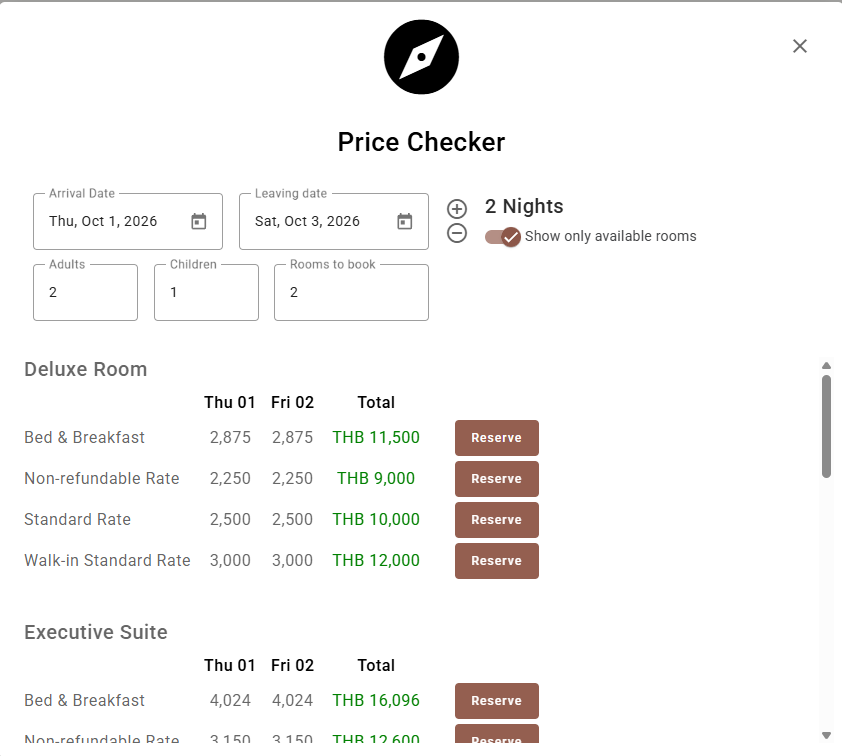
| Control | What it does |
|---|---|
| Arrival Date / Leaving date | The stay. At least one night, and at most 30. |
| ⊕ / ⊖ beside the night count | Lengthens or shortens the stay by a night. It moves the leaving date, so the arrival stays where you put it. |
| Show only available rooms | The switch that turns the dialog from a price list into an availability search. See below. |
| Adults / Children | The party. Out-of-range numbers are clamped to what your room types can actually hold rather than refused — the nearest allowed value is taken and the search carries on. |
| Rooms to book | How many rooms to quote. Suggested from the party size until you type one yourself; after that it is yours and is never rewritten. |
Each room type gets a block: a row per rate plan, a column per night with that night’s price, and a Total in green. The total is the nightly price multiplied by both the nights and the rooms — in the picture above, ฿2,875 × 2 nights × 2 rooms = ฿11,500.
Which one to reach for
- Somebody is on the phone asking what a week in March costs. Price Checker. It answers the question first and only turns into a booking if they say yes — and when they do, everything you already typed to get the quote comes with it.
- Somebody is standing at the desk and you know which room. Drag across that room’s row.
- A group is confirmed but the rooming is not. Drag in the Holding Area row. The dates are taken and the rooms stay unassigned until nearer the date — see Group reservations.
- You are already on the page. Use its +. The three are the same form.
What is on the form
The dialog is in two columns, and they do different jobs:
| Column | What it is for |
|---|---|
| Left | The booking itself, in three stacked sections — Reservation Information, Rooms, Guests. You fill these in from the top down. |
| Right | The Summary: a running total that recalculates with every change, and the four buttons that add money to the booking. |
A new form opens with an empty Rooms area and a Summary reading 0 nights and THB 0.00. Nothing can be totalled until there is a room on the booking.
Reservation Information
| Field | Required | What it does |
|---|---|---|
| Reservation Source | Yes | Where the booking came from. Defaults to whichever source is marked as default in Reservation sources. |
| Booking Reference | No | Your own reference — a tour operator’s number, a company PO. Free text. |
| Arrival Date | Yes | The first night. |
| Leaving date | Yes | The morning they go. |
| Adults (Ages 18 or above) | Yes | Starts at 1. |
| Children (Ages 0–17) | No | Starts at 0. Enter a number and a row of age fields appears, one per child. |
| Set this reservation as unconfirmed | — | Holds the room without committing it. Ticking it reveals Hold Until, which then becomes required — see Booking requests. |
| Add tags | No | The pencil at the top right of the section. Tags are your own labels — VIP, GROUP, GOVERNMENT. |
Rooms
+ at the right of the Rooms heading adds a room row. Several rows on one reservation is all a group booking is.
| Field | Required | What it does |
|---|---|---|
| Room Type | Yes | The count in brackets is live availability — Deluxe Room (9 rooms available) means nine are free for those dates. It is the fastest way to see what you have left without going to the calendar. |
| Room Number | Yes | A specific room, or Holding Area to reserve the type without committing a room. |
| Rate | Yes | The rate plan, with its price and a badge for what it includes — STANDARD RATE · with breakfast · (฿2,500.00). Comes from Rates. |
| Set your own daily room rate for this stay | — | A toggle. On, you type the price per night yourself instead of taking the rate plan’s. |
| Guest Note | No | Anything about this room for this stay. |
Guests and the customer
+ at the right of the Guests heading adds a guest. The first few fields are the person; the ones below them are the account the bill belongs to, which is not always the same thing.
| Field | Required | What it does |
|---|---|---|
| First Name / Last Name | Yes | The guest. |
| No | Used for the guest app and messages — and it is what enables Send booking confirmation, below. | |
| Phone Number | No | |
| Identification Type / Passport No./ID Card | No | What was shown at the desk. See QR codes and ID capture. |
| Customer Type | Yes | Person or Company. Choosing Company reveals Company Name and billingTaxId. |
| Address, Country, Post Code | No |
The Summary panel
The Summary is not decoration — it is the only place the booking adds up while you are still building it.
| Line | What it shows |
|---|---|
| Dates and nights | The stay, with the night count in brackets. |
| Adults and children | The party. |
| Room n Charges | One line per room row. |
| Extras | One line each, as quantity @ price, with a ✕ to remove it. |
| Discount | In red, when a coupon is applied. |
| Before Tax · Taxes · Total | The breakdown. Whether tax is inside or on top of the price is set in Taxes and fees. |
| Payments | One line per payment taken, in red as a negative. |
| Balance Due | What is left. It can go below zero — the figure above shows ฿−50.00 after a coupon was applied to an already-settled booking. |
| Coupon | The coupon’s name, with a ✕ to lift it. |
| Saved cards | Any card attached, with a ✕ to detach it. |
Below the totals sit three things that appear only once they apply:
- Send booking confirmation — emails the guest their confirmation on save. It is greyed out until the guest has an email address, and ticks itself as soon as one is entered. If you cannot tick it, go back and fill in the email.
- Breakfast Included — a green badge, when the chosen rate includes it.
- Cancellation Policy — the policy attached to the rate, in full, so the terms are in front of you while you take the booking. From Policies.
Add Extras
| Field | Required | What it does |
|---|---|---|
| Extras | Yes | What you are selling, from Extras. |
| Room | Yes | Which room row it goes on. |
| Charge Amount | Yes | The price, prefilled from the extra’s own. The padlock keeps it at that price; open it to charge something else this once. |
| Quantity | Yes | How many. Set to n beside it fills in the number of nights — one towel per night, without counting. |
| Business day | Yes | The day it is posted to, prefilled with the arrival date and padlocked the same way. |
| Total Amount | — | Calculated, in the yellow strip at the foot. |
Add puts it on the booking and it appears in the Summary straight away.
Add Card
Saves a card against the booking as a guarantee without charging it. Needs the cardholder’s name and email, and Stripe to be connected. Once saved, the card appears in the Summary and can be used by Add Payment later — at check-out, or for incidentals.
Add Payment
| Field | Required | What it does |
|---|---|---|
| Payment Type | Yes | PAYMENT, DEPOSIT or REFUND. |
| Payment Method | Yes | Cash, card, bank transfer and the rest, from Payment methods. |
| Card Payment Type | Card only | Use Saved Card, or take a new one. |
| Select Card | Card only | Which saved card, shown as VISA ···· 4242 Expires 8/2029. |
| Amount | Yes | Pay in Full beside the outstanding figure fills it in for you. |
| Note | No |
The dialog is shorter for a method that needs no card:
Apply Coupon
Pick a coupon and Apply. The discount appears in the Summary in red, with the coupon’s name underneath and a ✕ to lift it again. Coupons are created in Discount Coupons.
Who may create one
Creating a reservation needs Owner, Manager or Reception. The + buttons, the calendar drags and the Price Checker’s Reserve column are all absent for anyone else — including Housekeeping, Restaurant and Transport, whose work starts after a booking exists. See User roles and access levels.
Saving
Save is at the bottom right. Three things it will not let past:
- A booking with no source. Every reservation has to say where it came from.
- A room row with no room type or no rate. A room number can be left as Holding Area; the type and the price cannot be left at all.
- Unconfirmed with no Hold Until date. A hold with no deadline is not a hold.
And one it will let you do, with a warning: putting more people in than the room types allow raises a Capacity Exceeded dialog you can confirm through. A cot or a child sharing is normal, and the desk is trusted to know. See Room types.
Once saved the reservation gets its number and appears on the dashboard, the calendar and the list — see Reservation details. If the room was left in the holding area, assign it before arrival. If it was taken as unconfirmed, it sits in the Unconfirmed panel until somebody confirms or cancels it.
If something does not work
| What you see | Why |
|---|---|
| No + button anywhere | Creating needs Owner, Manager or Reception. |
| The Reserve column is missing from Price Checker | The arrival date has passed, or the list is not filtered to available rooms only. |
| Dragging on the calendar does nothing | Either you may not create reservations, or the drag did not resolve to a start and end date. Drag across whole day cells. |
| Send booking confirmation cannot be ticked | The guest has no email address. Fill it in and the checkbox enables itself and ticks. |
| Apply Coupon is greyed out | There is nothing on the booking to discount yet. Add a room first. |
| The room number cannot be chosen | The room row is in the holding area, which is what that means. Pick a room number to come out of it. |
| A room type shows (0 rooms available) | None of that type is free for those dates. Change the dates, or pick another type. |
| The rate field is empty | No rate exists for that room type on those dates. |
| Balance Due is negative | The booking has been paid more than it owes — usually a coupon applied after payment was taken. |
| A booking got the wrong source | It was typed in by hand and took the default. Check which source carries the tick in Reservation sources. |
| An online booking has not appeared | Check the channel manager logs, or the booking engine if it was a direct booking. |