
Policies
Cancellation, no-show, check-in/check-out and payment rules, and where each one applies.
Policies is where the rules of a booking are written: what happens if a guest cancels, what happens if they never turn up, when they may arrive and must leave, and how much you take up front.
These four are the rules that cost money when they are wrong, and they are the ones guests read before they book. It is worth getting them right once.
Opening the page
- Open Settings from the left sidebar.
- Choose the Policies tab.
What is on the page
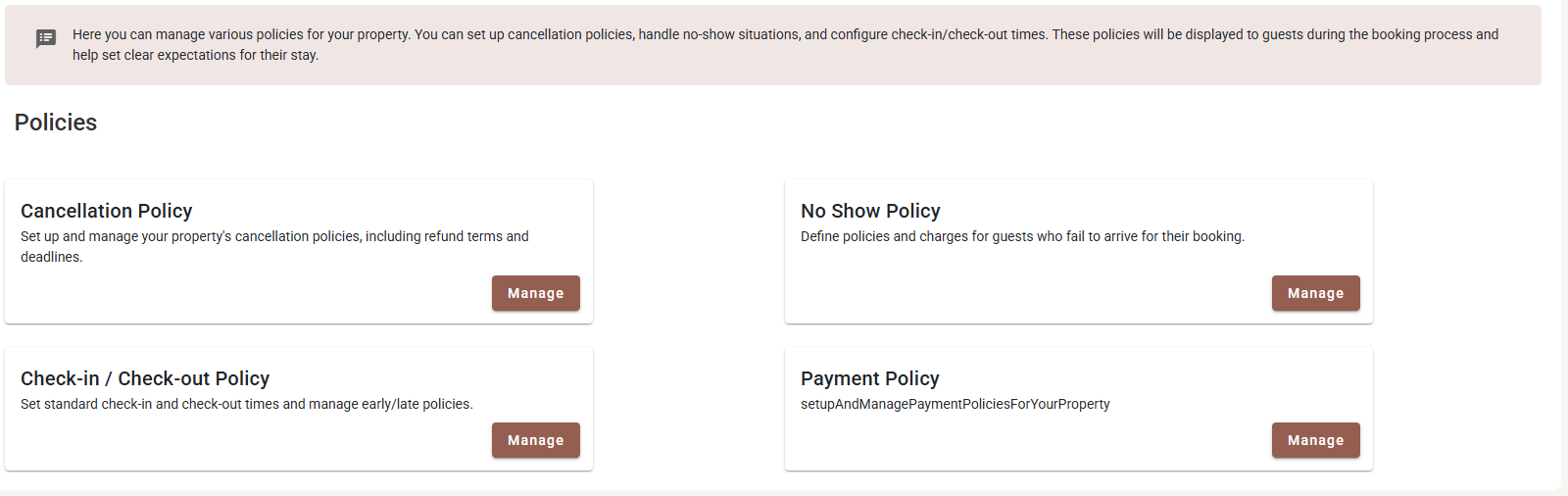
| Card | What it sets | How many |
|---|---|---|
| Cancellation Policy | Refund terms and the deadline for each. | A list — as many as you need. |
| No Show Policy | When an absent guest is written off, and what they are charged. | One setting for the whole property. |
| Check-in / Check-out Policy | The standard arrival and departure times. | One setting for the whole property. |
| Payment Policy | How much deposit is taken at the time of booking. | A list — see Payment Policy. |
Cancellation Policy
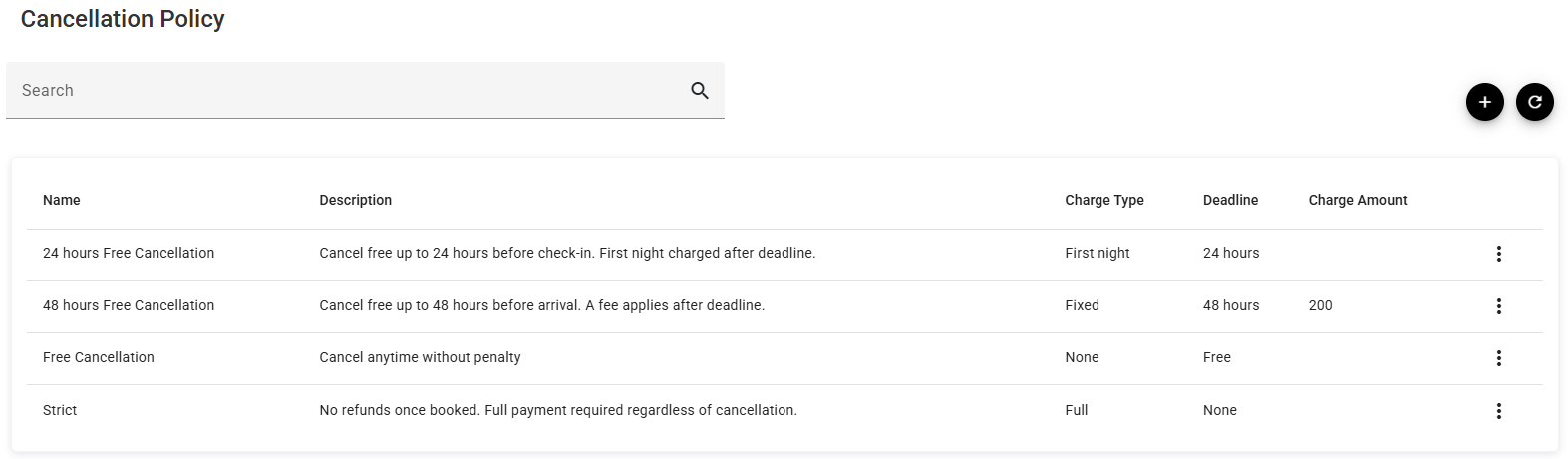
| Column | What it shows |
|---|---|
| Name | What the policy is called. This is what appears in the dropdown on a master rate, so it should read clearly on its own. |
| Description | Your own wording of the rule. Guests see this during booking, so write it as a sentence, not a note to yourself. |
| Charge Type | What is charged if they cancel late. |
| Deadline | How long before arrival cancelling is still free. |
| Charge Amount | The number, for the two charge types that take one. |
The ⋮ at the end of a row offers Edit and Delete.
Adding or editing a policy
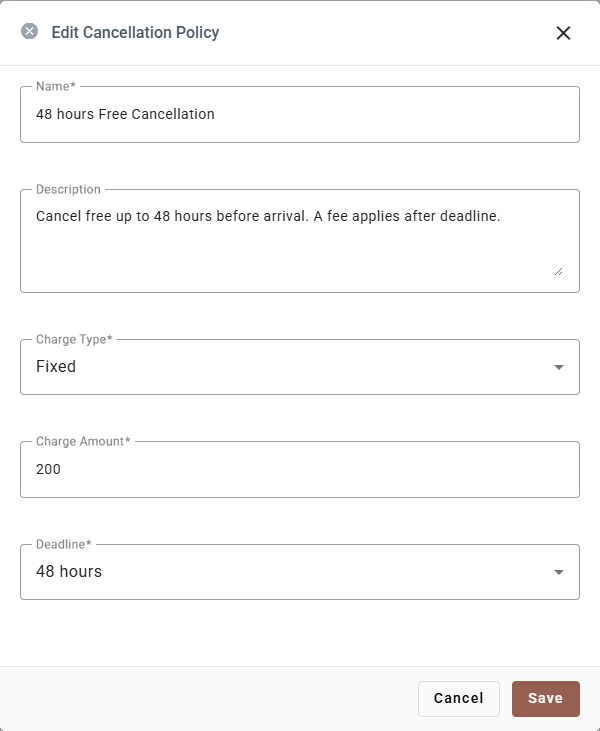
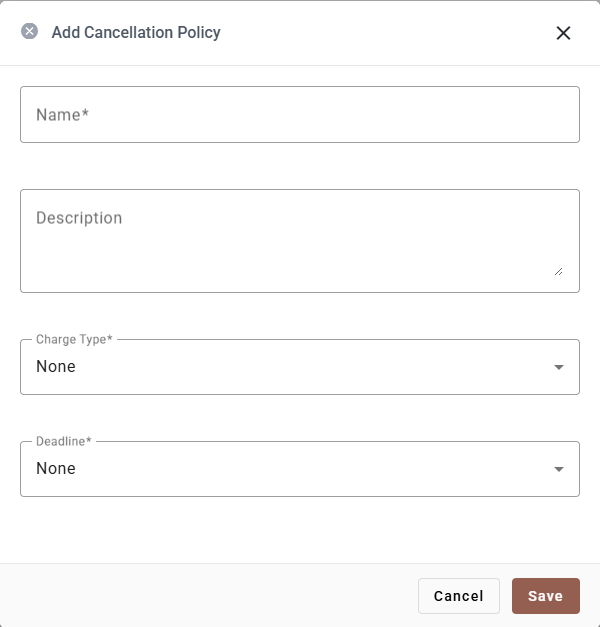
| Field | Required | What it does |
|---|---|---|
| Name | Yes | The label you pick from on a rate. |
| Description | No | The sentence the guest reads. |
| Charge Type | Yes | One of the five below. |
| Charge Amount | Only for Percentage and Fixed | The number. |
| Deadline | Yes | One of the six below. |
Charge Type — what you take when somebody cancels after the deadline:
| Type | What is charged |
|---|---|
| None | Nothing. Cancelling is free whenever they do it. |
| Percentage | A share of the booking total. Needs a Charge Amount. |
| First night | The value of one night. No amount to enter. |
| Full | The whole booking. No amount to enter. |
| Fixed | A flat sum in your currency. Needs a Charge Amount. |
Deadline — how late they may cancel and still pay nothing: 24 hours, 48 hours, 72 hours, 7 days, None or Free.
The two ends of the Deadline list are where policies get confused, so read them as a pair with the charge type:
- Deadline = Free means cancelling is always free. Whatever you set as Charge Type is never reached. Pair it with Charge Type = None so the row reads honestly.
- Deadline = None means there is no free window at all — the charge applies from the moment of booking. That is what makes a non-refundable rate, usually with Charge Type = Full.
Deleting a policy
Delete on the ⋮ asks you to confirm and then removes the policy. Unlike a payment policy, the list does not stop you deleting one that a master rate is using, so check the rate first — Master rates shows which cancellation policy each rate carries.
Existing reservations keep the terms they were booked under; deleting affects future bookings.
Writing policies guests understand
- Name it after what it does. 48 hours Free Cancellation is pickable from a dropdown in a hurry. Policy B is not.
- The description is guest-facing. Cancel free up to 48 hours before arrival. A fee applies after that. beats 48h/fixed/200.
- Two or three is usually enough. One flexible, one with a deadline, one non-refundable. Every extra one is another thing to keep consistent across every rate.
No Show Policy
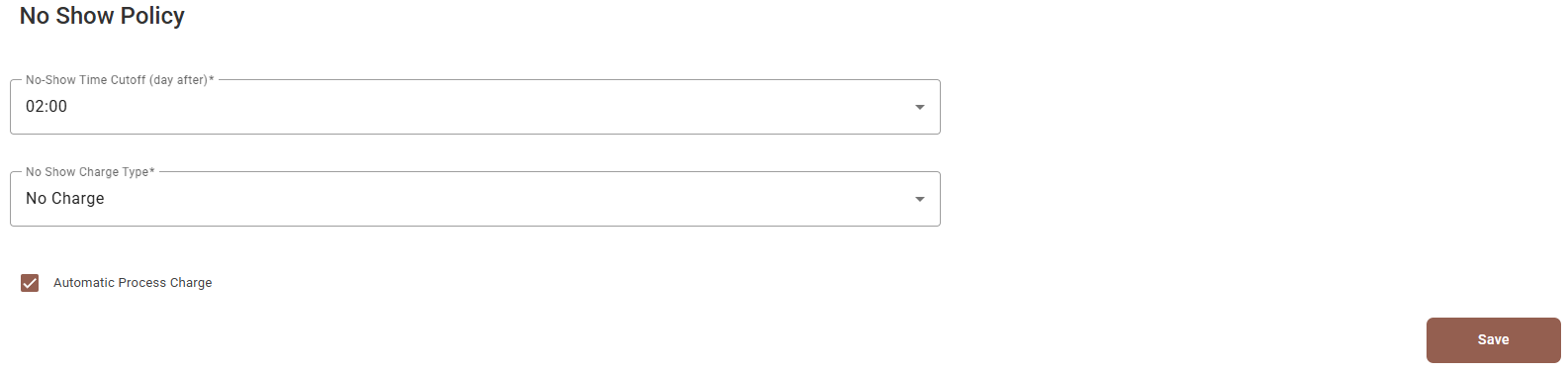
| Field | Required | What it does |
|---|---|---|
| No-Show Time Cutoff (day after) | Yes | The time on the following day at which a guest who never arrived is finally marked a no-show. Choose from a 24-hour list in half-hour steps. |
| No Show Charge Type | Yes | No Charge, First night, Full stay, Percentage or Fixed amount. |
| Percentage of Stay / Fixed Amount to Charge | Only for Percentage and Fixed amount | The number. The field relabels itself to match the type. |
| Automatic Process Charge | No | When ticked, the charge is posted to the reservation by itself when the cutoff passes. Unticked, the booking is marked a no-show and somebody has to add the charge by hand. |
The cutoff is the field people set wrongly. It is a time on the day after arrival, not on the
arrival day — 02:00 means two in the morning after the night they were due. That late hour is
deliberate: a guest landing at 23:40 is not a no-show, and a cutoff set to early evening would make
them one.
Check-in / Check-out Policy
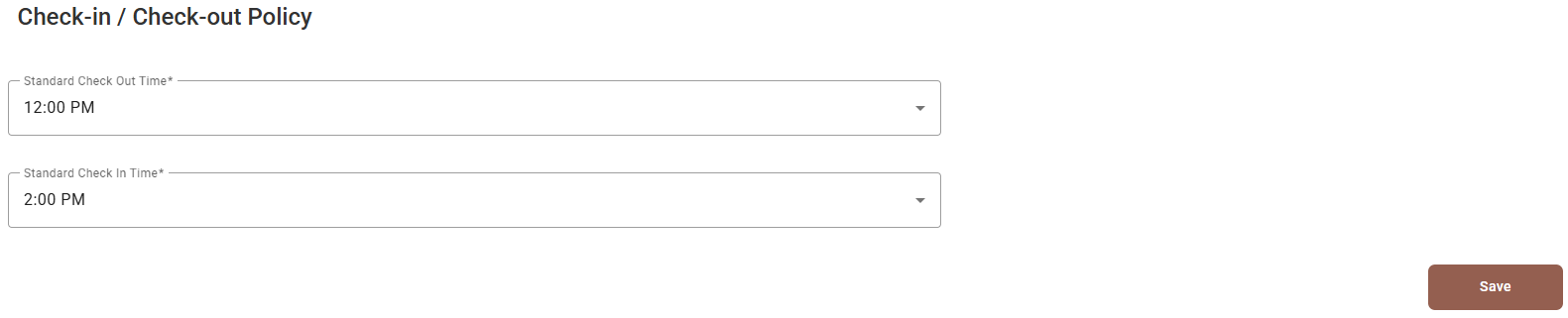
| Field | Required | What it does |
|---|---|---|
| Standard Check Out Time | Yes | When guests are expected to leave. |
| Standard Check In Time | Yes | The earliest arrivals are accepted. |
These two times are shown to guests and repeated in confirmations. The booking engine carries its own pair of times on its General tab — they are set separately, so check that the two agree.
Payment Policy
The fourth card opens the deposit rules, covered in full in Payment Policy.
If something does not work
| What you see | Why |
|---|---|
| The Charge Amount field vanished | The charge type was changed to one that takes no amount. The value is cleared too. |
| I cannot save the check-in / check-out times | Check-out must be earlier in the day than check-in. |
| A guest was charged for a no-show automatically | Automatic Process Charge is ticked. Untick it to decide case by case. |
| A no-show is still not marked | The cutoff is a time on the day after arrival; it has not passed yet. |
| Deleting a cancellation policy worked but a rate now looks wrong | Nothing prevents deleting a policy in use. Check the rate in Master rates. |
| The Payment Policy card shows a run-together word instead of a description | A missing translation. It is only the card’s subtitle; the screen behind it works normally. |
| Guests see different check-in times on the booking site | The booking engine keeps its own times under Booking engine — General. |