
Notifications
Subscribing to the things you care about, and the three places alerts reach you.
Notifications tell you when something happens that you asked to be told about. Nothing is pushed at you by default and there is no property-wide setting an administrator turns on for everyone — you watch the things you care about, and what you watch is yours alone.
The whole feature is three parts, and it reads more easily if you keep them apart:
| Where | What it is | |
|---|---|---|
| Subscribing | The Notify me button on a reservation, room or customer | Deciding what you want to hear about. |
| The inbox | The bell in the top bar | The quick look, without leaving the page you are on. |
| The Notifications page | Notifications in the sidebar | The full history, with filters, export and bulk actions. |
Subscribing to something
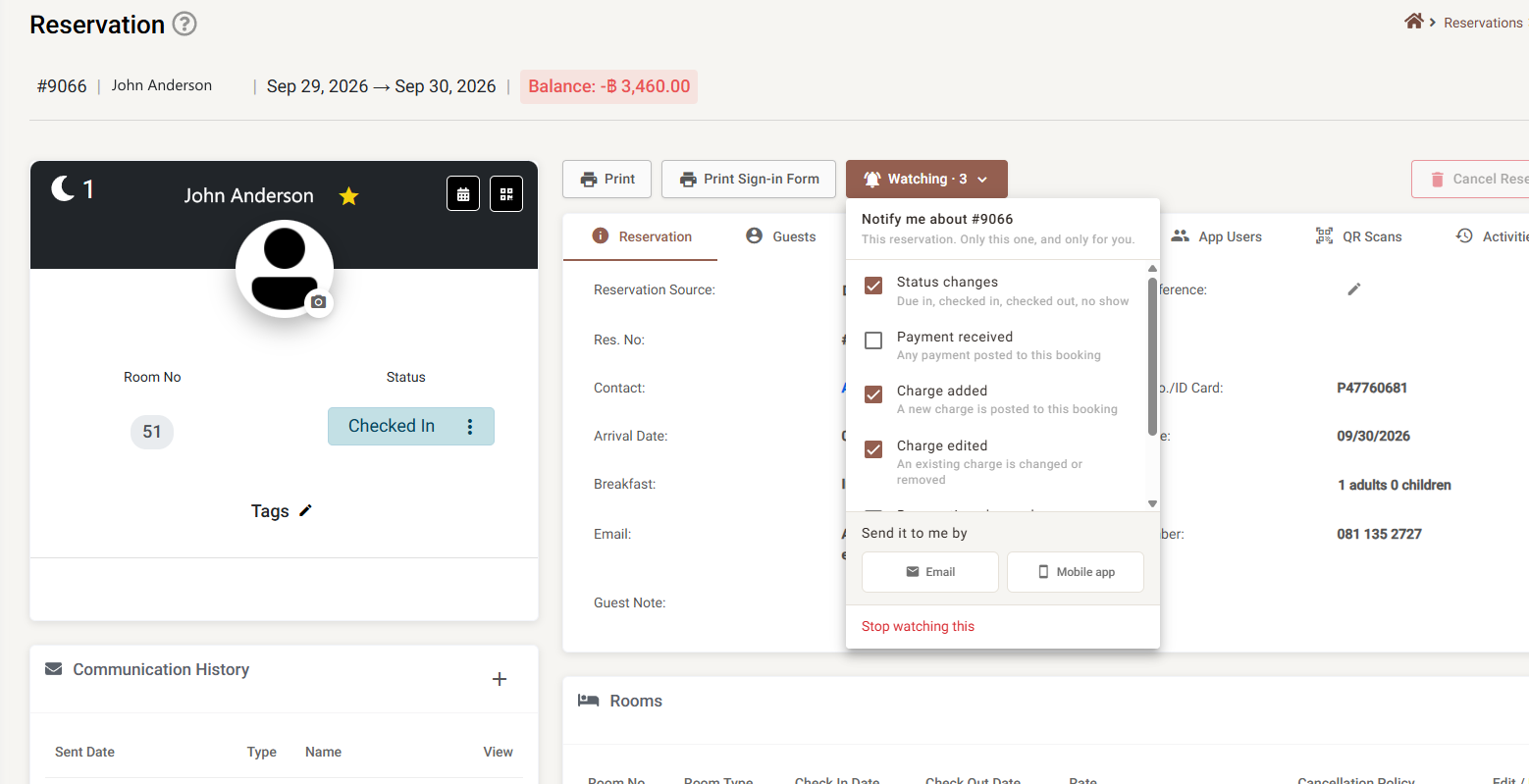
Open a reservation, a room or a customer and the header carries a bell button. It says Notify me when you are not watching, and Watching · 3 — the number of events you picked — once you are.
Clicking it opens a panel headed Notify me about #9066, with a line underneath telling you the scope: this reservation only, and only for you.
The events you can pick
Which events appear depends on what you opened. There are sixteen in total, across four scopes:
On a reservation
| Event | Fires when |
|---|---|
| Status changes | Due in, checked in, checked out or no-show. |
| Payment received | Any payment is posted to this booking. |
| Charge added | A new charge is posted to this booking. |
| Charge edited | An existing charge is changed or removed. |
| Reservation changed | The booking’s own details are edited. |
| Pre check-in completed | The guest finishes pre check-in. |
On a room — booked, blocked, cleaned, a maintenance entry added, checked in, checked out.
On a customer — books a reservation, makes a payment, changes their details.
On the property — a guest installs the guest app.
How it reaches you
Send it to me by offers Email and Mobile app.
If you are an Owner or a Manager, choosing Email reveals one more control: a staff picker that copies the email to other people as well as you. Other roles do not see it, and can only email themselves.
Stop watching this at the foot of the panel clears every event and closes it, which ends the subscription.
The inbox
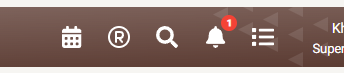
The bell in the top bar carries your unread count. Clicking it slides out the Inbox, subtitled Everything you asked to be told about.
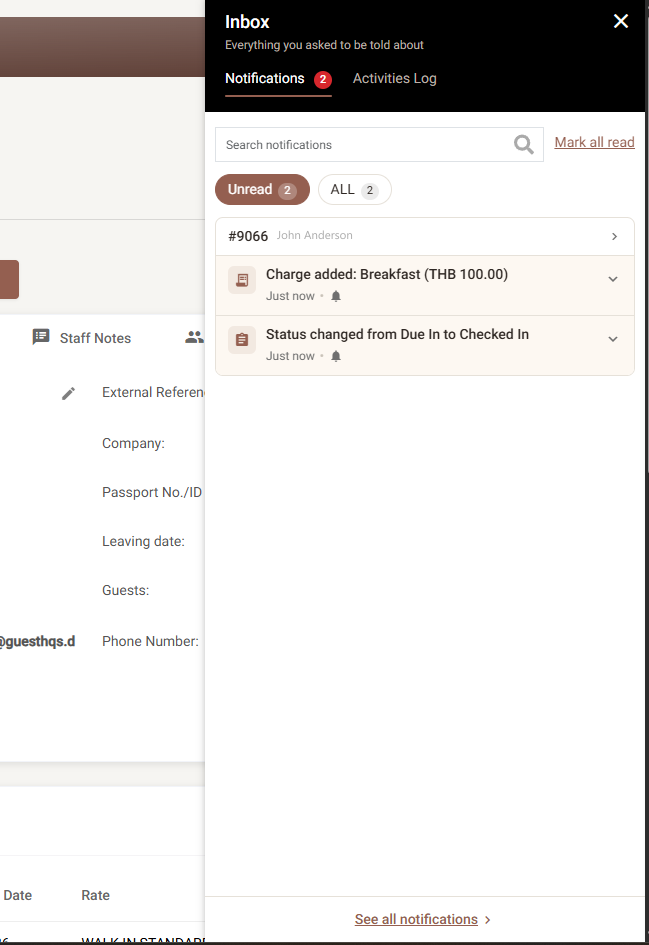
Two tabs: Notifications and Activities Log. Notifications are grouped under the record they concern — reservation number and guest name as a heading — with the Unread and All counts as chips, a search box, and Mark all read.
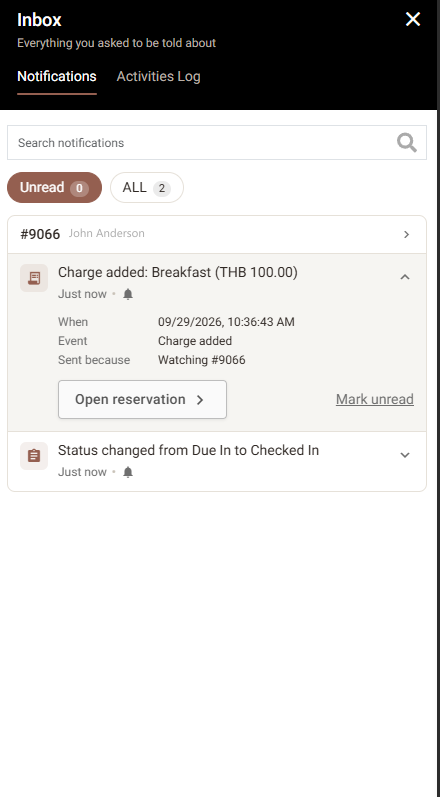
Click a notification and it expands:
| Line | What it tells you |
|---|---|
| When | The full timestamp. The collapsed row shows a relative time — Just now, 5 minutes ago, 2 days ago. |
| Event | Which of the sixteen events fired. |
| Sent because | Which subscription produced it — Watching #9066. This is the line to read when you want to know why you are being told something. |
| Open reservation | Goes straight to the record. The wording changes with the scope: room and customer notifications say Open room and Open customer. |
| Mark unread | Puts it back on the unread pile. |
See all notifications at the foot opens the full page.
The Notifications page
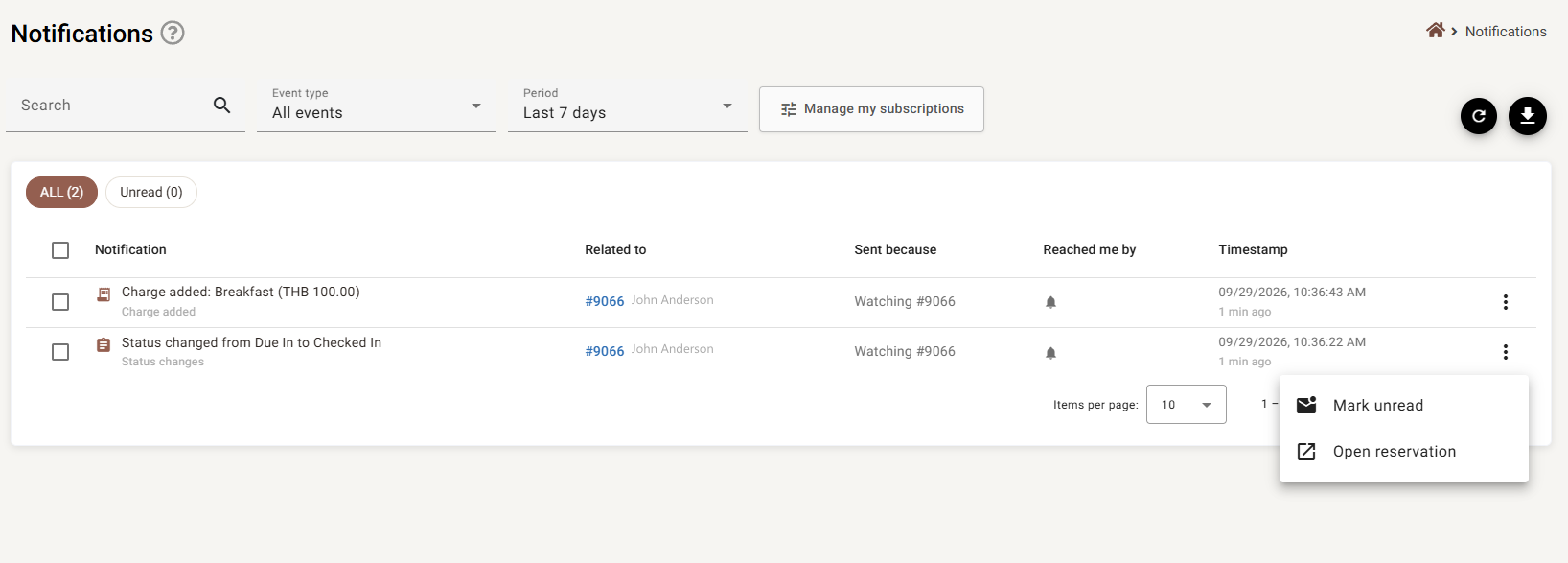
| Column | What it shows |
|---|---|
| Notification | What happened, with the event name underneath. |
| Related to | The record it concerns, as a link. |
| Sent because | Which subscription produced it. |
| Reached me by | An icon per channel — a bell for in-app, an envelope for email, a phone for mobile. |
| Timestamp | The full date and time, with the relative time beneath it. |
Search matches the notification text. Event type narrows to one of the sixteen events or All events. Period offers the last 7, 30 or 90 days — it opens on 7 days, which is worth knowing when something you expected is missing.
The ALL and Unread chips switch between the two, each showing its count. Tick rows to get Mark read, Mark unread and Clear; Mark everything read empties the unread count in one go. The ⋮ on a row offers Mark unread and Open reservation. Download exports what is on screen, and Manage my subscriptions goes to the list below.
My subscriptions
Settings → Notifications lists everything you are currently watching. It is yours alone — nobody else’s subscriptions appear here, and nothing you do on this page affects anyone else.

| Column | What it shows |
|---|---|
| What | The thing being watched, with an icon for its kind. The name is a link — click it to open the reservation, room or customer. Beneath it a line gives the scope: This reservation, This room, This customer or This property, and adds • Paused when it is paused. |
| Notifies me about | One chip per event. |
| Reaches me by | An icon per channel — a bell for in-app, an envelope for email, a phone for mobile. A subscription can use more than one. |
| Actions | The ⋮ menu: Pause (or Resume) and Stop watching. |
Pausing and stopping
They are not the same thing, and the difference is worth knowing before using either.
| What it does | |
|---|---|
| Pause | Keeps the subscription but stops it reaching you. The row is marked Paused and dimmed, and the menu item becomes Resume. |
| Stop watching | Removes it. You are asked to confirm, and the message names what you are about to stop watching. |
Pause is for the noisy week — the room being refurbished, the group generating a charge every hour. Stop is for things you have finished with.
Doing several at once
Tick the box at the start of a row — or the one in the header to take everything — and a bar appears above the table showing how many are selected, with Stop these, Pause these and Clear.
It is the quickest way back from a morning when you subscribed to too much.
If the list is empty you are told which kind of empty it is: not watching anything, or nothing matches that search.
Using this well
The feature is easy to over-subscribe to, and a bell that is always red is a bell nobody reads.
- Watch the exception, not the routine. Charge added on one VIP booking is useful. Charge added on every booking is your whole day.
- Keep email for things that must interrupt you. Everything already reaches the bell; email is for the ones worth stopping for.
- Watch rooms rather than reservations when the problem is the room. A room being refurbished generates the same events no matter who is in it.
- Go back and stop things. The bulk actions on the subscriptions list exist because everybody over-subscribes at first.
If something does not work
| What you see | Why |
|---|---|
| I ticked events but nothing was saved | The panel saves on close, so it should have been. Reopen it — the button reads Watching · N when a subscription exists. |
| There is no bell button on the page | Not every screen has one. It sits on reservations, rooms in Housekeeping and customers. |
| I cannot turn off in-app | It cannot be turned off. Every subscription reaches the bell; Stop watching this is how you end it entirely. |
| I cannot email another member of staff | Only Owners and Managers see the staff picker. |
| A notification I remember is not in the list | The period filter opens on the last 7 days. Widen it to 30 or 90. |
| Nothing arrives at all | Check Settings → Notifications — the subscription may be Paused. |
| I get told about things I did myself | Subscriptions watch the record, not other people. Stop watching it, or pause it while you work. |
| Emails are not arriving but the bell works | The subscription has in-app only. Reopen the panel and switch Email on. |