
Dashboard
The reception home screen: occupancy at a glance, room status groups and quick check-in.
The dashboard is a centralized tool that enables hotel staff to monitor and manage reservations, check-ins, check-outs, and room statuses in one place. It enhances operational efficiency and minimizes errors in room management.
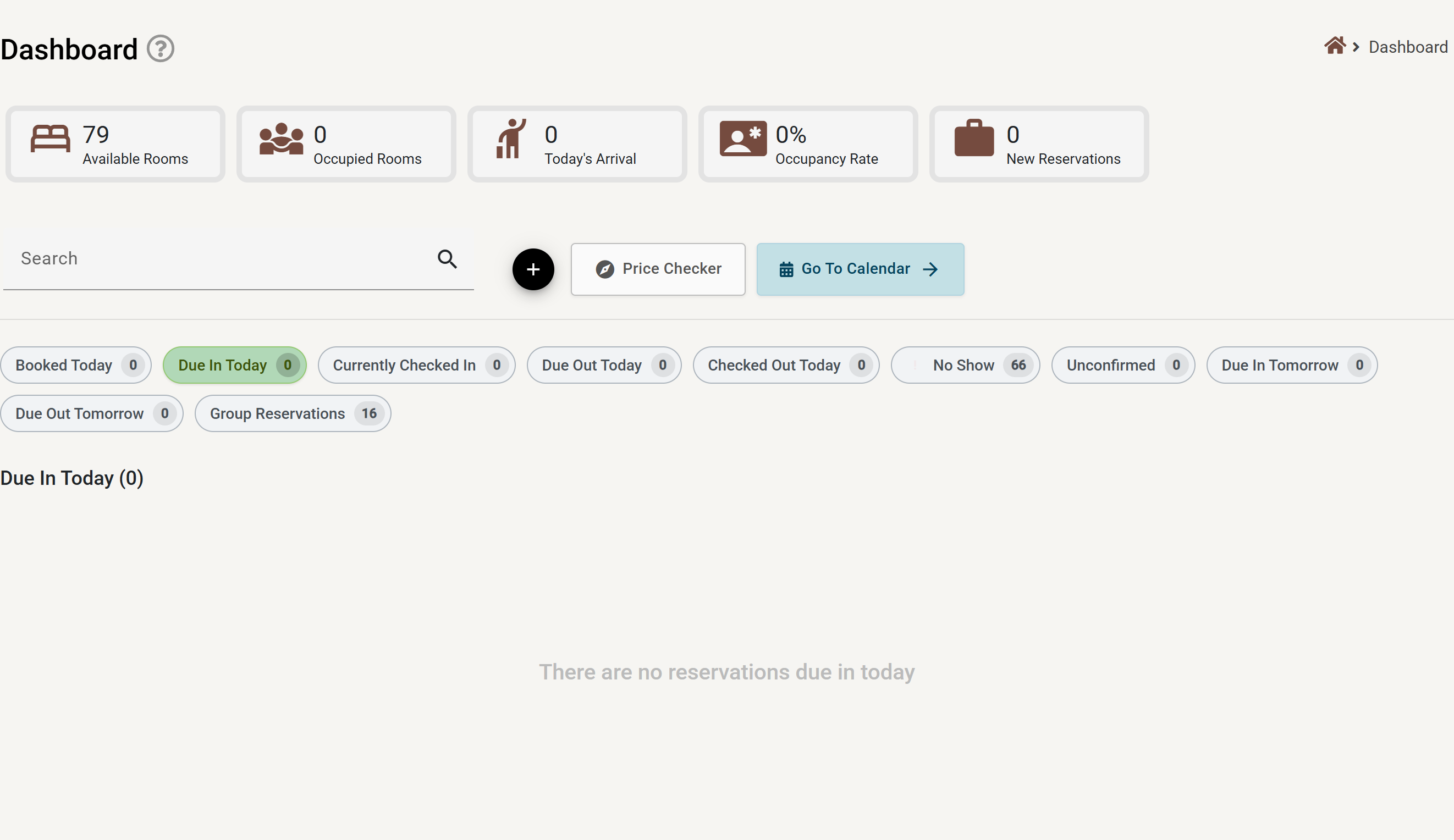
The buttons above the panels
| Control | What it does |
|---|---|
| Search | Filters the panel you are looking at by guest name or booking number. Clicking a different panel clears it. |
| + | Opens the new reservation form. |
| Price Checker | Asks for dates, adults, children and how many rooms, then lists what is available at what price — with a Reserve button to turn the answer into a booking. Use it for a phone enquiry without leaving the dashboard. |
| Go To Calendar | Opens the calendar at today. |
Working a panel
The chips — Booked Today, Due In Today, Currently Checked In, Due Out Today, Checked Out Today, No Show, Unconfirmed, Due In Tomorrow, Due Out Tomorrow, Group Reservations — are filters, not just counters. Clicking one shows that group and hides the others; only one is ever open, and the search box is cleared when you switch.
Inside an open panel you can act on several reservations at once:
- Tick the reservations you want, or use Select all. Unselect all clears the selection.
- Press the action for that panel — Check In All, Check Out All, or Set No Show Closed.
- A confirmation appears naming how many reservations it is about to act on. Nothing happens until you confirm.
Group Reservations behaves slightly differently: clicking a group opens it to show the rooms inside, and Back returns you to the dashboard.
Overview Icons – Summary of Hotel Status
This section provides a quick overview of the hotel’s current occupancy, reservations, and arrivals for the day.
-
Available Rooms
Displays the number of rooms currently unoccupied and available for new reservations. This helps staff quickly assess room availability.
-
Occupied Rooms
Shows the total number of rooms currently occupied by guests. This provides insight into the current hotel capacity.
-
Today’s Arrival
Indicates the number of guests scheduled to check in today. This helps the front desk prepare for upcoming arrivals.
-
Occupancy Rate
Displays the percentage of occupied rooms compared to the total available rooms in the hotel. A key metric for hotel performance.
-
New Reservations
Shows the number of new reservations made for the day, helping staff track new bookings.
Room Status Overview (Real-Time Room Monitoring)
The dashboard categorizes all rooms based on their current status, allowing staff to manage them efficiently.
- Booked Today – Reservations made today, regardless of arrival date.
- Due In Today – Rooms reserved for guests arriving today.
- Currently Checked In – Rooms that are currently occupied.
- Due Out Today – Guests scheduled to check out today.
- Checked Out Today – Rooms where guests have checked out and may require cleaning before the next reservation.
- No Show – Reservations where guests did not check in as scheduled.
- Unconfirmed – Bookings that are yet to be confirmed by the guest.
- Due Out Before Today – Guests who were scheduled to check out earlier but haven’t completed the process.
- Due In Tomorrow – Reservations for guests arriving the next day.
- Group Reservations – Bookings with multiple rooms linked under one reservation.
Each of these categories helps staff manage guest flow and room assignments efficiently.
Room Information Display
Each room entry provides a comprehensive summary to ensure efficient management and guest satisfaction.
- Guest Name – The name of the guest associated with the reservation.
- Quick Check-In – A button for the receptionist to quickly check in the guest.
- Tags – Indicators such as VIP, Group, or Special Requests for easy identification.
- Reservation Number (Res. No) – A unique identifier for the reservation.
- Room Type – Specifies the type of room booked (e.g., Deluxe, Studio, Standard Double).
- Balance – Displays any outstanding amount the guest needs to pay.
- Guest Notes – Special requests or instructions, such as “Needs a quiet room” or “Requires extra pillows.”
- Room Status – Indicates whether the room is ready for check-in or requires housekeeping.
- Cleaning Status – Shows whether the room is clean, dirty, or in progress.
- Pre Check-In Complete – Confirms if the guest has completed pre-check-in requirements.
- Room Number – The assigned room number.
- Guest Count – The number of guests staying in the room.
- Check-In and Check-Out Dates – Displays the reservation duration for easy tracking.
This section allows staff to access all necessary information at a glance without needing to switch between screens.
Price Checker
The Price Checker feature provides a detailed breakdown of room rates for different room types on any selected date. This helps staff:
- Compare prices across different dates.
- Monitor price fluctuations based on demand.
- Ensure accurate pricing for reservations.
This feature is essential for managing dynamic pricing and maximizing revenue.
Create Reservation
The reservation creation module allows staff to efficiently book rooms for guests while adding essential details.
- Reservation Information
- Add Tags – Mark reservations with labels such as VIP, Group, or Special Requests.
- Set as Unconfirmed – Option to keep the reservation status pending until confirmation is received.
- Rooms
- Add multiple rooms under a single reservation based on the guest’s booking requirements.
- Add Card
- Save a guest’s card on file as a guarantee, without charging it yet.
- Add Extras
- Include additional services such as airport transfers, breakfast, or spa treatments.
- Add Payment
- Process guest payments, including deposits and full payments.
- Apply Coupon
- Apply discount codes or promotional offers for eligible guests.