
Changing a reservation status
The eight statuses, the three places you can change one from, and why most of the menu is greyed out.
A reservation moves through a life cycle, and its status is where it has got to. Most of the time it moves on its own — a booking becomes Due In on the morning of arrival — and the two steps staff actually press are check-in and check-out.
The rest of the time you need the status menu. It is in three places, it always lists all eight statuses, and most of them will be greyed out. That is the part worth understanding, because it is not a fault and it is not arbitrary.
The eight statuses
| Status | What it means |
|---|---|
| Unconfirmed | Held, not committed. Has a hold until deadline — see Booking requests. |
| Booked | Confirmed, arrival still in the future. |
| Due In | Arriving today. The guest is expected at the desk. |
| Checked In | In the room. |
| Due Out | Leaving today. |
| Checked Out | Gone, and the stay is closed. |
| No Show | Never arrived. |
| No Show (Closed) | A no-show you have dealt with — written off, charged, or whatever your policy says. |
Status is per room, not per booking. A group reservation with five rooms has five statuses, and they can differ — one guest of a party can check in while the rest are still due.
Where you can change it
From the dashboard
Each card on the dashboard has a ⋮ menu, and Reservation Status opens a submenu of all eight.
The card also carries a CHECK-IN button for the one step you take most. When that step is not allowed, the button is disabled and its label is replaced by the reason — so the button itself tells you what is in the way rather than going quietly dead.
From the reservation
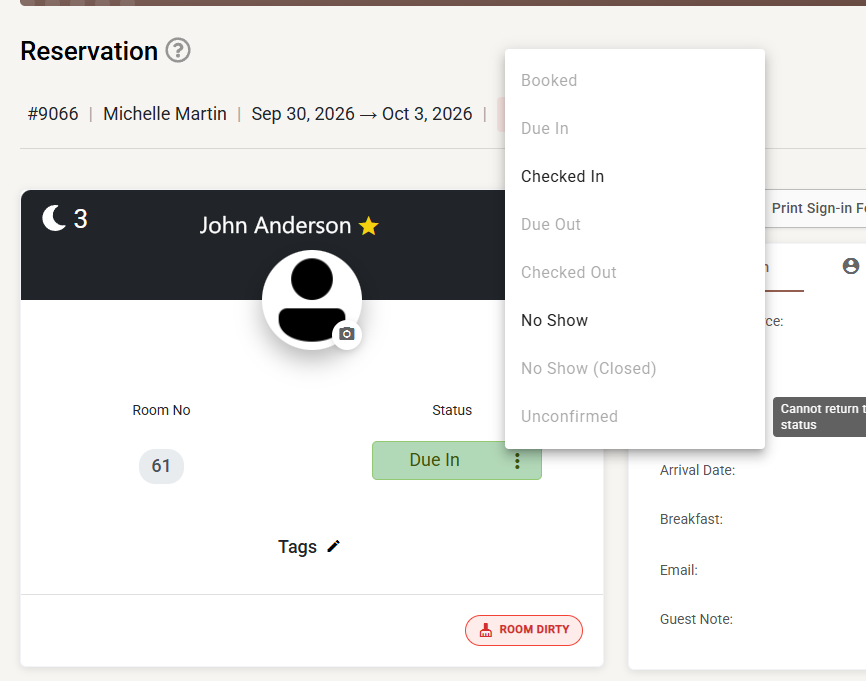
Open the reservation and the status chip beside the room number has its own ⋮.
From the calendar
Clicking a block on the calendar opens its summary, and the status chip there works the same way.
All three open the same menu and do the same thing. Use whichever screen you are already on.
Why most of the menu is greyed out
The menu is not a list of choices. It is the whole life cycle, with the legal next steps enabled and everything else disabled — and SupremeStay works out which is which on the server, per reservation, every time it sends one to the screen. It also sends the reason each blocked entry is blocked.
So a greyed-out item is never a mystery: hover it and the tooltip says why.
Reading the two examples above:
| The booking is | Enabled | Why those |
|---|---|---|
| Due In | Checked In · No Show | The guest either turns up or does not. |
| No Show | Checked In · No Show (Closed) | They arrived very late after all, or you are closing the no-show off. |
Unsafe transitions
Some moves are possible but wrong by default — undoing a check-out done by mistake, for instance. Those appear in the menu with (unsafe) beside the label, and they are only offered when Allow unsafe status transitions is on in Settings → General.
The toggle itself only appears for properties whose subscription includes it. If you cannot find it in General settings, it is not available on your plan rather than hidden somewhere else — see General settings.
What blocks a check-out
Check-out has two conditions of its own beyond the life cycle:
- An outstanding balance. The button says Guest has outstanding payments. Settle it first — this is the last moment you can. See Payments view.
- The date. Check-out is only allowed on the day the stay ends. Leaving early means changing the departure date on the reservation first.
Cancelling
Cancel is a status like any other, and it appears only when the booking can still be cancelled. When it cannot, the reason is on the tooltip — most often because the stay has already started.
A cancelled booking keeps its number and its history. It does not disappear; it stops occupying the room.
Changing several at once
For a whole panel of arrivals or departures, do not go card by card. The dashboard and the reservation list both take a selection and move it in one action — see Quick check-in and check-out.
The same rules apply: anything the server refuses comes back in the result dialog with its reason, so a bulk action can partly succeed rather than being all-or-nothing.
What a status change sets off
- Checking in marks the room dirty, if Automatically set checked-in rooms as dirty is on in Settings → General. See Housekeeping.
- Staff subscribed to the event are notified — check-in, check-out and no-show each have their own subscription. See Notifications.
- The change is recorded against you in the activity log, with the time. See System reports.
If something does not work
| What you see | Why |
|---|---|
| Most of the status menu is greyed out | Normal. Only the legal next steps are enabled. Hover a greyed entry for the reason. |
| The CHECK-IN button is disabled and reads something else | Its label has been replaced by the reason it cannot be pressed. |
| Check-out is refused | An outstanding balance, or it is not the departure date. |
| I cannot move a booking backwards | Statuses go forwards by default. Allow unsafe status transitions in General settings opens the rest. |
| (unsafe) beside a status | That move is allowed but can leave the booking inconsistent. Make the correction and switch the setting off again. |
| I cannot find the unsafe-transitions toggle | It is only shown for subscriptions that include it. |
| Cancel is missing from the menu | The booking can no longer be cancelled; the tooltip says why. |
| One room of a group changed and the others did not | Status is per room. Change each, or use a bulk action. |
| A bulk change worked for some and not others | Each is checked separately. The result dialog lists the failures with reasons. |