
Reservation List
Search, filter and bulk-manage every booking in the property.
Every booking in the property, as one searchable list. It is the view to use when you need to find a particular reservation, or to act on a set of them at once — the calendar is better for availability, and the dashboard for today’s arrivals and departures.
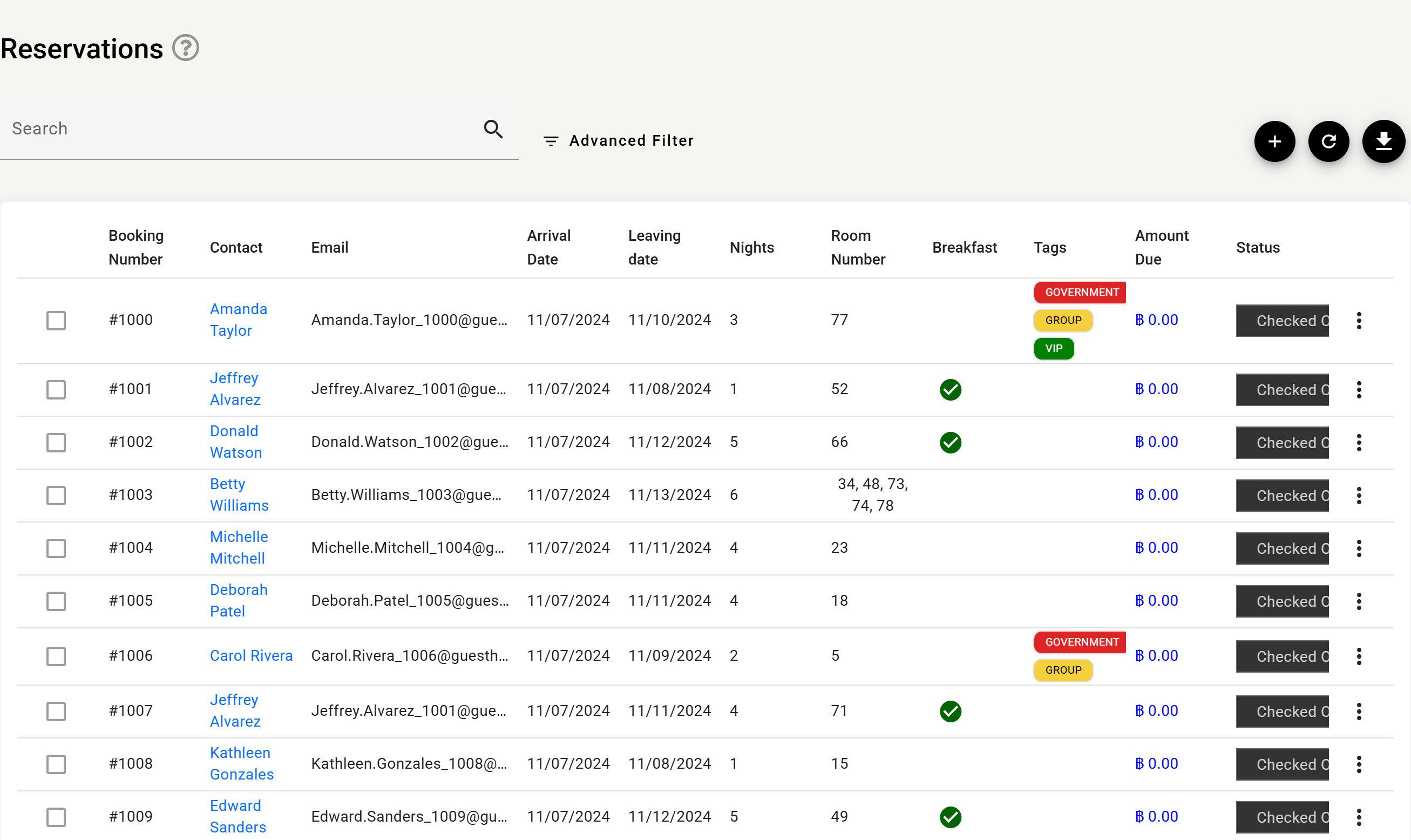
The three buttons at the top right
| Button | What it does |
|---|---|
| + | Opens the new reservation form. |
| Refresh | Re-reads the list from the server. Use it after someone else has changed something. |
| Export | Opens the export dialog described below. |
What each column tells you
| Column | Meaning |
|---|---|
| Booking number | The reservation’s own number. |
| Contact | The main guest — a link straight to the reservation. |
| The contact’s address, used for the guest app and messages. | |
| Arrival / Leaving date | The stay. |
| Nights | How many nights it covers. |
| Room number | The room. Several numbers here means a group — booking #1003 above holds rooms 34, 48, 73, 74 and 78 on one reservation. |
| Breakfast | A tick when breakfast is part of the rate. |
| Tags | Your own labels — VIP, GROUP, GOVERNMENT. Set them up in Tags. |
| Amount due | What is still outstanding. |
| Status | Where the booking is in its life: Booked → Due in → Checked in → Due out → Checked out, or Unconfirmed, No-show, No-show closed, Cancelled. |
The ⋮ at the end of each row has one item, Details, which opens the reservation — the same as clicking the contact’s name.
Advanced Filter
Advanced Filter narrows the list by arrival date, departure date, created date, status, source, room type, reservation type, tags, breakfast and balance. Dates take a preset — today, tomorrow, yesterday, last 7 days, next 7 days, previous month — or a range of your own.
Every filter you apply appears as a chip above the list. Remove one by clicking its chip, or clear the lot with Remove all. If the list looks wrong, check the chips first — a filter left on from earlier is the usual explanation.
Changing the status of several bookings at once
Tick the checkbox on each row you want, and a button appears whose wording changes to match what you selected:
| Selected reservations are | The button says | They become |
|---|---|---|
| Booked | Mark Due In | Due in |
| Due in | Check In | Checked in |
| Checked in | Mark Due Out | Due out |
| Due out | Check Out | Checked out |
| Due in tomorrow | Mark Due In Today | Due in |
| Due out tomorrow | Mark Due Out Today | Due out |
| No-show | Close No Show | No-show closed |
Two rules decide what you can tick:
- Checked out, No-show closed and Unconfirmed rows cannot be selected at all. They have nowhere further to go, or are not yet a commitment.
- Everything selected must share the same status. The button works out one move for the whole selection, so a mixed selection has no single next step and the button stays disabled.
When it finishes, a result dialog lists what happened — the reservations that moved, and separately any that failed with the reason for each. A bulk action is not all-or-nothing: some can succeed while others are refused, which is why the dialog shows both lists.
Exporting
Export opens a dialog with three choices:
- Export type — Reservations (one row per booking) or Room reservations (one row per room, so a five-room group becomes five rows).
- Format — Excel or CSV.
- Columns — tick exactly what you want, with Select all and Select none to start from either end.
The export follows the filters currently applied, so filter the list first and the file will match what you can see.
Paging
The paginator at the bottom shows 5, 10, 25 or 100 rows at a time, with first and last page buttons. Sorting and filtering apply to the whole list, not just the page on screen.