
Group reservations
Several rooms on one reservation: rooming, charges and splitting the bill.
A group is one reservation holding several rooms. Keeping them together means one reservation number, one contact, one bill if you want it — and one place to change the dates if the whole party moves.
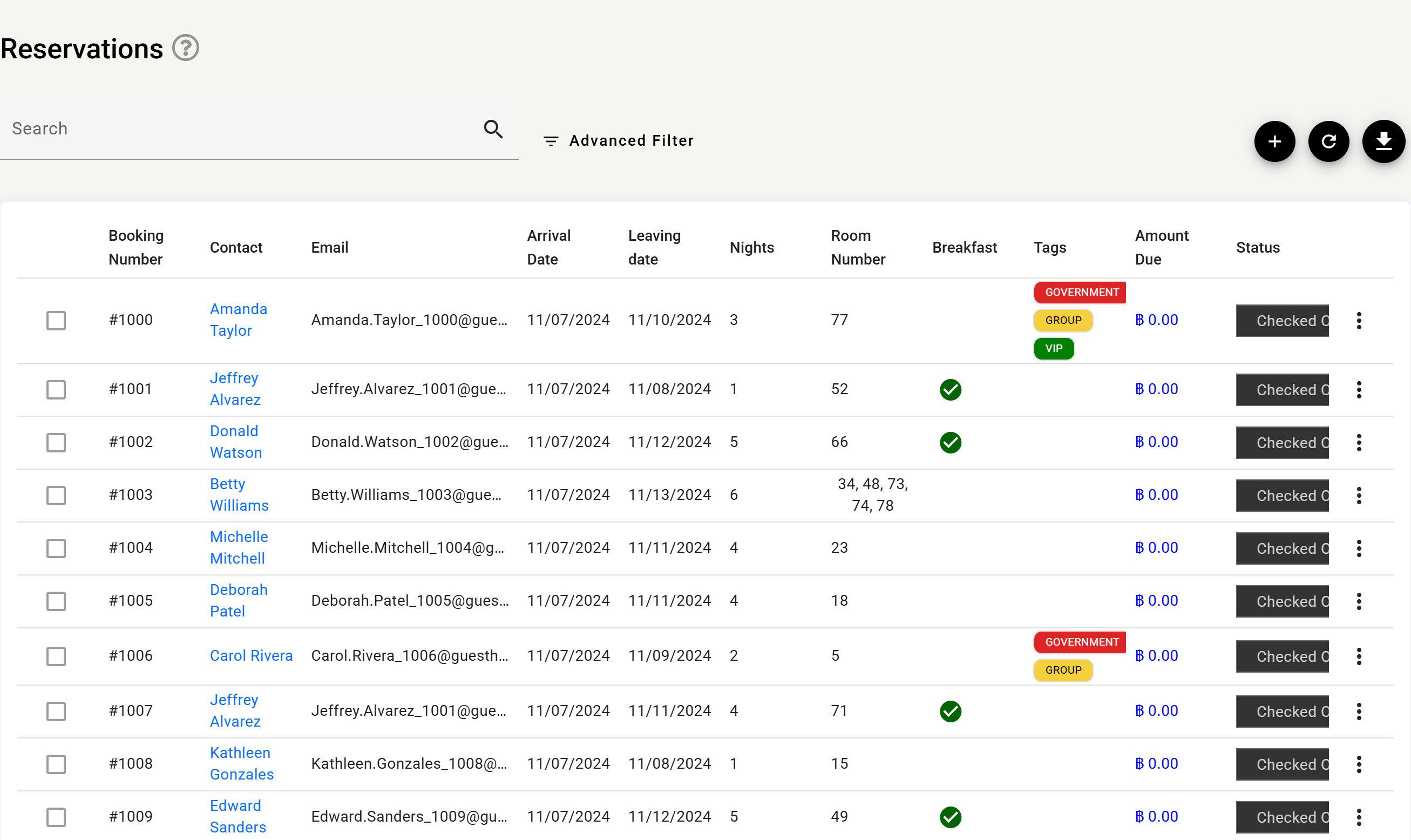
Spotting a group in the list
A group looks like any other row in the reservation list except for
the Room number column, which shows every room on the booking — 34, 48, 73, 74, 78 in the
example above. Add a GROUP tag if you want them to stand out further; tags
are your own labels and are filterable.
Today’s groups also get their own panel on the dashboard. Clicking the group there opens it to show the rooms inside, and Back returns you to the dashboard.
Building one
On the reservation form, the Rooms section takes more than one row. Add room adds another, and each row carries its own:
- Room type and room number — or the holding area if the room is not decided yet
- Rate, or your own custom rate for that room
- Its own dates within the reservation
Rooms can be added after the reservation exists, so a group that grows does not have to be rebuilt.
The holding area
A room row can be left in the holding area rather than assigned a room number. That reserves the room type without committing a specific room — useful when the group is confirmed but the rooming list is not. Assign the real rooms nearer the date.
Guests and rooming
Guests are added individually and assigned to rooms, so you can build the rooming list as names come in. Each guest carries their own details and can be moved between rooms without touching the charges.
Change contact sets which guest is the reservation’s main contact — the person your messages and the guest app go to.
Billing a group
Charges do not all have to end up on one bill. New billing group splits the reservation into separate bills, so the organiser can pay for rooms while each guest settles their own extras.
- Move a charge between billing groups from the charges list.
- Each billing group produces its own invoice or receipt.
- Delete billing group merges its charges back.
See Charges view for how charges work generally.
On the dashboard
Today’s groups have their own panel on the dashboard, separate from individual arrivals, so a coach load does not get lost among the walk-ins.