
Tags
Colour-coded labels you put on reservations so staff spot them at a glance.
A tag is a coloured label you put on a reservation — VIP, Group, Government, Member. It changes nothing about the booking; it is there so a receptionist glancing at the calendar sees straight away that this one is different.
This page is the catalogue. Tags are applied on the reservation itself, not here.
Opening the page
- Open Settings from the left sidebar.
- Choose the Tags tab.
What is on the page
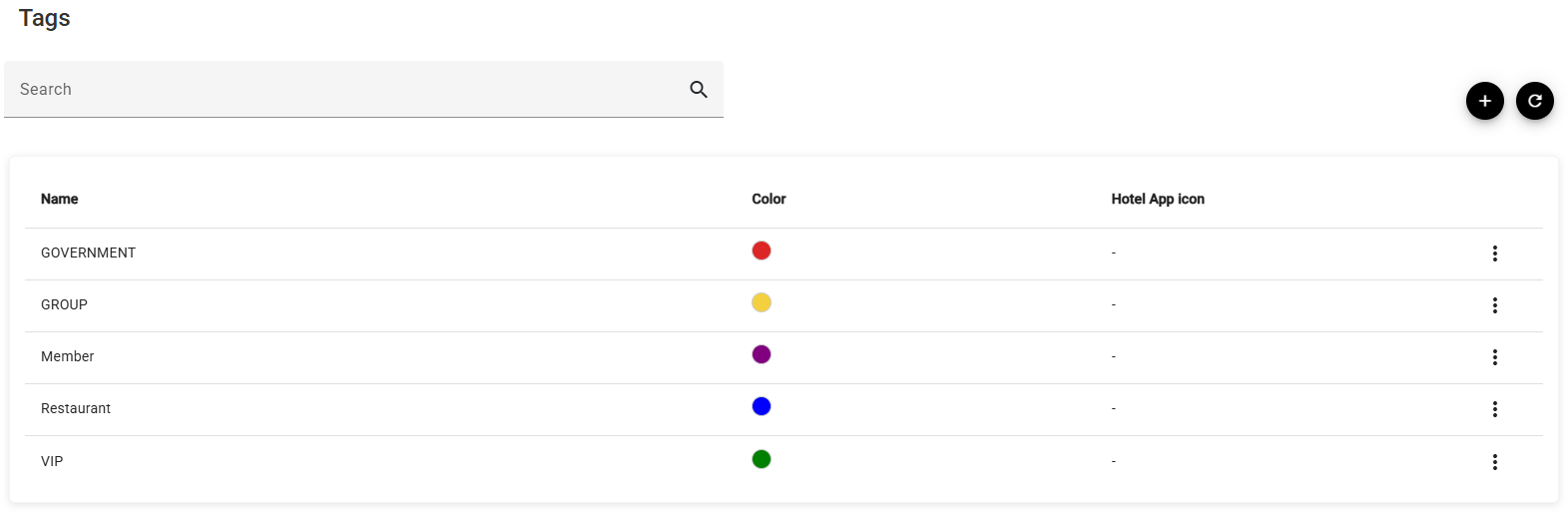
| Column | What it shows |
|---|---|
| Name | What the tag says. |
| Color | A swatch of the colour it appears in. |
| Hotel App icon | The icon, or a dash. Most tags have none, and that is fine. |
Search narrows the list, + adds a tag, ⟳ reloads, and the ⋮ offers Edit and Delete.
Adding or editing a tag
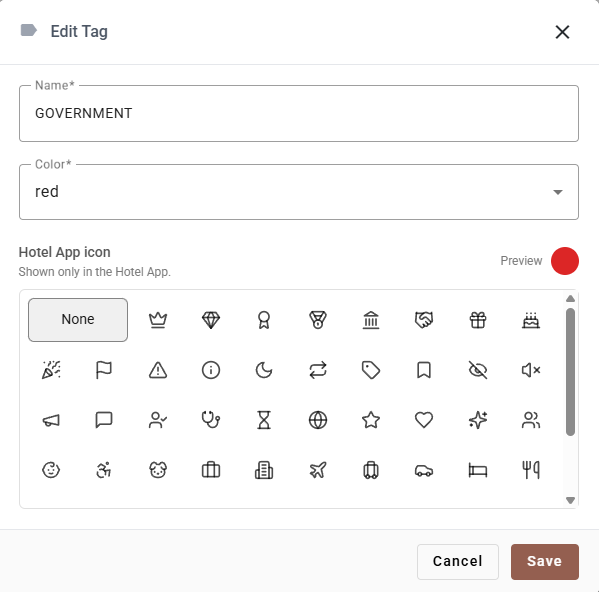
| Field | Required | What it does |
|---|---|---|
| Name | Yes | Between 2 and 100 characters, not just spaces. Short is better — it has to fit on a chip beside a guest’s name. |
| Color | Yes | One of five: red, green, blue, yellow, purple. |
| Hotel App icon | No | None is the first option and the usual answer. |
The Preview at the top right draws the icon in the chosen colour as you pick, so you can see the result before saving.
Five colours, used deliberately
There are only five, which is a constraint worth using rather than working around. A tag is only useful if its colour means something at a glance, and that stops being true somewhere around the sixth colour.
Pick a convention and keep it — for example red for anything needing attention, green for anything already settled — and let the name carry the detail.
The icon is Hotel App only
The dialog says so under the heading: the icon is shown only in the Hotel App. Everywhere else — the calendar, the dashboard, the reservation itself — a tag is its name and its colour.
So an icon is worth setting only for tags your staff will meet on their phones, and leaving it as None costs nothing.
Using a tag
Tags are put on from the reservation, not from this page. On the reservation form, Add tags by the guest’s name opens the list you have built here.
A tagged reservation then shows its tag on the calendar, the dashboard and the reservation list — which is the whole point of choosing the colour carefully.
Deleting a tag
Delete on the ⋮ menu removes it from the catalogue.
If a tag is in use, think about what its absence does to reservations that carry it before removing it. Renaming is usually the better move — it keeps every booking already labelled and just changes what the label says.
If something does not work
| What you see | Why |
|---|---|
| A tag is not offered on a reservation | It has to exist here first. Add it, then reopen the reservation. |
| The icon does not appear on the calendar | Icons are shown in the Hotel App only. Elsewhere a tag is name and colour. |
| Only five colours are offered | That is all there are, on purpose — more colours stop being distinguishable at a glance. |
| The name is refused | Under 2 characters, over 100, or nothing but spaces. |
| A tag name is cut off | It is being shown on a chip. Shorten it; the detail belongs in a sticky note. |