
Extras
Everything you sell alongside the room, and where each one can be bought.
An extra is anything you sell that is not the room — an extra bed, breakfast, an airport shuttle, a late checkout, a cancellation fee. Each one is defined once here, then charged to a reservation whenever it is used.
The settings that matter most are not the price. They are where an extra can be bought: at the desk only, on the guest app, on the booking engine, or on only some room types.
Opening the page
- Open Settings from the left sidebar.
- Choose the Extras tab.
What is on the page
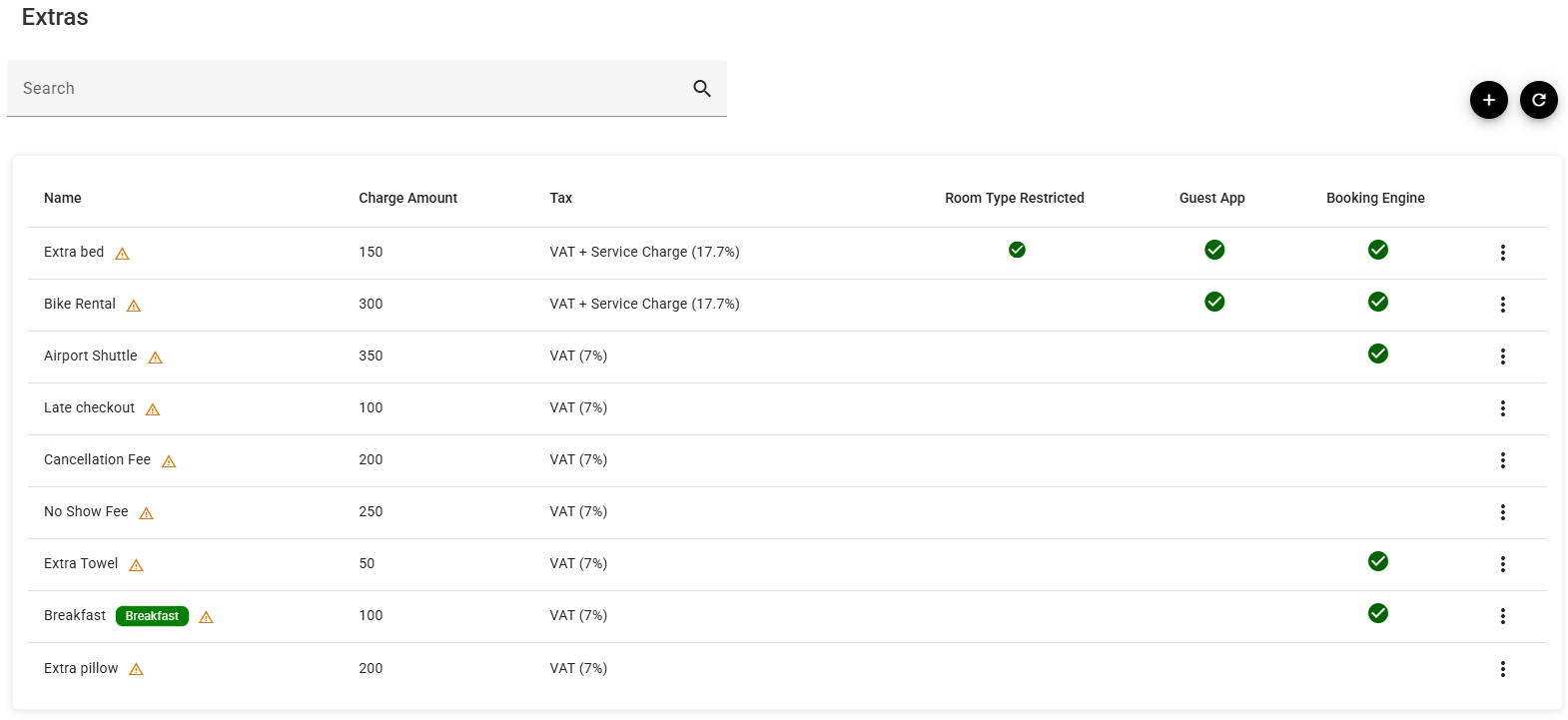
| Column | What it shows |
|---|---|
| Name | What it is called. A green Breakfast badge marks the one flagged as breakfast; a ⚠ is about its transaction code. |
| Charge Amount | The price. |
| Tax | The tax and its rate, or a dash for none. From Taxes and fees. |
| Room Type Restricted | A tick means it is offered on some room types only. Hover it to see which. |
| Guest App | A tick means guests can order it from the guest app. |
| Booking Engine | A tick means guests can add it while booking. |
Search narrows the list, + adds an extra, ⟳ reloads, and the ⋮ offers Edit and Delete.
Adding or editing an extra
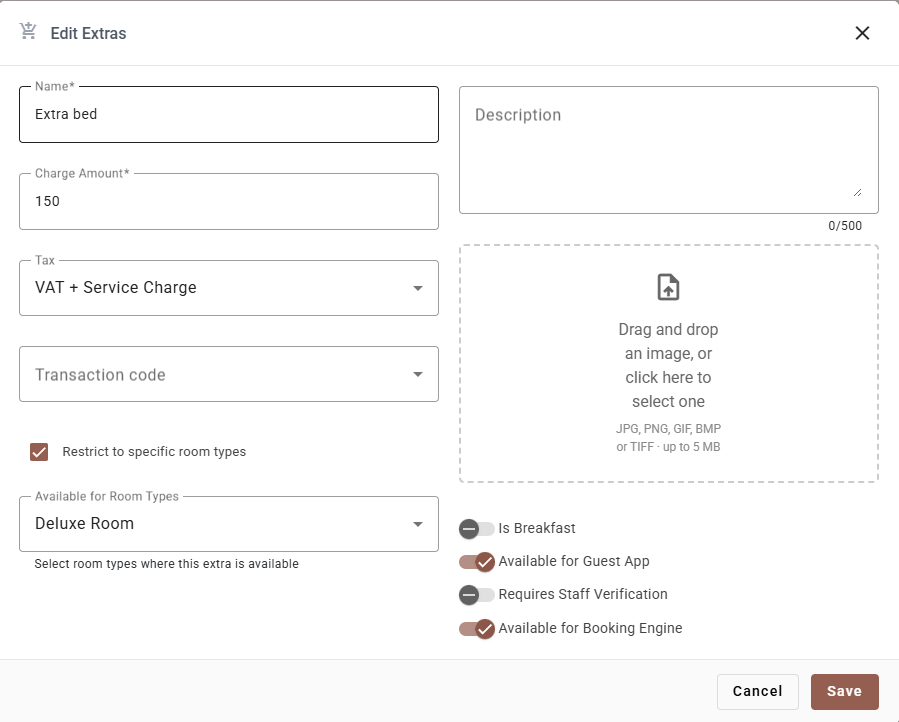
The left column
| Field | Required | What it does |
|---|---|---|
| Name | Yes | What staff and guests see. |
| Charge Amount | Yes | The price. Cannot be negative. |
| Tax | No | One tax from Taxes and fees, or No tax. |
| Transaction code | No | Where this extra’s revenue posts in the ledger. Leaving it empty is what puts the ⚠ on the row. |
| Restrict to specific room types | — | Off, the extra is offered on everything. On, a Available for Room Types list appears and you pick which — with a select-all row at the top. |
The right column
| Field | What it does |
|---|---|
| Description | Up to 500 characters, with a counter. This is what a guest reads before deciding, so it earns its place on anything sold through the guest app or booking engine. |
| Image | One picture, 5 MB at most. JPG, PNG, GIF, BMP, TIFF or PDF; anything else is refused. The 🗑 removes it. |
The four toggles
| Toggle | What it does |
|---|---|
| Is Breakfast | Marks this extra as the breakfast. It gets the green badge in the list and is treated as breakfast elsewhere rather than as a generic add-on. |
| Available for Guest App | Guests can order it themselves from the guest app during their stay. |
| Requires Staff Verification | A guest’s order has to be confirmed by staff before it is charged. Use it for anything with a real-world constraint — a shuttle that depends on a driver, a late checkout that depends on the next arrival. |
| Available for Booking Engine | Guests can add it while booking on your own site. |
Deleting an extra
Delete on the ⋮ menu asks you to confirm.
An extra already charged on a reservation is better left in place — the charge has to keep pointing at something. If you no longer sell it, taking the three availability toggles off keeps it out of guests’ hands while leaving the history intact.
If something does not work
| What you see | Why |
|---|---|
| Guests cannot see an extra in the app | Available for Guest App is off, or the extra is restricted to room types that are not theirs. |
| An extra is missing from the booking engine | Available for Booking Engine is off. |
| An extra is missing for one room type | Restrict to specific room types is on and that type is not ticked. |
| A ⚠ next to the name | No transaction code, or the one assigned has been switched off. |
| An image was refused | Over 5 MB, or not one of the accepted formats. |
| Guest orders arrive with nobody able to fulfil them | Requires Staff Verification is off for an extra that needs a person to agree to it. |
| The Breakfast badge is on the wrong extra | Only one should carry Is Breakfast. Switch it off on the others. |