
Managing booking engines
Creating a booking engine, its secure key, languages and putting it on your website.
A booking engine is the booking form on your own website — the one that costs you no commission. A property can have more than one: typically one per language, or one per website if you run several.
They are created and listed in Settings → Booking engine. Each engine’s own content and appearance is then edited from its entry in the sidebar; see Booking Engine Settings.
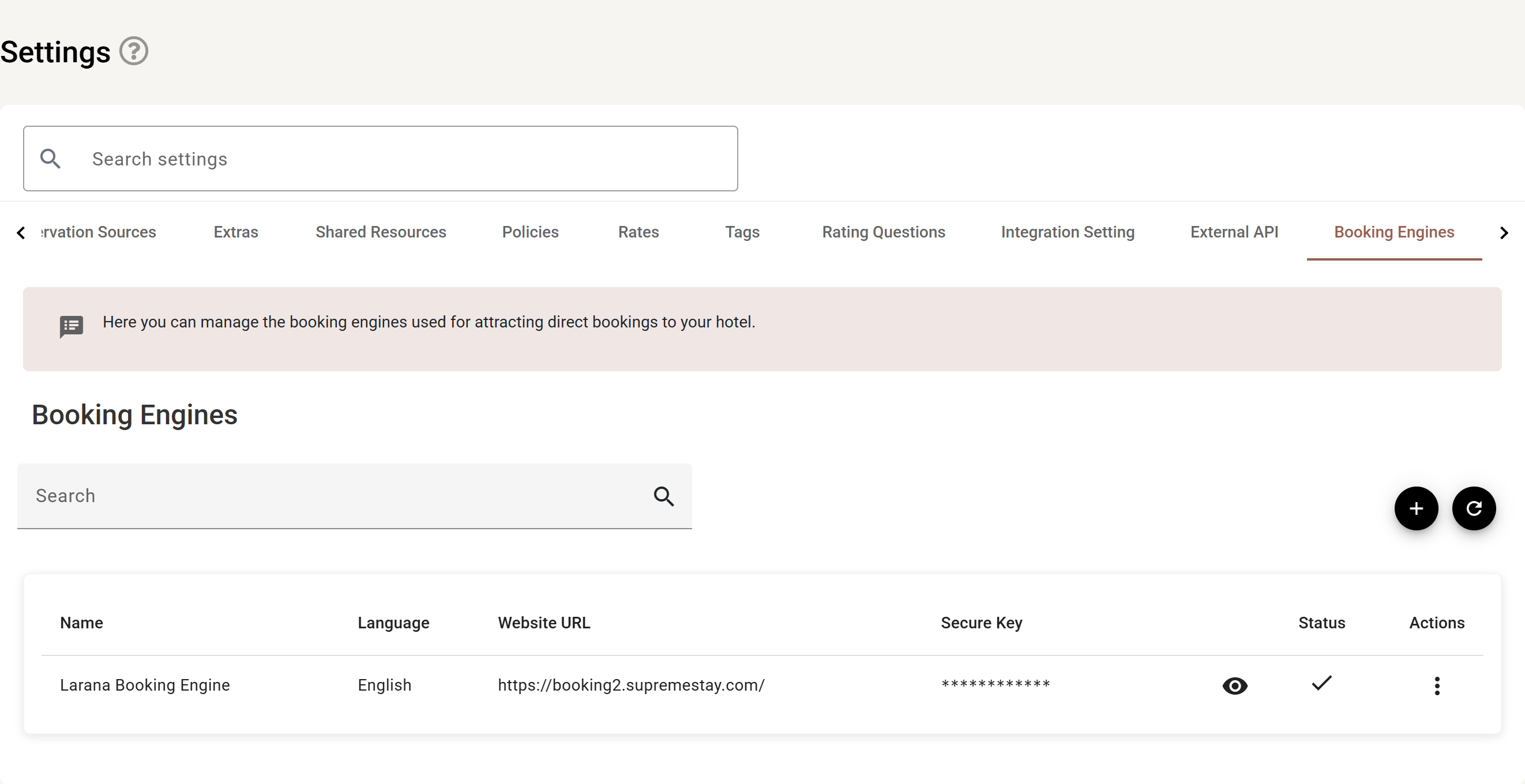
Revealing the secure key
The key is masked as ************ until you press the eye on that row. The copy button
only appears once the key is showing, so it cannot be copied by accident. Press the eye again to
hide it.
The ⋮ at the end of the row holds Edit and Delete. The tick in Status shows the engine is enabled; a disabled engine drops out of the sidebar and stops accepting bookings.
Getting your first one
Before any engine exists the page shows Get started with your booking engine and a Get started button. Once one is set up and enabled, the page confirms your booking engine is configured and ready to accept bookings.
The list
| Column | Meaning |
|---|---|
| Name | What you call this engine internally. Guests never see it. |
| Language | The language this engine presents. Run one engine per language you sell in. |
| Website URL | The site this engine is embedded in. |
| Secure key | The key that ties the booking form to this property. Copy secure key puts it on the clipboard for whoever is building the page. |
| Status | Whether the engine is enabled. |
An engine that is enabled appears in the sidebar, where its six settings tabs live. A disabled one drops out of the sidebar and stops accepting bookings.
Adding one
- Add.
- Give it a name and choose its language.
- Enter the website URL it will be used on.
- Save, then Copy secure key and hand it to whoever builds the page.
- Enable it when you are ready to take bookings.
Then configure it
Each engine has six tabs of its own, reached from the sidebar:
- General — hotel details, check-in times, currency, how far ahead guests can book.
- Theme — colours, logo and images.
- Text — every word a guest reads.
- Check-in questions — what you ask at booking.
- AI assistant — the background the assistant answers from.
- Payment policy — what is taken, and when.