
Booking engine — Theme
Three colours, light or dark, and the four images the booking engine is built from.
Theme Setting is what makes the booking engine look like your property rather than like software. There are three colours, one light-or-dark choice, and four images. That is the whole palette — there is no font picker and no custom CSS, which is deliberate: a booking page that works on every phone is worth more than one that matches your brand book exactly.
Opening the page
- Open Settings in the left sidebar and click your booking engine’s name.
- Choose the Theme Setting tab.
What is on the page
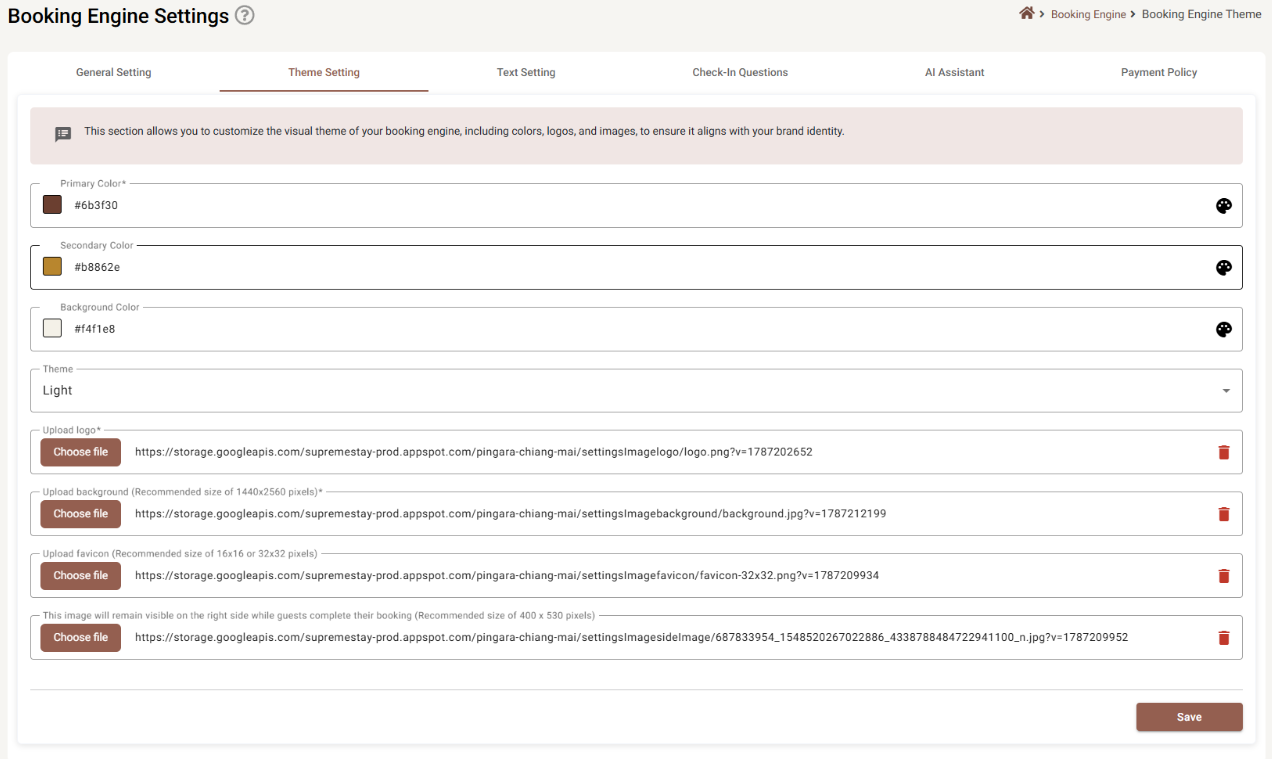
The colours
| Field | Required | Where it shows |
|---|---|---|
| Primary Color | Yes | Buttons, links, the selected state — everything the guest is meant to click. |
| Secondary Color | No | Accents and highlights that sit beside the primary colour. |
| Background Color | No | The page behind the content. |
Each row has a swatch, the hex value as text, and a palette icon at the far right that opens a
colour picker. You can type the hex directly — #6b3f30 — or pick it. The # is added for you if
you leave it off.
Theme is a two-option list, Light or Dark. It decides which way round the booking engine reads: dark text on a light page, or light text on a dark one. Pick the one that suits your background image, then choose colours that stay readable against it.
The four images
Each upload row works the same way: Choose file opens your file picker, the chosen image goes through a cropper before it is uploaded, and the red bin at the end of the row removes it.
| Upload | Required | Accepted files | Cropped to | What it is |
|---|---|---|---|---|
| Upload logo | Yes | PNG, JPG | square | Your logo, shown at the top of the booking engine. |
| Upload background | Yes | PNG, JPG | 16:9 | The picture behind the booking page. Recommended source size 1440 × 2560. |
| Upload favicon | No | PNG, JPG, ICO | square | The tiny icon in the browser tab. Recommended 16 × 16 or 32 × 32. |
| Side image | No | PNG, JPG, GIF | 8:11 (portrait) | Stays visible down the right-hand side while guests complete their booking. Recommended 400 × 530. |
The cropper
After you pick a file, a cropping window opens with the shape already fixed for that slot — you choose which part of the picture is kept, not the proportions. Confirm it and the image uploads immediately; you do not need to press Save for the upload itself.
This is why the recommended sizes are worth following. Upload a wide landscape photo as the side image and the cropper will only let you keep a tall slice of it.
Removing an image
The red bin asks you to confirm, and then saves straight away — the image is gone from the live booking engine without you pressing Save. Uploading a replacement is safer than deleting first.
Saving
Save at the bottom right writes the theme. Unlike the General tab, this button is not greyed out when something is missing, so it is possible to save with no logo even though the field is marked required. Check the live site afterwards.
Saving here also saves unsaved work on the other tabs — see Booking Engine Settings.
If something does not work
| What you see | Why |
|---|---|
| The file is refused | Only the file types listed above are accepted, and the check is on the file’s real type, not its name. A PNG renamed to .jpg is still a PNG. |
| A transparent logo came back with a white or grey box | The cropper outputs JPEG, which has no transparency. Crop the logo yourself first. |
| The cropper will not let me keep the whole picture | The shape for each slot is fixed. Use an image that is already about the right proportions. |
| The favicon does not change in the browser tab | Browsers hold onto favicons hard. Try a private window, or a different browser, before assuming it failed. |
| The colour reverted to something odd | Type the full six-digit hex, #6b3f30. Three-digit shorthand is not reliable here. |
| I deleted an image by mistake | Deleting saves immediately, so there is nothing to undo. Upload the file again. |