
Taxes and Fees
VAT, service charges and per-night fees: how each is charged and whether it is already in the price.
Every tax and fee the property charges is defined here once, then applied automatically — either because you picked it on a room type or an extra, or because it applies to everything by rule.
Two things about a tax matter most, and they are easy to mix up:
- How it is charged — a percentage you tick on individual items, a percentage of whole revenue categories, or a fixed amount per night.
- Whether it is already in the price — inclusive means the figure on the rate card already contains it; exclusive means it is added on top.
Opening the page
- Open Settings from the left sidebar.
- Choose the Taxes and Fees tab.
What is on the page
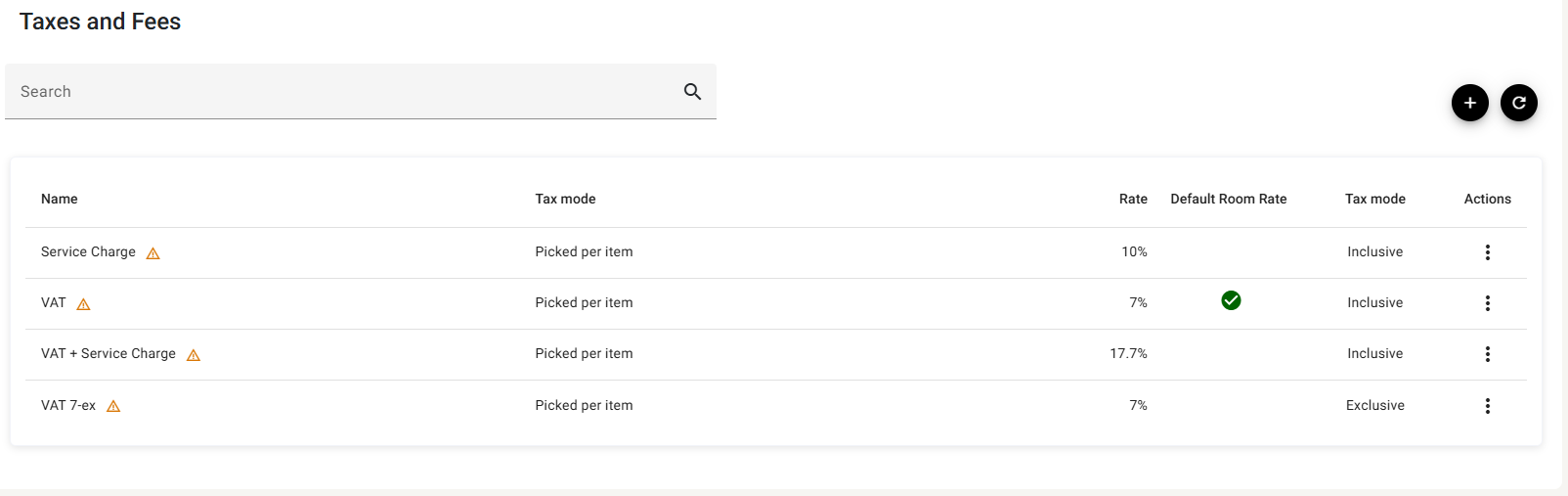
| Column | What it shows |
|---|---|
| Name | What it is called. A ⚠ beside it means its transaction code needs attention — see below. |
| Tax mode (first) | How it is charged. Picked per item means you tick it on room types and extras yourself. |
| Rate | The percentage, or a money amount for the per-night modes. |
| Default Room Rate | A green tick on the one tax that is preselected on new room types. |
| Tax mode (second) | Inclusive or Exclusive — whether prices already contain it. |
Search narrows the list and ⟳ reloads. The columns do not sort.
The warning triangle
Exactly as on room types: a ⚠ means this tax has no transaction code, or the code it had has since been switched off in Transaction codes. Hover it to see which.
It does not stop the tax being charged. It means the money is not being routed to a ledger account, which matters when the books are closed rather than when the guest pays.
Adding or editing a tax
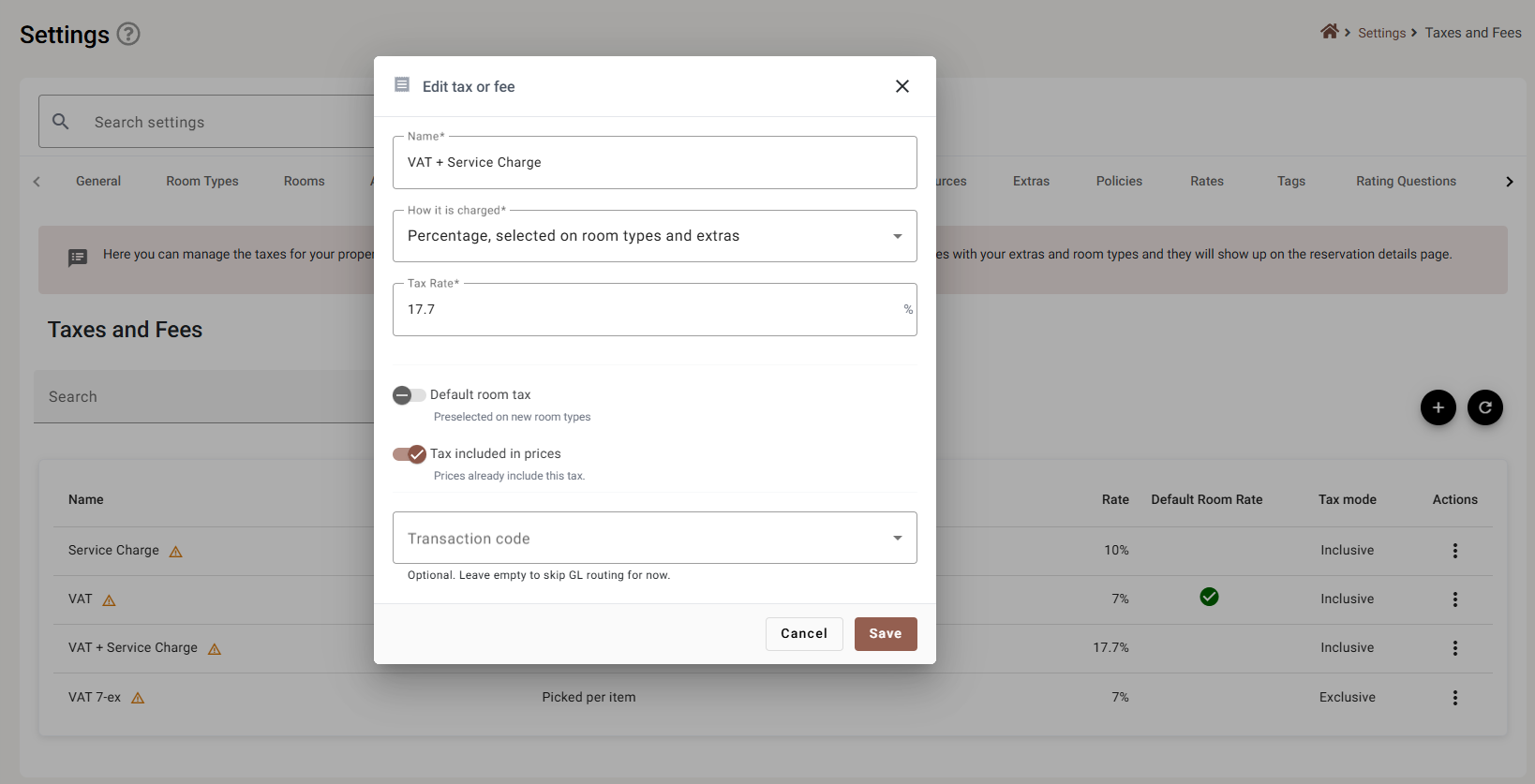
| Field | Required | What it does |
|---|---|---|
| Name | Yes | Between 2 and 100 characters, and not just spaces. It appears on the guest’s bill, so Service Charge rather than SVC. |
| How it is charged | Yes | The mode. It decides which of the fields below you get — see The four modes. |
| Tax Rate / Amount | Yes | The label and the suffix follow the mode: a % for the percentage modes, your currency symbol for the per-night ones. A percentage cannot exceed 100. |
| Transaction code | No | Where this tax posts in the ledger. Leaving it empty is what puts the ⚠ on the row. |
The four modes
How it is charged offers two groups:
| Group | Mode | What it means |
|---|---|---|
| Picked | Percentage, selected on room types and extras | You tick it yourself on each room type and extra. Nothing is charged until you do. |
| Automatic | Percentage of categories | Applies to whole revenue categories, with no ticking. You then choose which: Room revenue, Food and beverage, Extras and services — at least one. |
| Automatic | Fixed per guest per night | A set amount for each guest, each night. The usual shape of a city or tourism tax. |
| Automatic | Fixed per room per night | A set amount for each room, each night, however many guests are in it. |
The difference that matters: a Picked tax charges nothing until somebody ticks it somewhere. An Automatic tax starts charging as soon as you save it.
The toggles change with the mode
Only some appear, and the ones that do not are cleared when you switch.
With Picked:
| Toggle | What it does |
|---|---|
| Default room tax | Preselects this tax on new room types. It does not touch room types that already exist. Only one tax should carry it. |
| Tax included in prices | On, prices already contain the tax — the guest sees one figure and the tax is worked back out of it. Off, it is added on top at the bill. |
With any Automatic mode:
| Toggle | What it does |
|---|---|
| Books as revenue | Whether the money counts as your revenue or is collected on someone else’s behalf. A city tax you pass to the council is not revenue. |
| VAT applies to this | Whether this fee is itself taxed. Switching it on asks which VAT — the list offers your Picked taxes, and says so if you have none yet. |
Inclusive or exclusive
This is the setting that gets a bill wrong most often.
- Inclusive — the rate card price already contains the tax. A ฿2,500 room with 7% inclusive VAT is ฿2,500 to the guest; ฿163.55 of it is VAT.
- Exclusive — the tax is added. A ฿2,500 room with 7% exclusive VAT costs the guest ฿2,675.
Both are correct practice; which one you use is a local convention and a commercial decision. What matters is that it matches how you quote your prices, because the figure the guest was shown and the figure they are charged have to be the same.
Deleting a tax
Delete on the ⋮ menu asks you to confirm.
Deleting a tax does not go back and change bills that already carry it. But anything still pointing at it — room types, extras — loses its tax, so check Room Types and Extras before removing one that has been in use.
If something does not work
| What you see | Why |
|---|---|
| Two columns called Tax mode | A labelling fault. The first is how it is charged, the second is inclusive or exclusive. |
| A tax charges nothing | It is a Picked tax and has not been ticked on any room type or extra. |
| A tax charges on everything unexpectedly | It is one of the Automatic modes, which need no ticking. |
| A ⚠ beside the name | No transaction code, or the one assigned has been switched off. |
| A toggle vanished after changing the mode | The toggles differ per mode, and the ones that do not apply are cleared. |
| “Pick at least one category” | Percentage of categories needs at least one of the three ticked. |
| The rate will not go above 100 | Percentage modes are capped at 100. For a fixed fee, use one of the per-night modes. |
| The total is higher than the rate card | The tax is Exclusive, so it is added on top. |
| A new room type has no tax on it | Default room tax is not set on any tax, or it was set after that room type was created. |
| The VAT tax list is empty | It offers Picked taxes only, and you do not have one yet. |