
Online payments and card handling
Stripe, payment links, QR payments, saved cards and PromptPay.
SupremeStay can take money without the card being present: a link sent to the guest, a QR code scanned at the desk, or a card the guest has already saved.
Connecting Stripe
Card handling runs through Stripe, connected once from Settings → Payment methods.
- Connect links your Stripe account. Until this is done, cards cannot be saved and links cannot be created.
- Once connected, the page confirms your account is connected and ready to process payments.
- Disconnect unlinks it. Existing saved cards stop being usable.
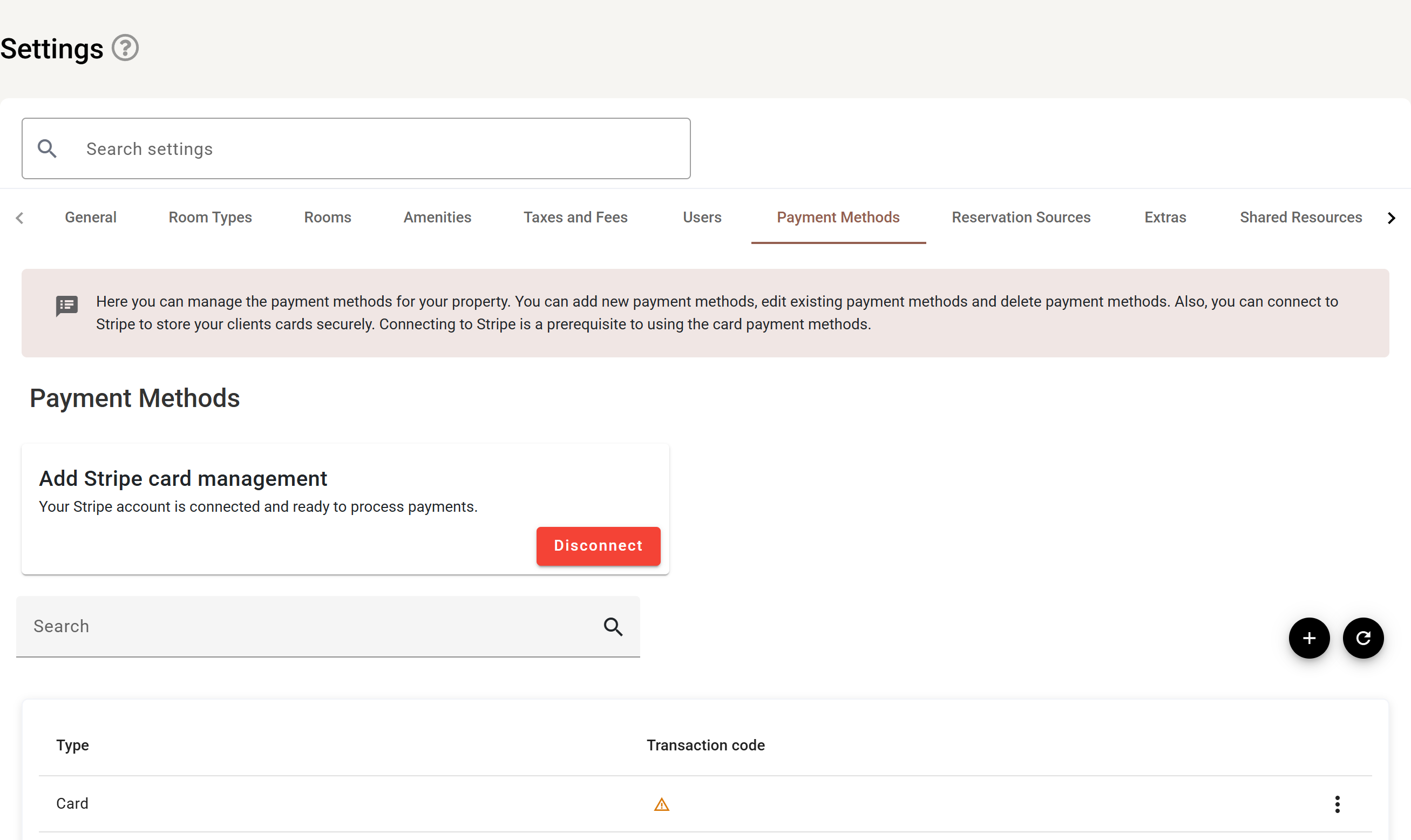
The card at the top is the whole Stripe connection: when it is linked it reads Your Stripe account is connected and ready to process payments with a red Disconnect button, and when it is not it offers Connect instead.
Below it, each payment method is a row with its Type and the Transaction code it posts to, and a ⋮ holding Edit and Delete. A warning triangle in the transaction code column means that method has no code, or the code it points at is inactive — postings made with it will not land where your accounts expect. Fix those before taking money.
Payment methods
Each payment method your property accepts is listed with the transaction code it posts to. The type cannot be changed once created — the code it posts to can. A method with no transaction code, or with an inactive one, is flagged on the list.
Built-in methods include cash, card, bank transfer, cheque and PromptPay.
Taking a payment on a reservation
- Open the reservation and go to Payments → Add payment.
- Choose the payment type and the billing group it settles.
- Choose the payment method.
- For a card, either use a saved card or take other card payment.
- Enter the amount — Pay in full fills in the outstanding balance — and a note if needed.
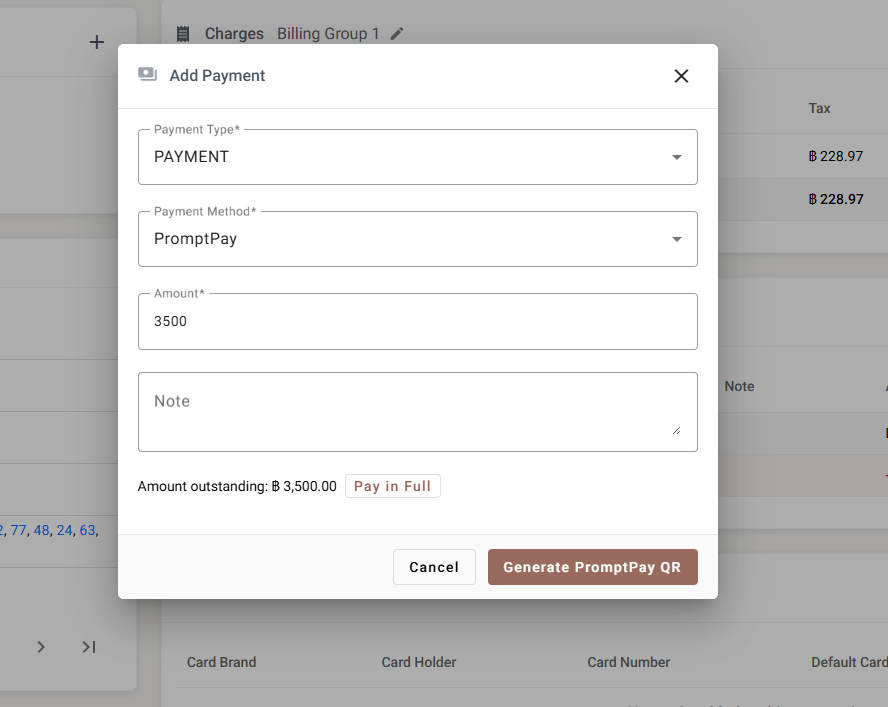
The action button changes with the method. Choosing PromptPay turns it into Generate PromptPay QR rather than saving the payment straight away — the money has to arrive before there is anything to record.
Payment links and QR codes
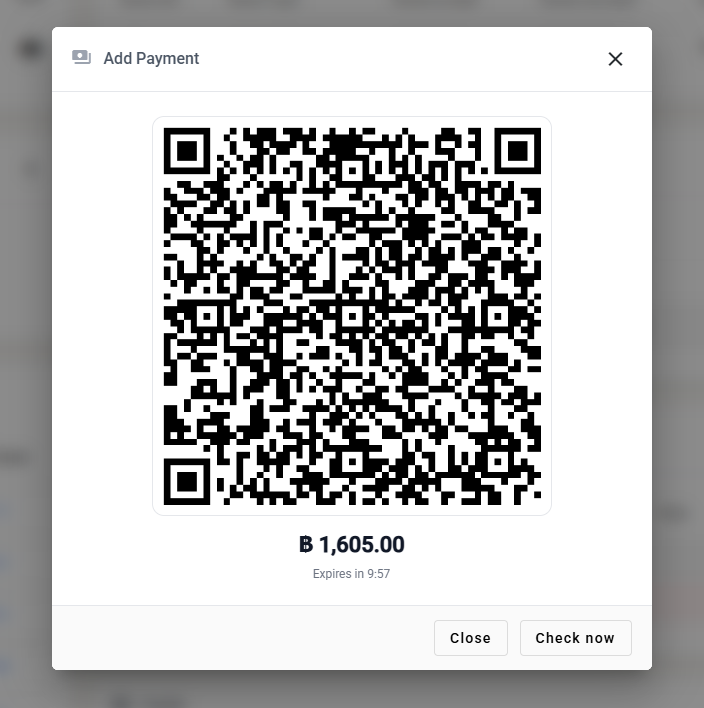
Instead of entering a card, you can create a payment link. The dialog then shows:
- A link to share with the guest, by message or email.
- A QR code the guest can scan at the desk and pay from their own phone.
- Expires in — how long the link stays valid.
- Check now — confirms whether the money has arrived.
- Generate new QR code — replaces one that expired.
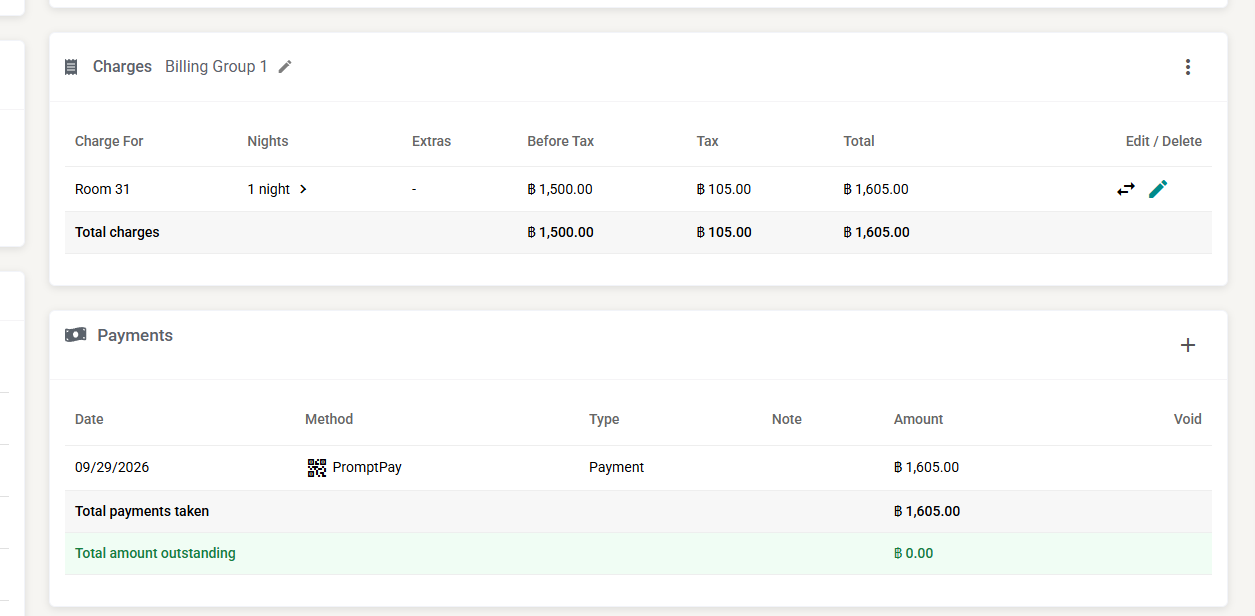
Once the money lands, the payment appears on the reservation like any other, with PromptPay as its method:
Links that have been sent but not yet paid are listed under Pending payment links on the reservation, with their status and expiry, so nothing is left in limbo.
Saved cards
A card can be stored against a guest for later — a deposit now and the balance on departure, or incidentals during the stay. Cards are held by Stripe, not by SupremeStay: what is stored here is a reference, the last digits and the expiry date.
Deposits
When a deposit is taken depends on your payment policy, which the booking engine applies at the time of booking. Deposits collected appear on the Deposit report.
Voiding
A payment recorded in error is voided rather than deleted, and shows as voided on the reservation. See Payments view.