
Payment Methods
The ways staff can take money, and connecting Stripe so cards can be stored and charged.
A payment method is one of the ways money can arrive — cash, a card, a bank transfer. Every payment taken anywhere in SupremeStay is recorded against one of them, which is what makes it possible to answer how much came in by card yesterday.
This page does two jobs: it holds that list, and it is where Stripe is connected so cards can be stored and charged at all.
Opening the page
- Open Settings from the left sidebar.
- Choose the Payment Methods tab.
What is on the page
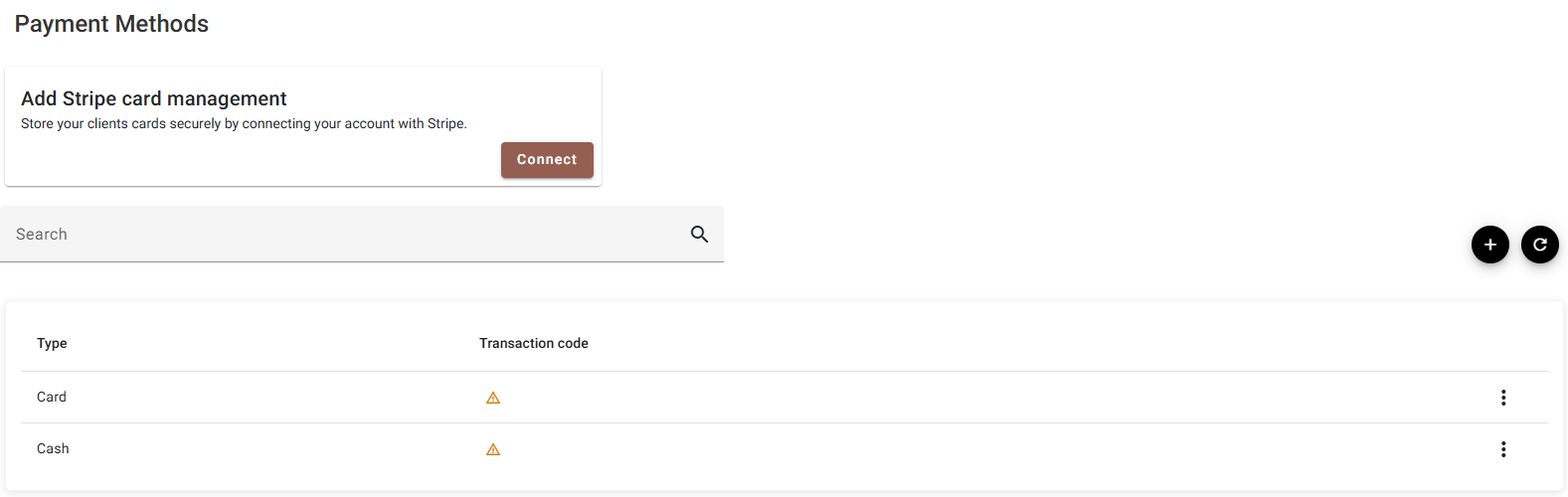
| Column | What it shows |
|---|---|
| Type | Which kind of payment this is. |
| Transaction code | Where payments of this kind post in the ledger. A ⚠ on its own means none is set. |
| (the ⋮) | Edit and Delete — but see PromptPay for a row that has no menu. |
Search matches the type name only — there is nothing else to match on. ⟳ reloads.
The warning triangle
Same meaning as on room types and taxes:
- A ⚠ alone in the cell — no transaction code is set for this method.
- A code followed by a ⚠ — a code is set but it has since been switched off in Transaction codes.
Neither stops anyone taking payment. It means the money is not routed to a ledger account.
Connecting Stripe
Cash and bank transfers are just records — you take the money elsewhere and note it here. Cards are different: to store a guest’s card and charge it, SupremeStay needs a payment processor, and that processor is Stripe.
Until Stripe is connected, the card-based methods cannot be used.
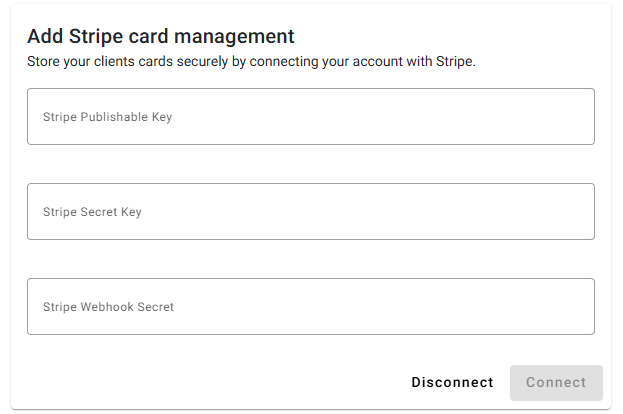
- Press Connect on the Stripe card. Three fields appear.
- Paste your Stripe Publishable Key, Stripe Secret Key and Stripe Webhook Secret. All three come from your own Stripe dashboard.
- Press Connect again. It stays greyed out until all three fields have something in them.
Once it succeeds the fields are replaced by Your Stripe account is connected and ready to process payments, and the button becomes a red Disconnect.
Adding a payment method
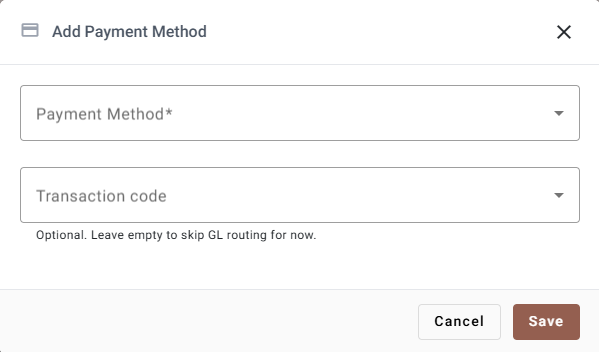
| Field | Required | What it does |
|---|---|---|
| Payment Method | Yes | Which kind. The list offers only the types you have not set up yet — see below. |
| Transaction code | No | Where payments of this kind post in the ledger. Only payment codes are offered, never charge codes. Leaving it empty is what puts the ⚠ on the row. |
Each type exists once
The seven types are Cash, Bank transfer, Card, Invoice, Check, Payment link and PromptPay. A property has at most one of each, so the dropdown shrinks as you add them — and the + button goes grey once every type is configured. That is not a fault; there is simply nothing left to add.
Two types are conditional:
- Payment link only appears once Stripe is connected. It is a link the guest pays through, so without a processor there is nothing behind it.
- PromptPay only appears for properties eligible for it. See below.
Changing the transaction code later
The code can be changed on an existing method, and the dialog says what that means: the change applies to payments made from then on. Payments already posted keep the code they were posted with, so last month’s reports do not move.
PromptPay
PromptPay is handled differently from the rest. It is not added by hand — the system creates it automatically the first time a PromptPay payment succeeds.
On a property that is not eligible for PromptPay, an existing PromptPay row stays in the list but has no ⋮ menu. That is deliberate: the payments already taken under it still have to be reportable, and a method with payments against it could not be deleted anyway.
Deleting a payment method
Delete asks you to confirm.
A method that has been used cannot be deleted. The request is refused and the reason is shown — payments already taken have to keep pointing at something. If you no longer want staff choosing it, there is no “hide” here; the practical route is to make sure it is not offered at the point of payment.
If something does not work
| What you see | Why |
|---|---|
| The + button is grey | Every type is already configured. There is nothing left to add. |
| Payment link is not in the dropdown | Stripe is not connected. |
| PromptPay is not in the dropdown | It is never added by hand — it appears by itself after the first successful PromptPay payment. |
| A row with no ⋮ menu | A PromptPay method on a property that is not eligible for it. |
| The type dropdown will not change | Types are fixed once saved. Delete and re-add. |
| Deleting is refused | Payments have already been taken with that method. |
| A ⚠ in the transaction code column | No code is set, or the one set has been switched off. |
| Card payments are unavailable | Stripe is not connected. Connecting it is a prerequisite for the card methods. |
| Connect stays greyed out | One of the three Stripe fields is still empty. All three are required. |