
Room Types
The categories of room you sell: occupancy, beds, amenities, tax and photos.
A room type is a category you sell rather than a room a guest sleeps in — Deluxe Room, Studio, Executive Suite. It carries everything true of every room in it: how many people fit, which beds it can be made up with, what it includes, and which tax applies.
This is the first thing to set up in a new property. A room cannot exist without a room type to belong to, and a rate is priced per room type — so nothing can be sold until these exist.
Opening the page
- Open Settings from the left sidebar.
- Choose the Room Types tab.
What is on the page
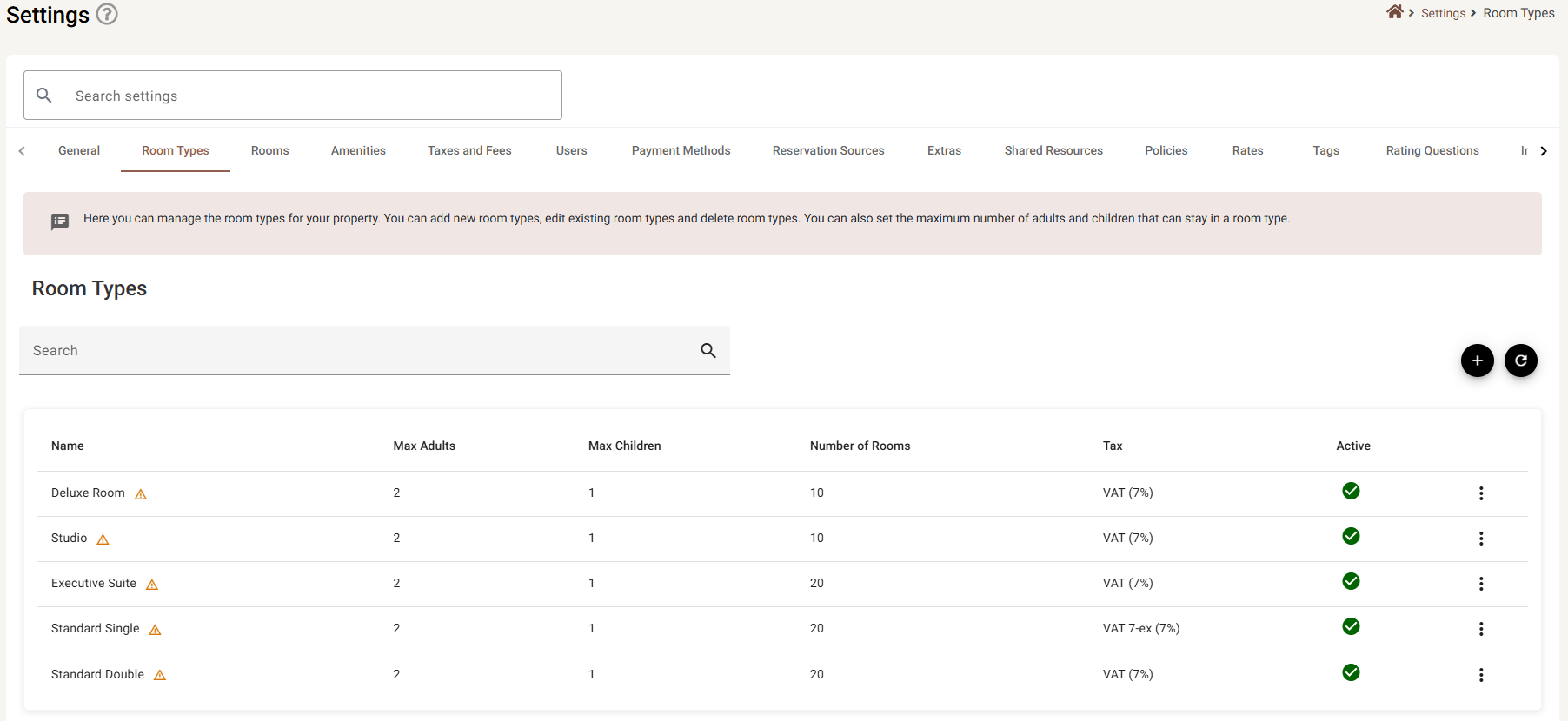
| Column | What it shows |
|---|---|
| Name | What you call the type. A ⚠ beside it is about accounting — see The warning triangle. |
| Max Adults | The most adults that may be booked into one room of this type. |
| Max Children | The most children, on top of the adults. |
| Number of Rooms | How many rooms currently belong to this type. This is counted, not typed — it comes from Rooms. |
| Tax | The tax and its rate, for example VAT (7%). A dash means no tax is set. |
| Active | A green tick, or a red cross if the type is switched off. |
Above the table sit Search, + to add a type, and ⟳ to reload the list.
The warning triangle
A ⚠ next to a name means the type’s transaction code needs attention. Hover it to see which:
| Tooltip | What happened |
|---|---|
| No transaction code | Nothing has been assigned, so room revenue for this type is not routed to a ledger account. |
| Assigned code is inactive | A code was assigned, but it has since been switched off in Transaction codes. |
Neither stops you selling the room type. It is a bookkeeping gap rather than an error — but if your accounts depend on the routing, fix it before the month closes.
Reordering the list
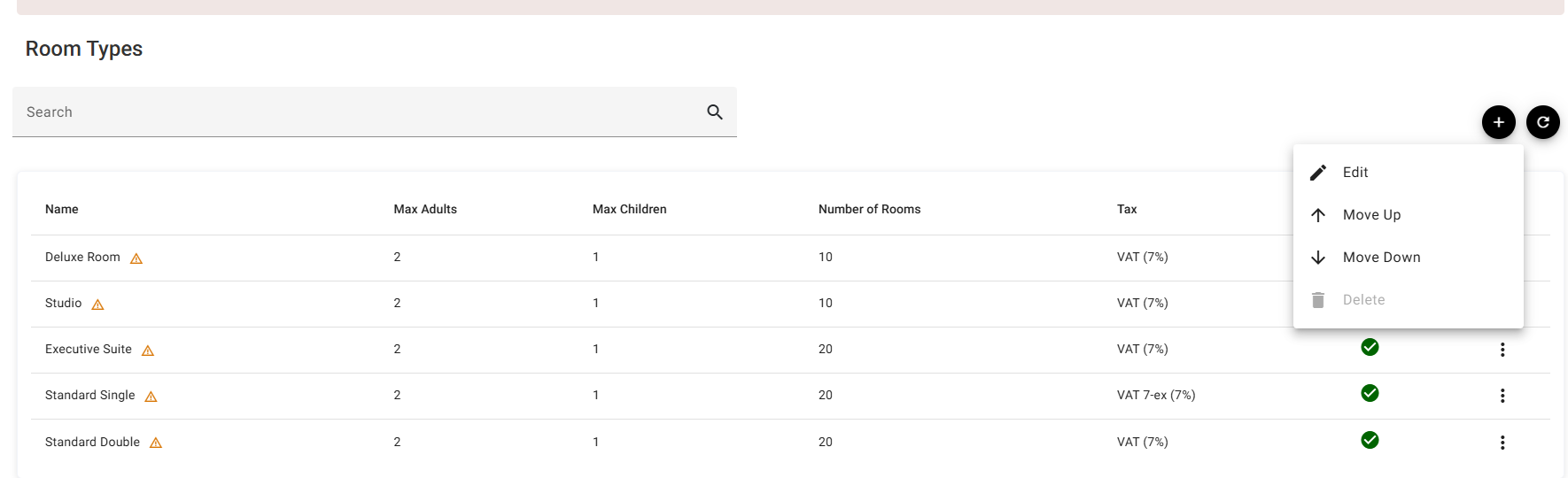
Move Up and Move Down on the ⋮ menu change where a type sits in the list. Put the ones you touch most at the top; the order is saved rather than being per-session.
Adding or editing a room type
+ opens an empty form and Edit on the ⋮ menu opens a filled one. Both are the same dialog.
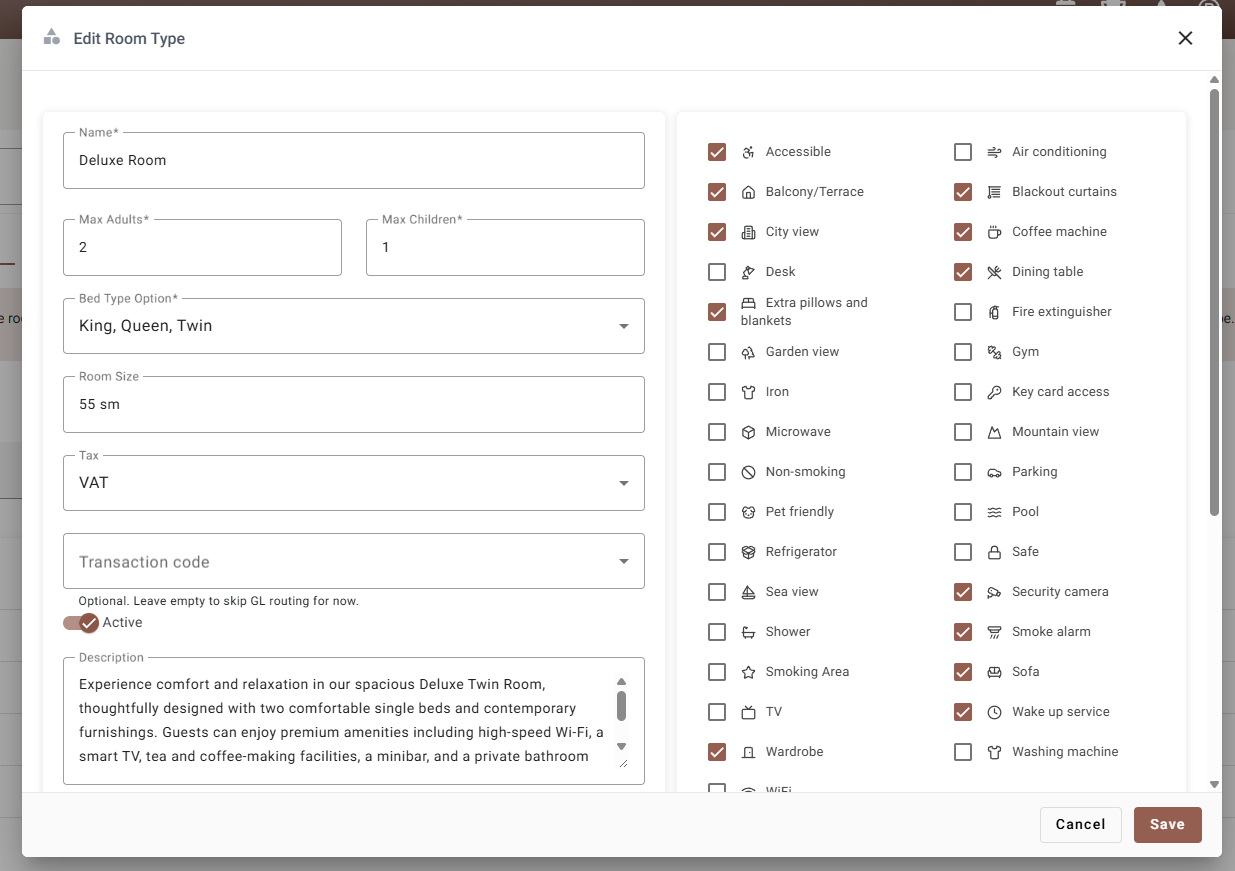
The details
| Field | Required | What it does |
|---|---|---|
| Name | Yes | What staff and guests see. At least two characters, and it cannot start or end with a space. |
| Max Adults | Yes | The most adults per room. See How Max Adults and Max Children are used. |
| Max Children | Yes | Counted on top of the adults, not within them. |
| Bed Type Option | Yes | Every bed layout this type can be made up with. Pick as many as apply — see Bed Type Option. |
| Room Size | No | Free text, so write it however you quote it: 55 sm, 32 sqm, 350 sq ft. |
| Tax | No | One tax from Taxes and fees, or No tax. |
| Transaction code | No | Where this type’s room revenue is posted in the ledger. Only charge codes on a revenue category are offered. Leaving it empty is what puts the ⚠ on the row. |
| Active | — | Switched off, the type stops being offered for new bookings. Existing bookings are untouched. |
| Description | No | A counter under the box tracks how much of 500 characters you have used. |
Bed Type Option
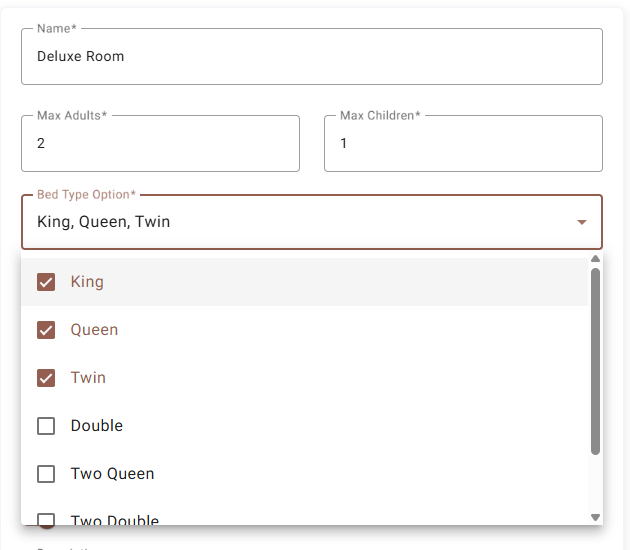
Tick every layout a room of this type can be made up with. At least one is required, and the field shows what you picked as a list — King, Queen, Twin.
This is the one field on the page that decides what another page is allowed to do. In Rooms each individual room has one bed type, and that dropdown offers only what its room type allows here. So:
- Tick King, Queen, Twin and each room of this type can be set to any one of those three.
- Change a room to a different room type, and if its current bed is not on the new type’s list the field is switched to the first bed the new type does allow. It happens without asking, so check it before you save the room.
- Take a layout away here and no room of this type can be set to it any more.
Think of it as the menu; each room picks one item off it.
How Max Adults and Max Children are used
Both numbers are per room, not per booking. 2 adults, 1 child means every room of this type sleeps two adults and one child — so two rooms take four and two, not two and one.
They do two different jobs, and only one of them stops you.
In the Price Checker: they suggest how many rooms the party needs
Each number is divided on its own, and the larger answer wins:
rooms needed = the larger of (adults ÷ Max Adults) and (children ÷ Max Children), each rounded up.
Two adults and three children, in a type that takes 2 + 1, comes to three rooms. The adults would fit in one; the children are what binds. The number offered is taken from whichever room type houses the party in the fewest rooms, so it is the smallest that could work rather than a figure inflated by your smallest room.
It is a suggestion. Once you type a room count yourself it is left alone — “two rooms for four adults, one of them a twin” is a real request, and it would be wrong to quietly rewrite it to three. Room types that could not take the party in the number of rooms asked for are left out of the results.
When saving a reservation: they warn, but do not block
On Save, the reservation adds up Max Adults and Max Children across every room line on the booking. Three lines of a 2 + 1 type allow six adults and three children between them.
If the party is over either total, a Capacity Exceeded dialog appears — “The selected room type capacity is exceeded for adults: 5 (max 4). Do you want to continue anyway?” Confirm saves the reservation anyway; Cancel takes you back to the form. Nothing is refused: a cot, a sofa bed or a child sharing is a normal thing to sell, and the front desk is trusted to know.
Amenities
The right-hand column is a ticklist of everything the property offers. The catalogue itself is managed in Amenities; here you are only choosing from it.
What you tick is inherited by every room of this type. In the Rooms dialog those amenities appear ticked and locked — a room can add something of its own, but taking one away has to be done here, where it applies to all of them at once.
An amenity that was later removed from the catalogue stays ticked on the types that already had it, so tidying the catalogue never silently strips a room type.
Photos, the OTA buffer and the room list
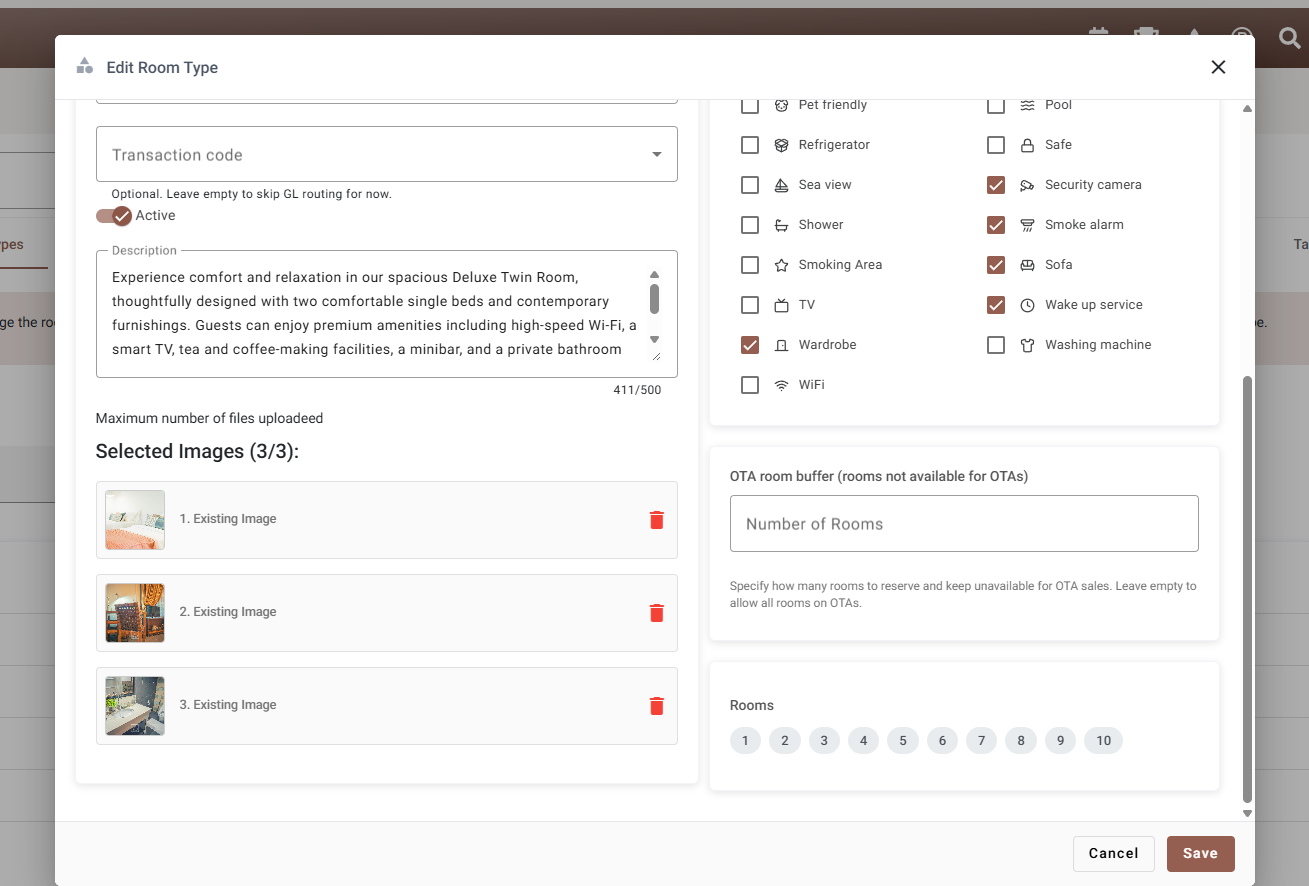
Images — up to three, each 5 MB at most. JPEG, PNG, GIF, BMP, TIFF and PDF are accepted; anything else is refused with a message naming the file. The drop area disappears once you have three, so remove one with the 🗑 to make room. Photos belong to the room type, not to any single room.
OTA room buffer — how many rooms of this type to hold back from the channels. Set it to 2 and two rooms are kept off the OTAs whatever happens, so there is always something for a walk-in or to move a guest into. Leave it empty to sell them all online. See Channel manager.
Rooms — the room numbers already in this type, shown as chips. It appears only once the type has rooms, and it is there to read rather than to edit. Rooms are created in Rooms.
Saving
Save checks the form first. If anything is wrong, nothing is sent: a message appears and every problem field is marked, including ones you never opened. On success the dialog closes, a confirmation appears, and the list reloads.
Cancel and the ✕ both discard everything, including photos you added in this sitting.
Deleting a room type
Delete is on the ⋮ menu, and it is greyed out while the type still has rooms — the Number of Rooms column says how many. Move those rooms to another type, or delete them, and Delete becomes available. You are asked to confirm before anything is removed.
If you only want to stop selling a type, switch Active off instead. That keeps its history intact.
If something does not work
| What you see | Why |
|---|---|
| Save does nothing, and a message says to correct the errors | A required field is empty or invalid. Scroll the dialog — Bed Type Option is the one people miss. |
| The name is refused | It is a single character, or it starts or ends with a space. |
| Delete is greyed out | The type still has rooms. Empty it first. |
| A ⚠ next to a name | No transaction code, or the one assigned has been switched off. |
| The drag-and-drop area has gone | You already have three images. Remove one. |
| A photo was refused | It is over 5 MB, or not one of the accepted formats. |
| A room will not accept a bed type | Its room type does not allow that bed layout. Tick it here first. |
| A room’s bed type changed by itself | Its room type was changed, and the old bed is not one the new type allows. |
| The Price Checker returns nothing for a family | A room type with Max Children at 0 is treated as unable to take the party at any room count. Fill the field in. |
| A Capacity Exceeded warning on save | The party is over the room types’ combined limits. Confirm saves it anyway. |