
Amenities
The catalogue of things a room can have, and the icon each one is shown with.
Amenities is the catalogue — the full list of things a room can have, each with an icon. It does not decide which room has what. That is done on the room type, where you tick from this list, and on the individual room for anything one room has that its neighbours do not.
So this page is where you add Balcony/Terrace to the property’s vocabulary. Ticking it for the Deluxe Rooms happens elsewhere.
Opening the page
- Open Settings from the left sidebar.
- Choose the Amenities tab.
What is on the page
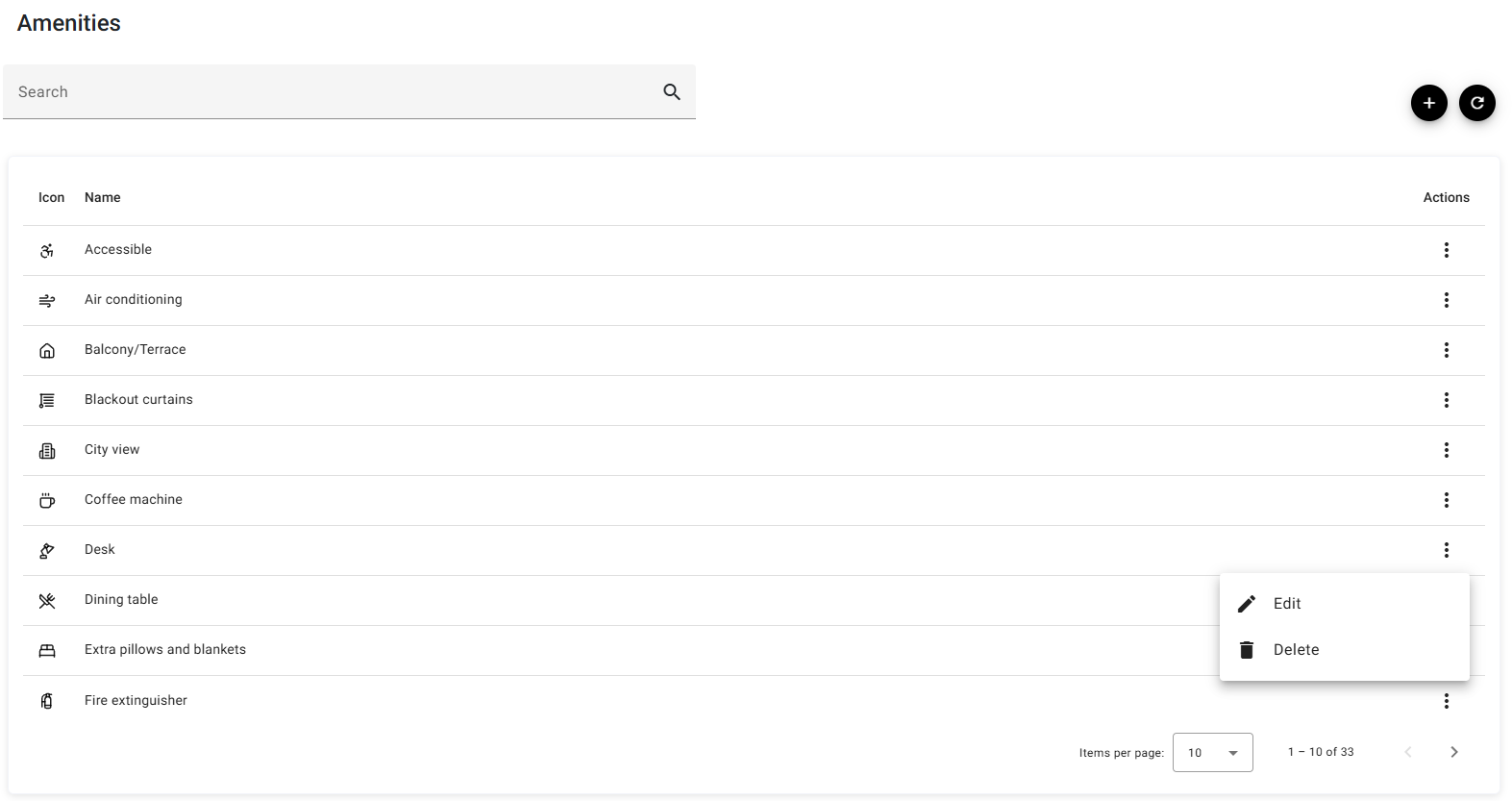
| Column | What it shows |
|---|---|
| Icon | The symbol this amenity is shown with wherever it appears. |
| Name | What it is called. |
| Actions | The ⋮ menu: Edit and Delete. |
The columns do not sort, and they do not need to — the list is always A–Z by name, and it sorts correctly in Thai as well as in English rather than by character code.
Search narrows the list as you type and jumps back to the first page, so a search that shortens the list never leaves you looking at an empty page. ⟳ reloads, and Items per page takes 5, 10, 25 or 100.
Adding or editing an amenity
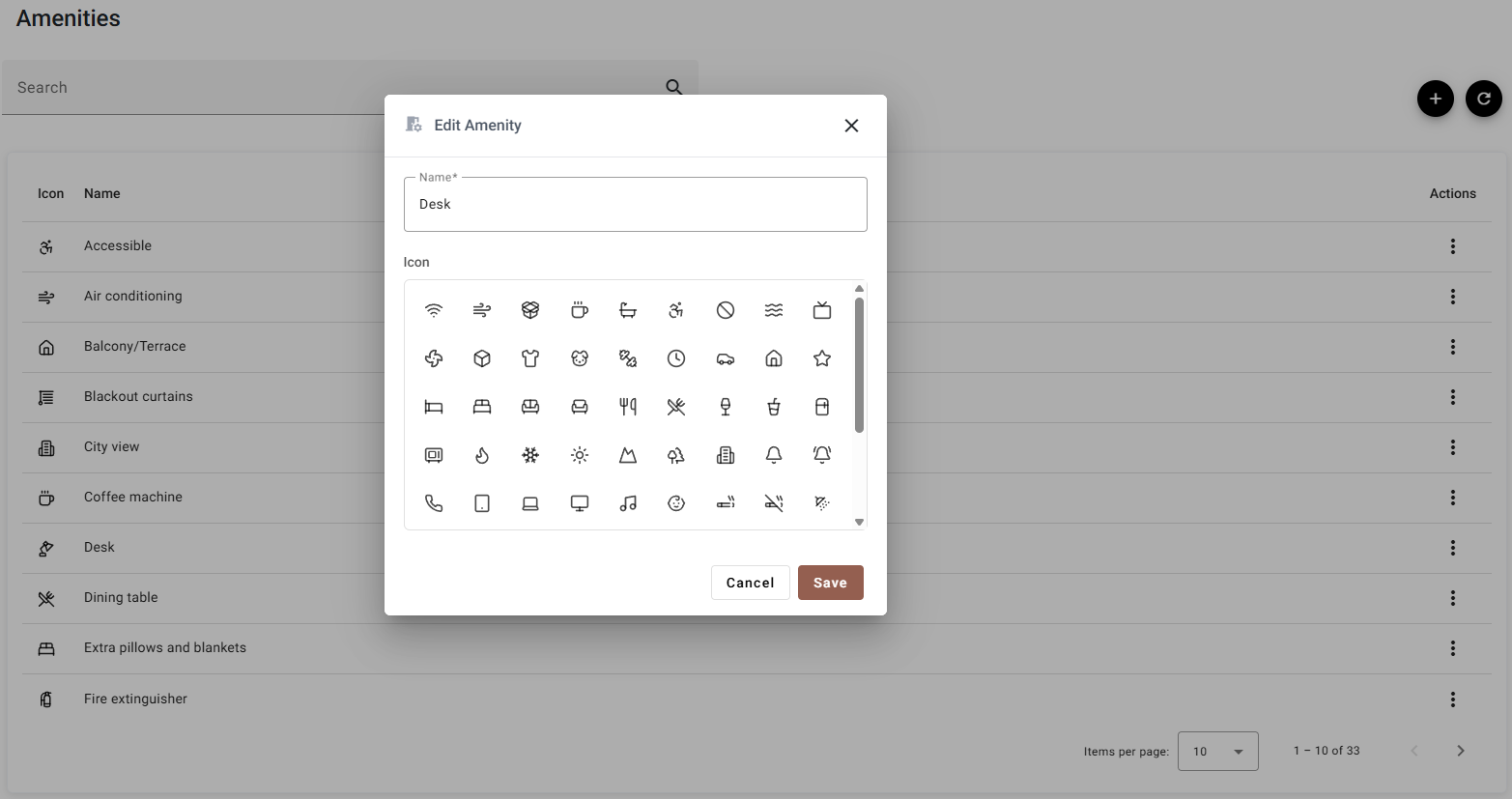
| Field | Required | What it does |
|---|---|---|
| Name | Yes | What staff and guests see. Write it the way a guest would say it — Coffee machine, not CFM. |
| Icon | — | Click one in the grid to select it. The grid scrolls; hovering an icon shows its name. |
Only the icons the application ships with are offered. That is deliberate: anything else would render as a blank space on the booking engine and in the guest app.
Save applies it, Cancel and ✕ discard.
Where amenities are used
| Where | What happens there |
|---|---|
| Room Types | Tick the ones every room of that type has. They are inherited by every room underneath. |
| Rooms | Inherited ones appear ticked and locked. Tick extra ones for what this one room has — a corner room’s sea view. |
Because of that inheritance, removing an amenity from a room type takes it off every room of that type at once, which is why a room cannot untick an inherited one on its own.
Deleting an amenity
Delete asks you to confirm, naming the amenity.
Tidying the catalogue is safe in the other direction too. An amenity that somehow leaves the catalogue stays ticked on the room types that already had it, rather than quietly disappearing from them.
If something does not work
| What you see | Why |
|---|---|
| An amenity cannot be deleted | A room type or room still has it ticked. Untick it everywhere first. |
| A new amenity is not on a room type | Adding it here only puts it in the catalogue. Go to the room type and tick it. |
| An amenity cannot be unticked on a room | It comes from the room’s room type. Remove it there, where it applies to every room of that type. |
| The icon you want is not in the grid | Only the icons the application bundles can be used. Pick the nearest one. |
| The list is not in the order you expected | It is always alphabetical by name, and the columns do not sort. |