
Housekeeping
The room board, cleaning status, door signs and the notes that travel with a room.
Housekeeping is the board the floor runs from. It shows every room at a glance — who is in it, whether it has been cleaned, and whether the guest wants to be left alone — and it is where those things get changed.
Opening the page
- Click Housekeeping in the left sidebar.
The page opens in Overview. The pair of buttons at the top right switches between the two views:
| Button | View |
|---|---|
| The grid icon | Overview — the room board, with the full detail of one room beside it. |
| The list icon | List — every room as a table row, grouped by what needs doing, with bulk actions. |
What is on the page
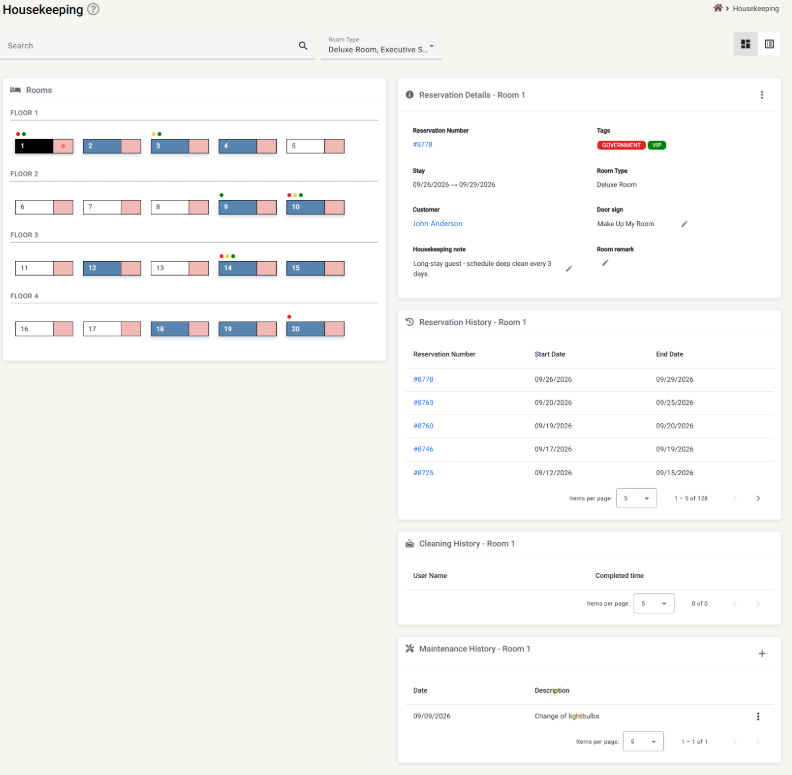
Selecting a room on the left fills the right-hand column. Nothing appears there until a room is selected, and the selection is kept in the address bar — so a link to a particular room can be sent to somebody, or bookmarked.
The room board
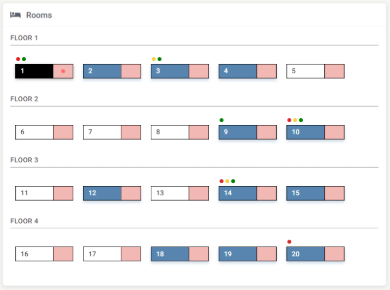
Rooms are grouped by floor, and the floor headings only appear when your rooms actually sit on more than one floor. Within a floor they are sorted by number.
Reading a room
Every room widget carries three separate pieces of information at once.
The left half — who is in it
| Colour | Meaning |
|---|---|
| White | Nobody is in it right now. |
| Blue | Occupied — there is a current reservation. |
| Black | This is the room you have selected. |
The right half — whether it is clean
| Colour | Meaning |
|---|---|
| Pink | Dirty — it needs cleaning. |
| Pale green | Clean — ready. |
Hover over a room, or select it, and a small dot appears in that half as well: red for dirty, green for clean. It says the same thing as the colour, in a second way, for anyone who finds the pastels hard to tell apart.
A do-not-enter symbol in the right half means the guest has put up Do Not Disturb.
The dots above it — the reservation’s tags
Small coloured dots sit above a room when its current reservation carries tags — red, green, blue, yellow or purple, matching the tag’s own colour. Hover over one to read the tag’s name. This is how VIP or Government reaches the floor without anyone having to open the reservation.
Finding a room
Search matches more than room numbers. It looks through the guest’s name, the housekeeping note, the room remark, the room type name, the tag names and the reservation number — so VIP, Anderson and 8778 all find their room.
Room Type is a multi-select with a Select all at the top of the list.
Two behaviours are worth knowing:
- If a filter leaves exactly one room visible, that room is selected for you. Searching for a guest’s name goes straight to their room.
- If you untick every room type, the board goes blank. Nothing matches, so nothing is shown. Tick at least one back on.
Rooms that are filtered out do not disappear — they turn invisible but keep their place, so the remaining rooms stay exactly where they were on screen.
Reservation Details
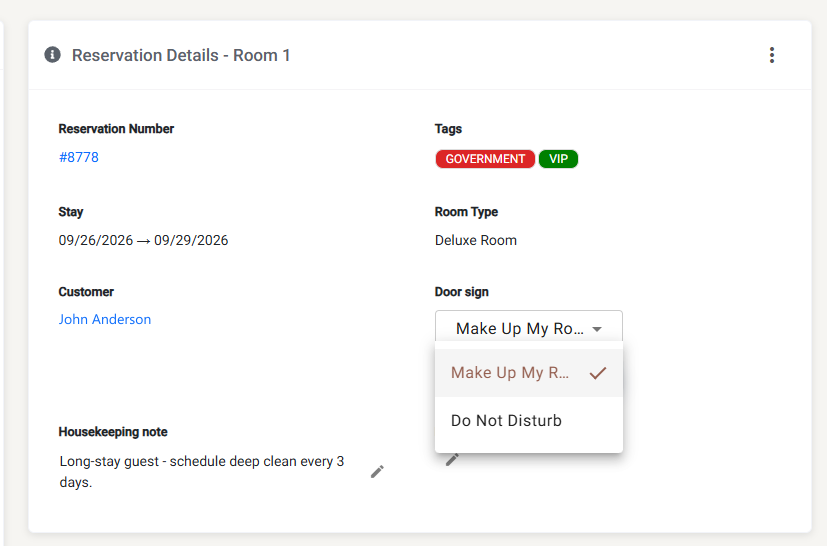
| Field | What it shows |
|---|---|
| Reservation Number | The current reservation, or a dash if the room is empty. It is a link for Owner, Manager and Reception; other roles see the number as plain text. |
| Tags | The reservation’s tags as coloured chips — the same tags as the dots on the board. |
| Stay | Arrival to departure. |
| Room Type | The room’s type. |
| Customer | The guest’s name, linking to their customer record for the roles that may open it. |
| Door sign | What the guest has asked for. See below. |
| Housekeeping note | An instruction for whoever cleans this room. |
| Room remark | A note about the room itself. |
The bell in the panel header subscribes you to this room, so you are told when it is cleaned, blocked, checked into or out of. See Notifications.
The door sign
Door sign is the digital equivalent of the card on the handle, and it has two positions:
| Setting | Meaning |
|---|---|
| Make Up My Room | The guest would like the room serviced. |
| Do Not Disturb | The guest does not want anyone coming in. |
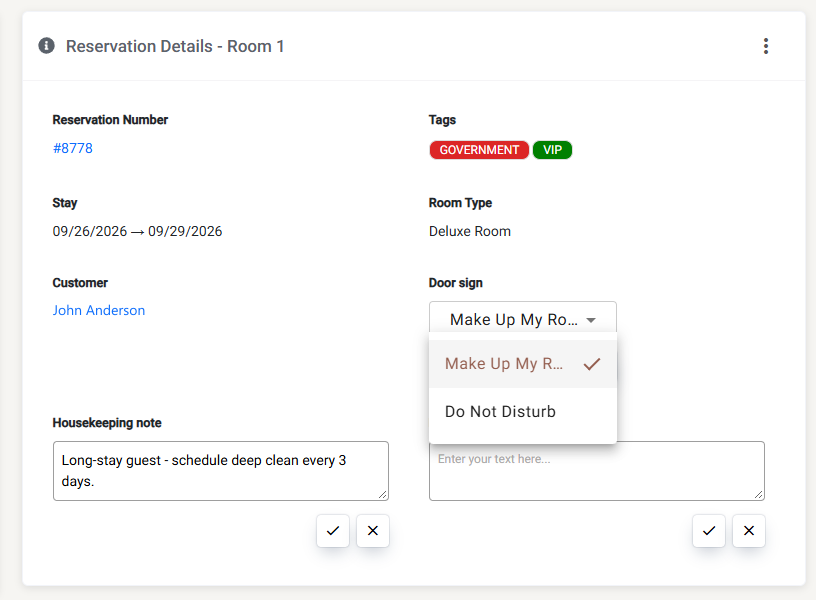
Click it, choose the other option, and it is saved immediately — there is no separate Save button. The change shows on the board as well: the do-not-enter symbol appears in the room’s right half.
Housekeeping note and Room remark
The two note boxes look identical and mean completely different things. This is the single most useful thing to understand about this page.
| Belongs to | Lives until | |
|---|---|---|
| Housekeeping note | The reservation | The guest leaves. It is about this guest — late checkout agreed, extra towels daily, allergic to feather pillows. |
| Room remark | The room | Someone deletes it. It is about the room itself — shower head drips, balcony door sticks, TV remote in the drawer. |
Put a guest’s preference in the housekeeping note and it goes when they do. Put a fault with the room in the room remark and it is still there for the next guest, and the one after that.
Both are edited in place: click the pencil, type, and use the tick to save or the cross to discard.
Changing the cleaning status
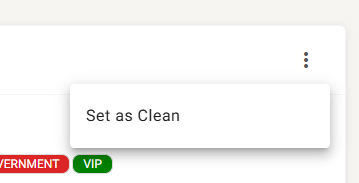
The menu button at the top right of the Reservation Details panel offers exactly one action, and it is whichever the room is not:
- The room is dirty, so the menu says Set as Clean.
- The room is clean, so the menu says Set as Dirty.
There is no confirmation. The room’s colour on the board changes as soon as you click.
If the menu is empty, either Do Not Disturb is on, or the Housekeeping module is not enabled for your property.
Reservation History
Every reservation this room has held, newest first.
| Column | What it shows |
|---|---|
| Reservation Number | A link to the reservation, for the roles that may open it. |
| Start Date | Arrival. |
| End Date | Departure. |
Sort by any column, and change the page size (5, 10, 25 or 100). This is how you answer who was in this room last week without leaving the page.
Cleaning History
The record of every time this room was marked clean.
| Column | What it shows |
|---|---|
| User Name | Who marked it. |
| Completed time | When, to the minute. |
| Photos | Thumbnails, when the housekeeper attached any. Click one to open it full size. |
An empty table means nobody has marked the room clean since the record began — not that the room is dirty. The current cleaning status is the colour on the board, not this list.
Maintenance History
The faults logged against this room, with the date the work was finished and what was done. The + adds an entry and the row menu edits or deletes one.
This is covered in full in Maintenance and blocked rooms.
The List view
The list button switches to a table of every room, grouped into seven sections by what needs doing:
- Priority cleaning — the ones to do first.
- Rooms for new arrivals — someone is checking in today.
- Rooms with continuing occupancy — the guest is staying on.
- Recently vacated rooms — the guest has gone.
- Other available rooms — empty, nothing booked.
- Blocked rooms — out of service.
- No-show rooms — the guest never arrived.
A section is hidden when it has no rooms in it, and its heading shows how many of its rooms are dirty out of the total. Click the arrow beside a heading to collapse or expand that section.
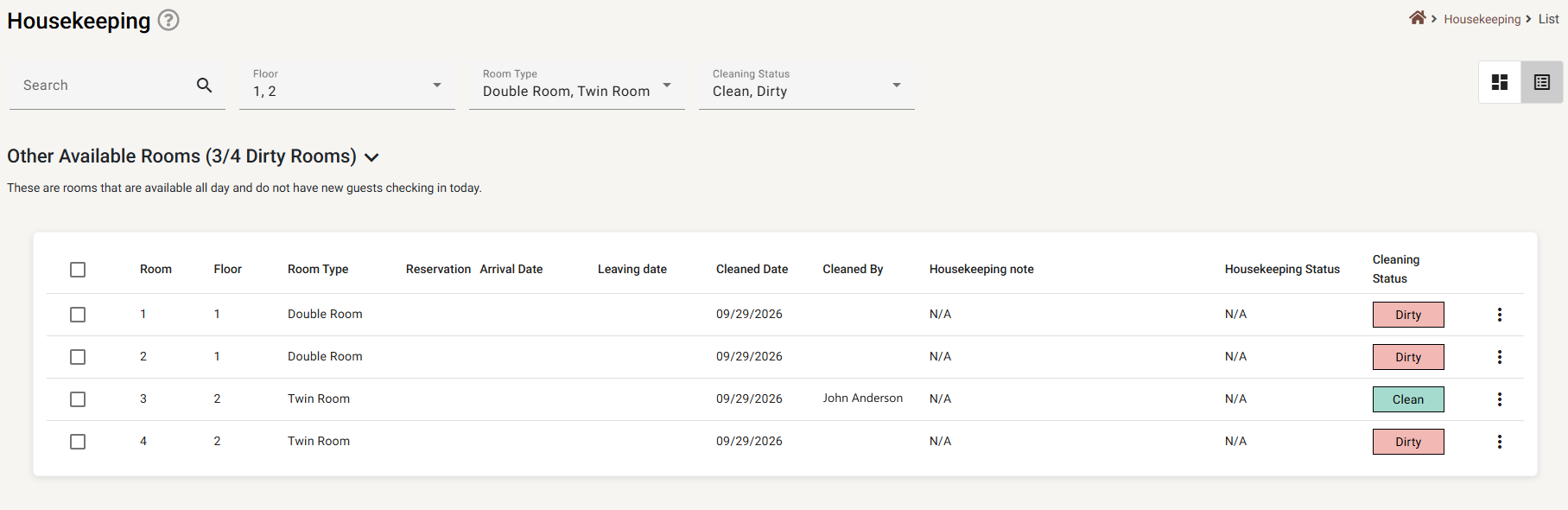
Each row shows the room, its floor and type, the current reservation with its arrival and departure dates, when it was last cleaned and by whom, the housekeeping note, the door sign and the cleaning status. The row menu offers the same single Set as Clean / Set as Dirty action as the overview — and is disabled the same way when Do Not Disturb is on.
The list has its own filters: Search, Floor, Room Type and Cleaning Status, all multi-select.
Changing several rooms at once
Tick the box on any row — or the one in a section’s header to take that whole section — and a panel appears at the bottom of the screen showing how many rooms are selected, with three buttons:
| Button | What it does |
|---|---|
| Clean | Marks every selected room clean. |
| Dirty | Marks every selected room dirty. |
| Cancel | Clears the selection and changes nothing. |
This is the fastest way to close off a morning: tick the floor that has been done, press Clean.
If something does not work
| What you see | Why |
|---|---|
| The board is empty | Every room type has been unticked in the Room Type filter, or the search matches nothing. Clear the search and tick a room type back on. |
| The right-hand column is missing | No room is selected. Click one on the board. |
| Set as Clean is greyed out | Do Not Disturb is on for that room. Change the door sign first. |
| The menu is empty | Do Not Disturb is on, or the Housekeeping module is not enabled for your property. |
| There is no door sign to set | The room has no current reservation. The door sign belongs to a stay, not to the room. |
| A note I typed did not save | Inline editing needs the tick. Clicking elsewhere, or pressing the cross, throws the edit away. |
| A note disappeared when the guest left | It was a housekeeping note, which belongs to the reservation. Notes about the room itself belong in Room remark. |
| The Cleaning History is empty | Nobody has marked this room clean yet. It does not mean the room is dirty — the board shows the current status. |
| I cannot click a reservation number | Those links are for Owner, Manager and Reception. Other roles see the number without a link. |
| A room is blocked and I do not know why | Blocking happens on the Calendar, not here. |