
Maintenance and blocked rooms
Logging repairs against a room, and taking it out of service while the work happens.
Every room keeps a Maintenance History — a record of the repairs that have been done to it, each with the date the work was finished and a description of what was done.
It is a log, not a work queue. An entry says this has been fixed, not this needs fixing. Two other places do the other halves of the job: a fault nobody has got to yet belongs in the room’s Room remark, and a room that must not be sold while the work happens is blocked on the Calendar.
Opening the page
- Click Housekeeping in the left sidebar.
- Click the room on the board.
- Scroll to Maintenance History at the bottom of the right-hand column.
What is on the page
| Column | What it shows |
|---|---|
| Date | The day the work was completed. |
| Description | What was done. |
Sort by either column, and change the page size (5, 10, 25 or 100). The + in the panel header adds an entry; the menu at the end of a row offers Edit and Delete.
Adding or editing an entry
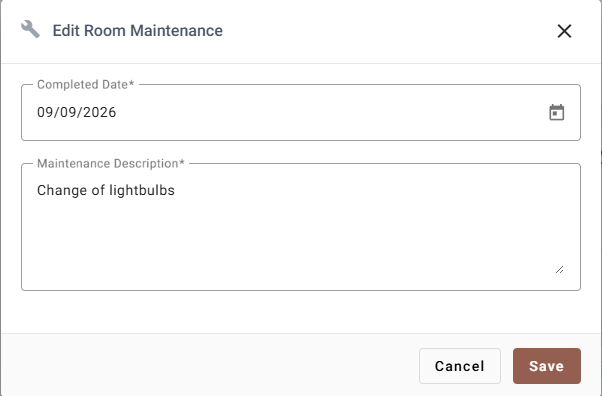
| Field | Required | What it does |
|---|---|---|
| Completed Date | Yes | The day the work was finished. A new entry starts on today’s date; use the calendar icon, or type over it. |
| Maintenance Description | Yes | What was done, up to 500 characters. |
Save writes the entry; Cancel and the ✕ discard it.
The entry also records who logged it, taken from whoever is signed in — that is not a field you fill in.
Writing a description someone can use later
This log is read months afterwards, usually by someone trying to work out whether a problem is new or the same one again. Two habits make that possible:
- Name the thing and what was done to it. Replaced the shower mixer cartridge tells the next reader far more than plumbing fixed.
- Say if it is a repeat. Air-con serviced again, third time this year is the entry that eventually gets the unit replaced.
Deleting an entry
Delete on the row menu asks you to confirm in a plain browser dialog — the small grey box at the top of the window, not a SupremeStay dialog. Confirm it and the entry is gone; there is no undo.
Taking a room out of service
A maintenance entry is a record. It does not stop the room being sold, and it does not change the room’s cleaning status.
To stop a room being sold while work is going on, block it on the Calendar: block the dates the room is unavailable, and it will not be offered to the booking engine, to the channel manager, or to anyone creating a reservation by hand. Unblock it when the work is done.
| You want to | Use |
|---|---|
| Record a repair that has been done | Maintenance History, here. |
| Flag a fault nobody has fixed yet | Room remark in Housekeeping. |
| Stop the room being sold | A block on the Calendar. |
| See every room currently out of service | Housekeeping Reports. |
If something does not work
| What you see | Why |
|---|---|
| Save is refused | Both fields are required. The description also cannot be longer than 500 characters. |
| The room is still bookable | A maintenance entry does not block anything. Block the room on the Calendar. |
| The confirmation looks different from the rest of the app | Deleting uses the browser’s own confirm box. It is the right dialog. |
| I deleted the wrong entry | There is no undo. Add it again. |
| The list is empty | Nothing has been logged against this room yet. |
| I logged it against the wrong room | Delete it here and add it again on the right room; an entry cannot be moved. |