
Rooms
The individual rooms you let: number, floor, bed, Wi-Fi and how they are picked automatically.
A room is a real door with a number on it. It belongs to one room type, which is where its occupancy, tax and photos come from — what lives here is only what makes this room different from its neighbours: its number, its floor, how the bed is made up, and its Wi-Fi.
Set the room types up first. Nothing on this page can be saved without one.
Opening the page
- Open Settings from the left sidebar.
- Choose the Rooms tab.
What is on the page
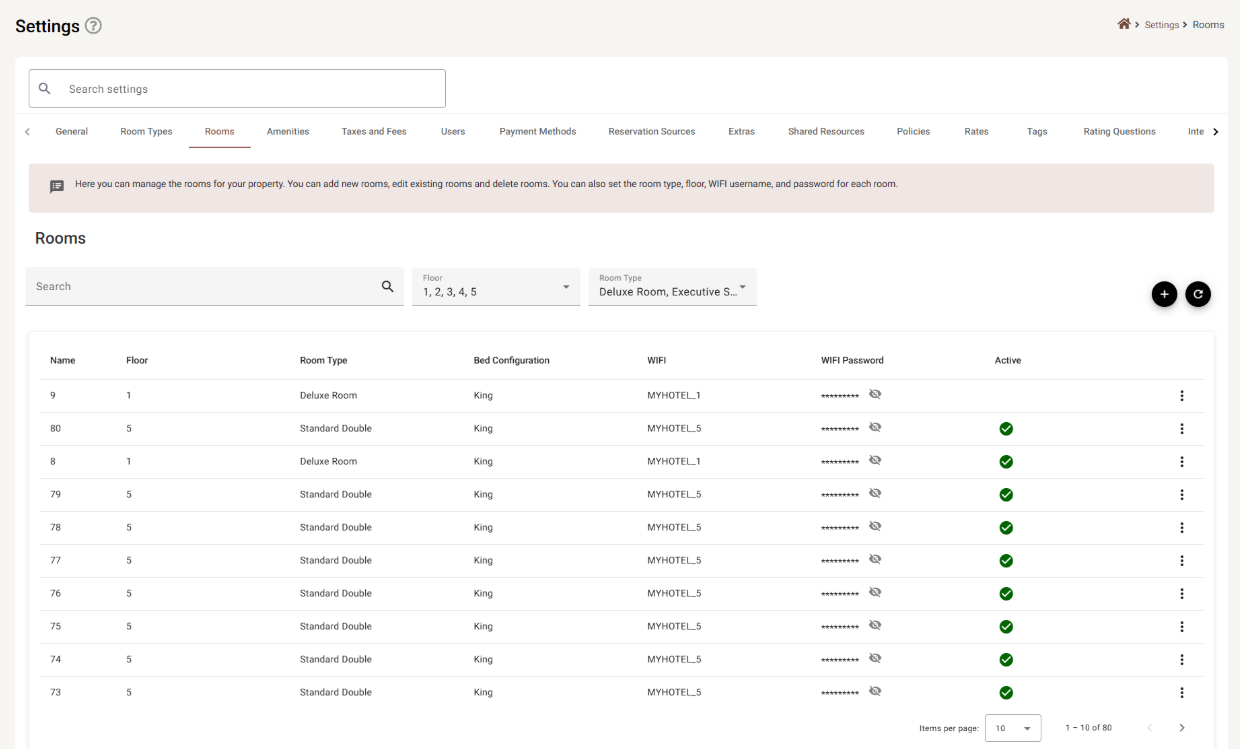
| Column | What it shows |
|---|---|
| Name | The room number or name. It is what staff see on the calendar and the dashboard. |
| Floor | Which floor it is on. Also a filter. |
| Room Type | The type it belongs to, and therefore its occupancy, tax and rates. |
| Bed Configuration | How this particular room is made up — one of the layouts its room type allows. |
| WIFI | The network name given to guests in this room. |
| WIFI Password | Hidden behind *********. The 👁 reveals it for that row. |
| Active | A green tick when the room is in use. An inactive room shows nothing at all — the cell is simply blank. |
Every heading sorts. Items per page takes 5, 10, 25 or 100.
Finding a room
Three controls work together, and all three apply at once:
| Control | What it does |
|---|---|
| Search | Free text. The ✕ clears it. |
| Floor | A tick list of every floor in the property, with a select-all row at the top. |
| Room Type | A tick list of every room type, also with select-all. |
Both drop-downs start with everything ticked, which is why the page looks unfiltered when you arrive. Untick a floor to hide it. The half-filled box on the select-all row means some but not all.
If a filter leaves nothing, the table says No results rather than going blank.
The row menu
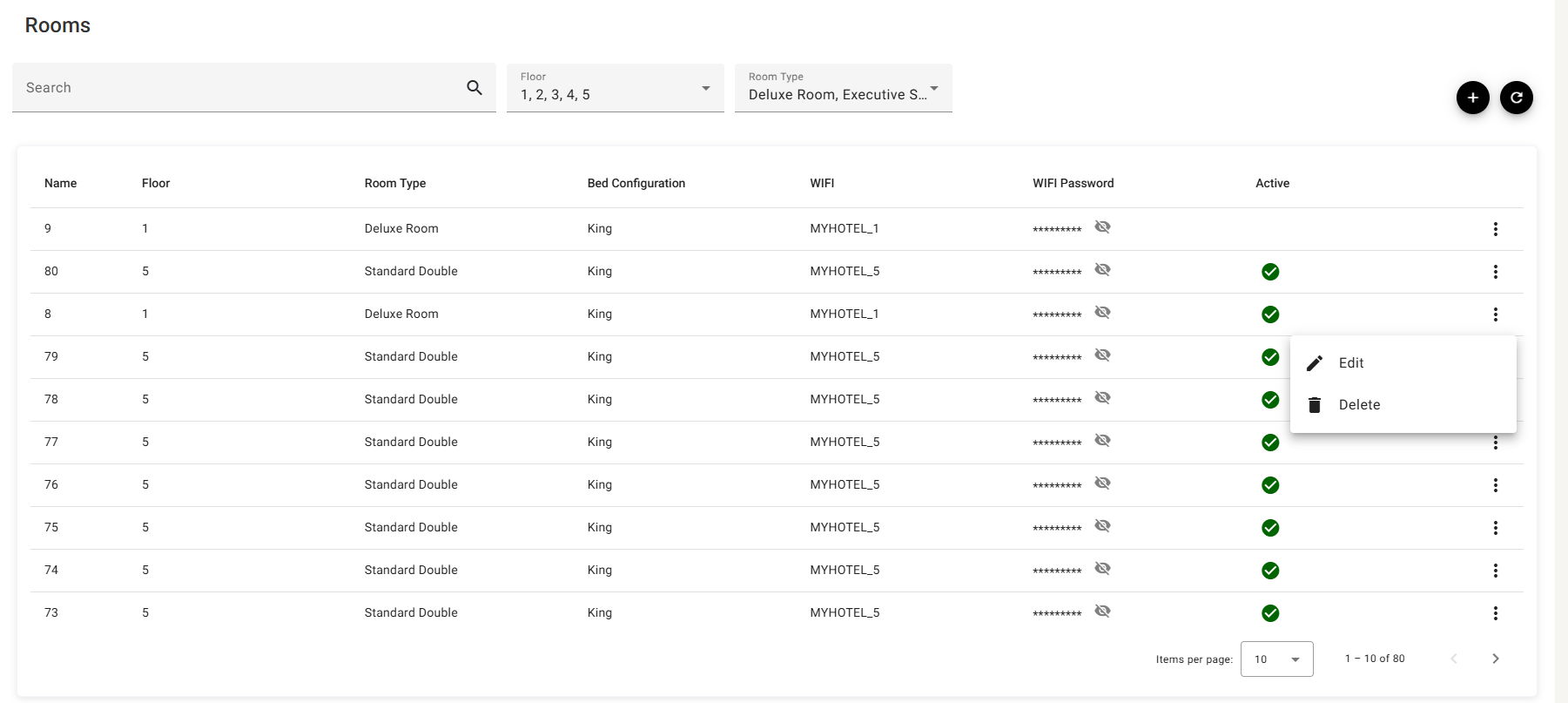
Unlike room types, rooms have no Move Up or Move Down — the list is sorted by whichever column heading you click.
Adding or editing a room
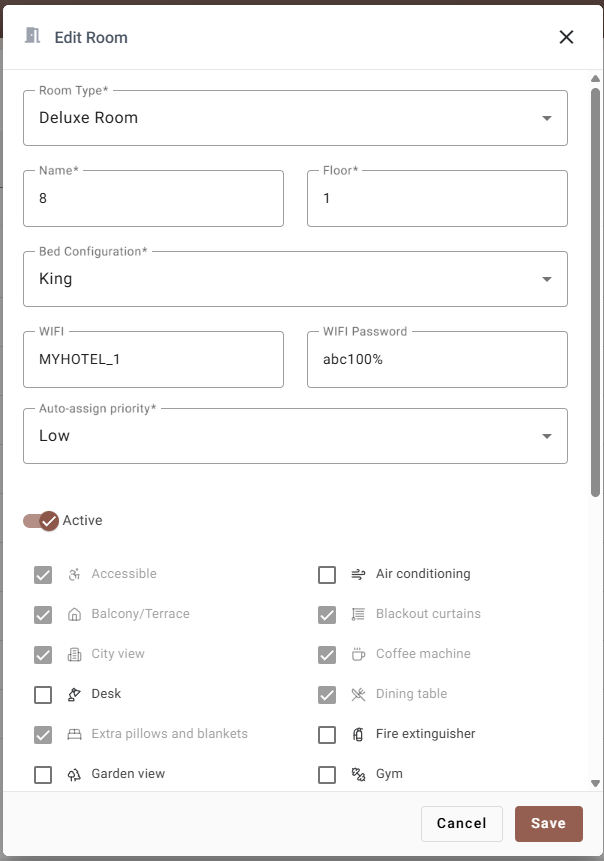
| Field | Required | What it does |
|---|---|---|
| Room Type | Yes | Which type this room belongs to. Changing it changes what the room is sold as, and re-filters Bed Configuration — see below. |
| Name | Yes | The room number or name. Up to 250 characters, cannot be only spaces, and must be unique — a name already in use is refused. |
| Floor | Yes | A number, from 1 upwards. A floor you have not used before is added to the Floor filter as soon as the room is saved. |
| Bed Configuration | Yes | How this room is actually made up. Only the layouts its room type allows are offered; before a room type is chosen the field says Select a room type first. |
| WIFI | No | The network name for this room. |
| WIFI Password | No | Stored as typed and shown in the list behind the 👁. |
| Auto-assign priority | Yes | Which free room the system reaches for first — see Auto-assign priority. |
| Active | — | Switched off, the room stops being offered. Existing bookings on it are untouched. |
Bed Configuration follows the room type
A room has one bed layout; its room type carries the list of layouts that are allowed. The dropdown here never shows more than that list, because the server refuses a room whose bed its type does not permit.
So if the layout you want is missing, it is not missing from the room — it has not been ticked on the room type.
Auto-assign priority
When a room line on a reservation has no room number on it — or the one it had is no longer available — the system fills one in for you from the free rooms of that type. Auto-assign priority is how you say which it should reach for first: put your least desirable rooms at one end so they fill last, or your quickest-to-clean ones at the other so they fill first.
Amenities
When you edit a room, a ticklist appears below the toggle. The ones already ticked and greyed out come from its room type and cannot be unticked here — they belong to every room of that type, so removing one is a decision for the type, not for this room.
You can tick extra ones on top. A corner room with a sea view the rest of its type does not have is exactly what this is for.
The list is not there when you add a room: a new room is given a copy of its room type’s amenities by the server, so there is nothing to adjust until it exists. Save it, then edit it.
Adding many rooms at once
A floor of twenty identical rooms does not need twenty trips through the form.
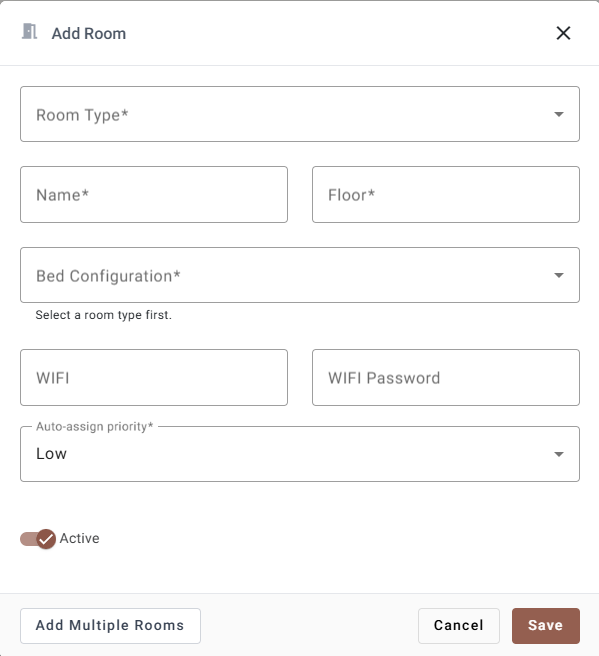
Press Add Multiple Rooms and the dialog becomes one row per room:
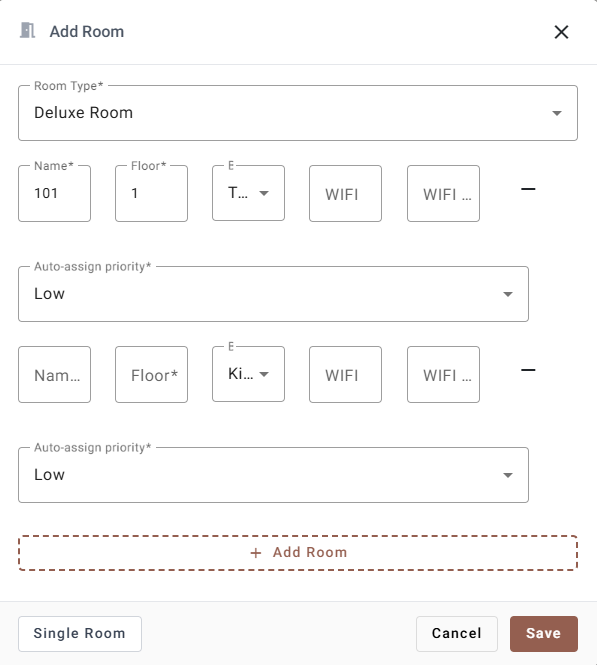
- Pick the Room Type once, at the top. It applies to every room in the batch.
- Fill in Name, Floor, Bed Configuration and, if you use them, the Wi-Fi details for the first room.
- + Add Room adds another row. − at the end of a row removes it — the last remaining row cannot be removed.
- Save creates them all.
Single Room switches back to the one-room form. The button only exists while adding; editing is always one room at a time.
Deleting a room
Delete on the ⋮ menu asks you to confirm, then removes the room.
If you only want to take a room out of service — refurbishment, a broken air conditioner — switch Active off instead. That keeps its history and its bookings intact. For a room that is out for a few days, Maintenance is the better tool, because it blocks the dates rather than the room.
If something does not work
| What you see | Why |
|---|---|
| Save does nothing, and a message says to correct the errors | A required field is empty or invalid — every problem field is marked, including ones you never opened. |
| “A room with this name already exists” | Room names must be unique across the whole property, not just per floor or per type. |
| Bed Configuration is empty, saying to select a room type first | No room type is chosen yet. Pick one and the layouts appear. |
| The layout you want is not in the list | It is not ticked on the room type. Add it in Room Types. |
| A room’s bed changed by itself | Its room type was changed and the old layout is not one the new type allows. |
| The Active column is blank for a room | The room is switched off. Nothing is drawn for an inactive room. |
| No amenities ticklist when adding a room | It appears on edit only. Save the room first. |
| An amenity cannot be unticked | It comes from the room type. Remove it there, where it applies to every room of that type. |
| A new floor is missing from the Floor filter | It is added when the first room on it is saved. |