
Users
Inviting staff, what each permission opens up, resending invitations and reading the activity log.
Everyone who works in SupremeStay gets their own account. Accounts are never shared — the activity log is only worth anything if each entry belongs to one person.
This page is where those accounts are created, and where you tick what each person may reach. What each permission actually opens up is covered in User roles and access levels.
Opening the page
- Open Settings from the left sidebar.
- Choose the Users tab.
What is on the page
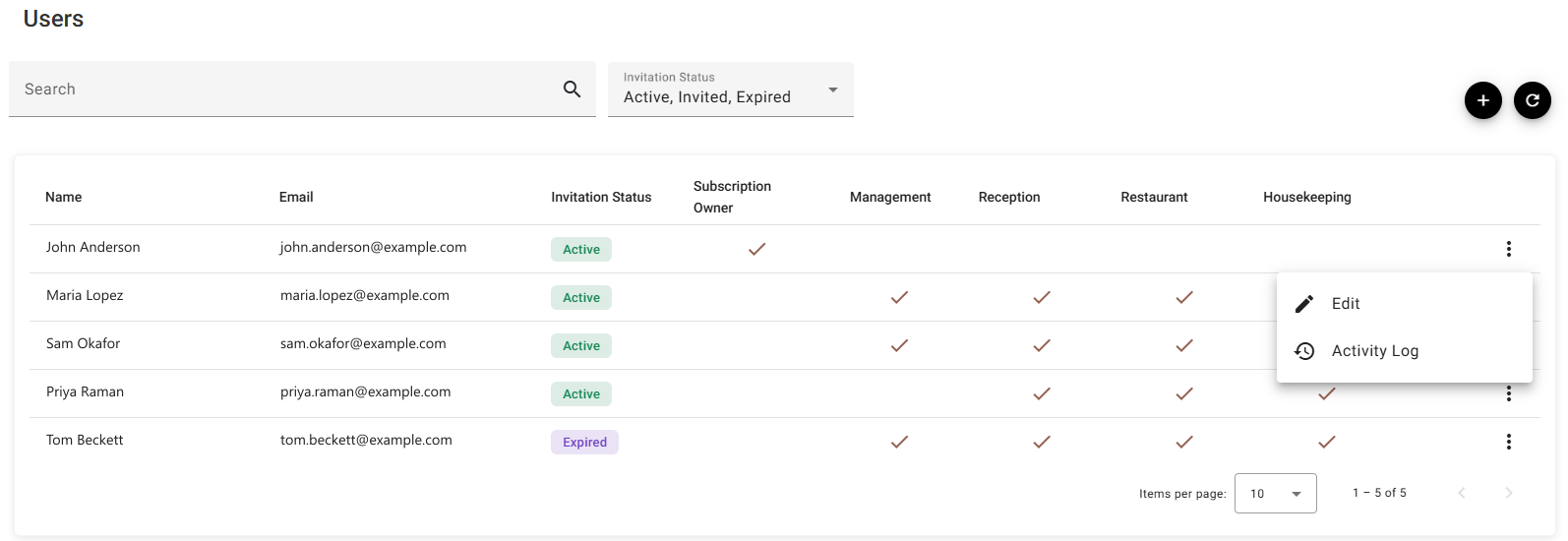
| Column | What it shows |
|---|---|
| Name | The display name, used on reservations, notes, chat messages and the activity log. |
| The address the invitation went to, and the one they sign in with. | |
| Invitation Status | Active in green, or Invited / Expired in purple. |
| Subscription Owner | A tick on the one account that owns the property. |
| Management, Reception, … | A tick per permission held. |
Finding someone
Search narrows the list, and Invitation Status is a tick list of Active, Invited and Expired, with a select-all row. All three start ticked.
Unticking Active is the quick way to see only the people who have not got in yet.
⟳ reloads the list — worth pressing after telling someone to accept their invitation. If a filter leaves nothing, the table says No results.
The row menu
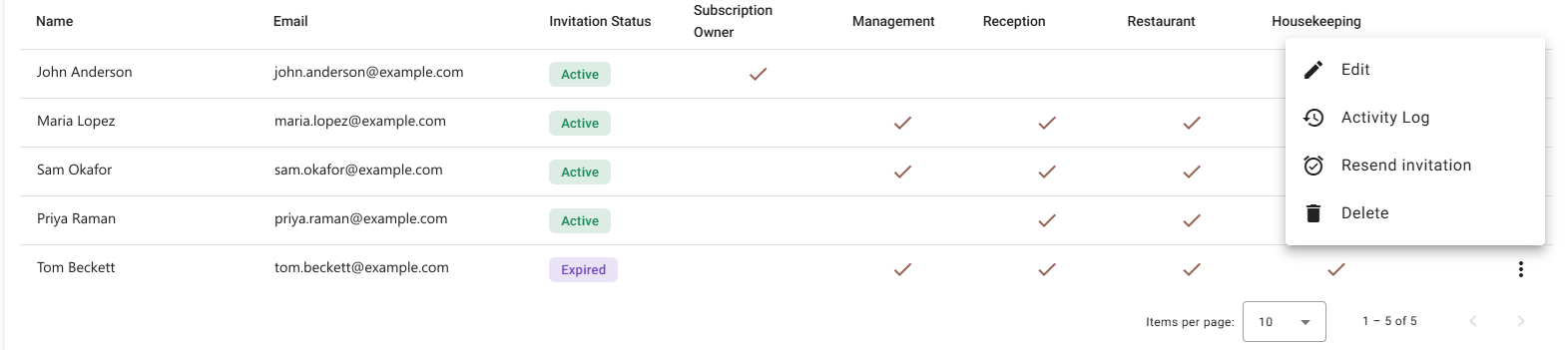
| Item | When it appears |
|---|---|
| Edit | Always. |
| Activity Log | Always. |
| Resend invitation | Only when the status is Invited or Expired. An active user has nothing to resend. |
| Delete | Always except on the subscription owner, who cannot be removed from here. |
Your own row has no ⋮ at all. It says (you) instead — you cannot edit or delete yourself from this page. Your own details are on your Account page.
Inviting someone
The + button is Invite, not Add — there is no way to create an account without sending an invitation. The person sets their own password when they accept.
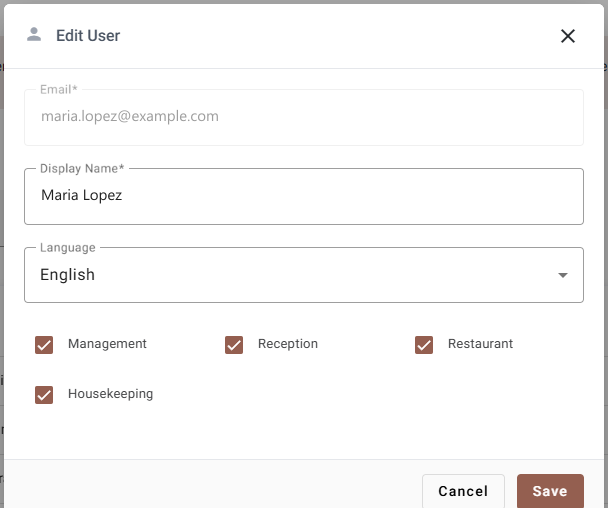
| Field | Required | What it does |
|---|---|---|
| Yes | Where the invitation goes, and the address they sign in with. It must be a valid address and must not already be a user here — a repeat is refused with This email already exists. | |
| Display Name | Yes | What colleagues see against their work. |
| Language | — | The language they see the first time they sign in. Theirs to change afterwards on their own Account page. |
| Permissions | At least one | Tick what they need. Saving with none ticked is refused. |
Press Invite and the email goes out immediately.
Editing someone
Edit opens the same dialog with Save instead of Invite. Name, language and permissions can all be changed; the email cannot.
A permission change takes effect the next time they load a page — they do not have to sign out and back in.
Invitations that did not land
An invitation that is never accepted goes Expired. That is normal — it went to a spam folder, or the person was on leave.
- Filter Invitation Status to Invited and Expired.
- Open the ⋮ on their row and choose Resend invitation.
- A fresh email goes out and you are told it has been sent.
If it keeps failing, check the address is right. Because it cannot be corrected on an existing user, a typo means deleting that user and inviting the correct address.
Removing someone
Delete withdraws access. Everything they did — reservations, notes, charges, activity log entries — stays exactly as it was; only their ability to sign in goes.
For someone on extended leave, deleting and re-inviting later is the available route: there is no “suspend” on this page.
Activity log
Activity Log on the ⋮ menu shows what that account has done, with the time and the IP address it came from. It is the first place to look when a rate, a reservation or a setting changed and nobody remembers changing it.
Your own log is on your Account page.
If something does not work
| What you see | Why |
|---|---|
| A permission column is missing | That module is not enabled for your property. |
| No ⋮ on a row | It is your own row. It shows (you). |
| No Resend invitation on the menu | That user is already Active. |
| No Delete on the menu | That user is the subscription owner. |
| Save is greyed out in the dialog | You are editing the subscription owner, whose permissions are fixed. |
| “This email already exists” | That address is already a user here. Search for it — they may be there with an expired invitation. |
| Saving is refused with no obvious error | No permission is ticked. At least one is required. |
| The email field will not accept typing | You are editing an existing user. The sign-in address cannot be changed. |
| Someone still sees an old menu | A permission change applies on their next page load. |