
Account
Your personal details, language, recent sign-in activity, and how to close your account.
The Account page holds the few things that belong to you rather than to the property: your name, how colleagues reach you, the language SupremeStay speaks to you in, and a log of everything done with your sign-in. It is also where you would ask for your account to be deleted.
Nothing on this page affects other users. Changing your language changes only what you see.
Opening the page
- Click your name in the top-right corner of any screen.
- Choose Account.
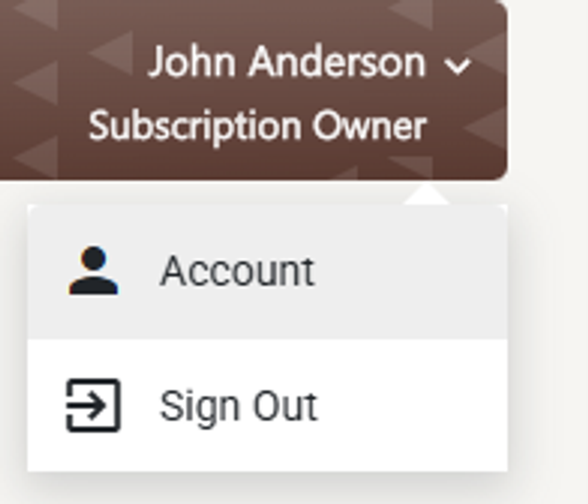
The page opens at /profile and is titled Account — same thing.
What is on the page
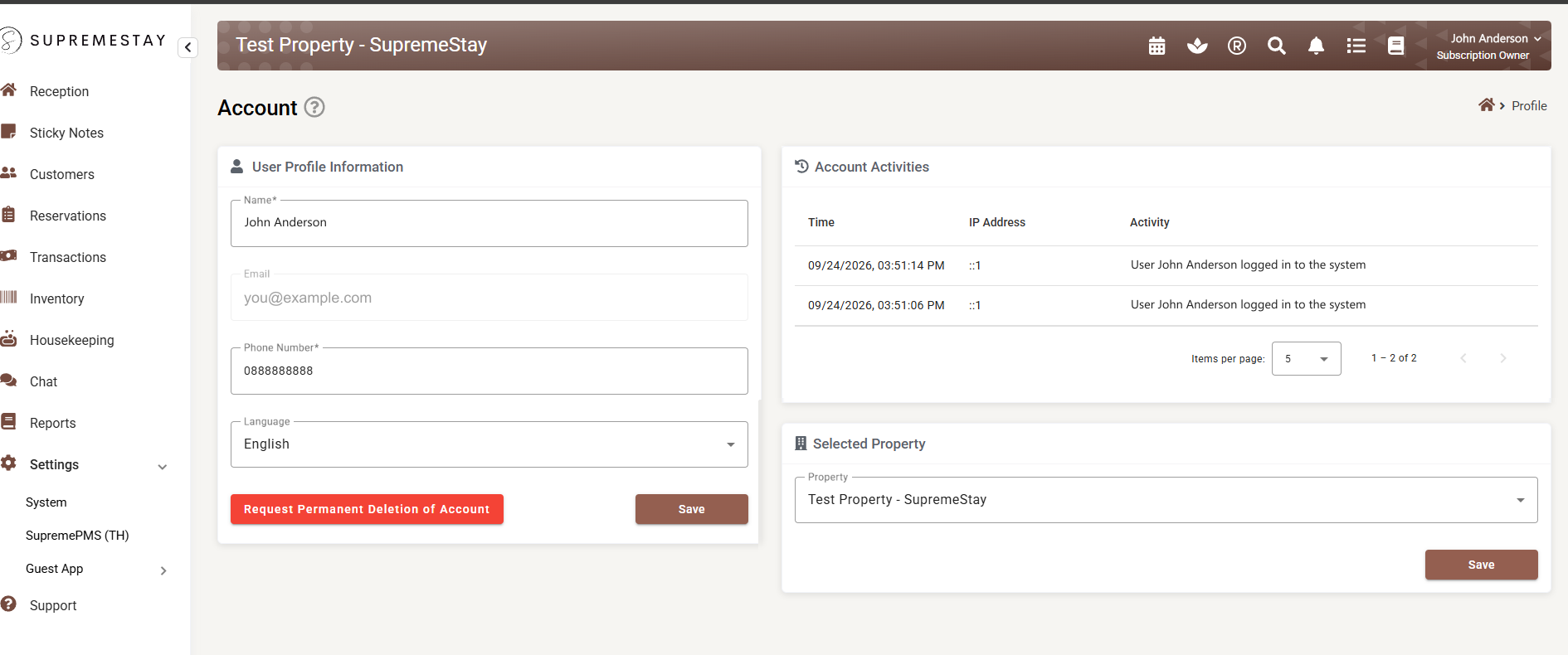
| Card | What it is for |
|---|---|
| User Profile Information | The four things you can change, plus the two buttons. |
| Account Activities | Every sign-in and account action, newest first, with the IP address it came from. |
| Selected Property | How you move between properties. Only appears if your email address is a user at more than one. See Working in more than one property. |
User Profile Information
| Field | Can you change it? | What it does |
|---|---|---|
| Name | Yes — required | The display name used on reservations, notes, chat messages and every line of the activity log. Leaving it empty blocks Save. |
| No | The address you sign in with. It is shown greyed out for reference. It also decides which properties you can reach — see below. To change it, ask SupremeStay support. | |
| Phone Number | Yes — required | How colleagues reach you. Never shown to guests. Must be digits only and at least 10 of them — the field turns red and names the problem if it is not. |
| Language | Yes | The language SupremeStay is shown to you in: English, Swedish or Thai. Yours alone. |
The two buttons
| Button | What happens when you press it |
|---|---|
| Save | Writes the changes straight away and shows a green “Account updated” message. A new language takes effect immediately — the menus around you change as the page finishes saving. If a field is invalid, nothing is sent; the offending field is marked instead. |
| Request Permanent Deletion of Account | Opens a confirmation dialog. It does not delete anything by itself — see Asking for your account to be deleted. |
Account Activities
A running record of what has been done with your sign-in — useful for one question above all: was that me?
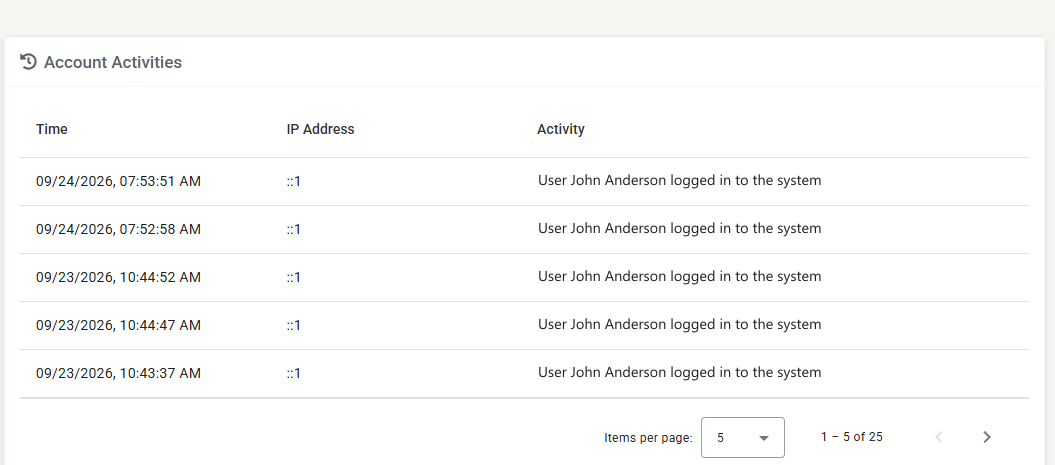
| Column | What it shows |
|---|---|
| Time | Date and time of the event, in your language’s format. Click the heading to sort oldest-first or newest-first. |
| IP Address | The network address the action came from. Also sortable — a quick way to group everything that came from one place. ::1 means the same machine the system is running on. |
| Activity | What happened, in plain words: “User John Anderson logged in to the system”. |
Five rows are shown at a time. Items per page raises that to 10, 25 or 100, and the arrows move between pages.
Working in more than one property
One email address can be a user at several properties — a group with three hotels, for instance. When yours is, a Selected Property card appears below the activity log, and it is how you move between them. There is no other switcher: this page is the way.
The property you are in right now is named in the top bar:

To move to a different one:
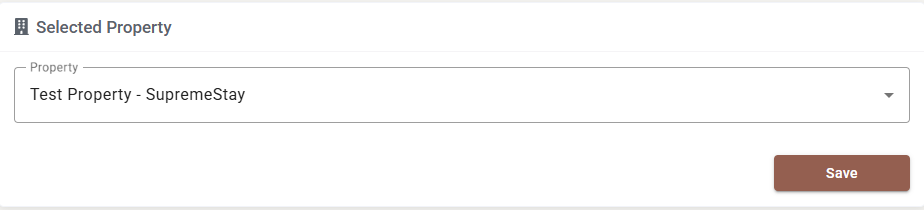
- Open the Property list. It holds every property your email address is a user at, and the one you are in is already selected.
- Pick the one you want.
- Press the Save inside this card.
You are signed in again as your user at that property and dropped on its dashboard.
What travels with you and what does not
| Travels with you | Belongs to the property |
|---|---|
| Your name, phone number and language | Your role and permissions — you can be a manager at one property and a receptionist at another |
| Your sign-in and this activity log | Everything you can see: rooms, rates, reservations, guests, reports, settings |
So a menu that was there a moment ago can be missing after you switch. That is not a fault — it means your user at the new property does not have that permission. See User roles and access levels.
If the card is not there
| Reason | What it means |
|---|---|
| You belong to one property only | Nothing to switch between. |
| A property you expect is missing | The list is built from your email address. If you were added to that property under a different address, sign in with that one — or ask an administrator there to add the address you are using now. See Users. |
Asking for your account to be deleted
Request Permanent Deletion of Account opens a dialog before anything happens.
| Control | What it does |
|---|---|
| Delete Subscription (tick box) | Only shown to the account owner. Ticked, the request covers the whole property subscription — every user, not just you. Left unticked, only your own user is requested for deletion. |
| Cancel | Closes the dialog. Nothing is requested. |
| Yes, please delete my account | Submits the request. |
After you submit:
- An email is sent to your address with a link to confirm the deletion. The request does not proceed until you click it.
- The request is then processed by SupremeStay. It can take up to 30 days to complete.
- SupremeStay support can tell you where a request has got to.
If something does not work
| What you see | Why |
|---|---|
| Save does nothing | A required field is empty or invalid. Look for the red text under Name or Phone Number. |
| Save switched property instead of saving my details | You pressed the Save inside the Selected Property card. Use the one under Language. |
| “Phone number must be at least 10 digits long” | Spaces, dashes and brackets do not count. Type the digits only, for example 0812345678. |
| The Email field will not accept typing | That is deliberate. It is your sign-in address and cannot be changed here. |
| No Selected Property card | Your email address is a user at one property only. See If the card is not there. |
| No Delete Subscription tick box | You are not the account owner. Your request will cover your own user only. |