
Exporting reports
Choosing a period, downloading as CSV or PDF, and what exports can and cannot do.
Every report in SupremeStay works the same way: choose a period, Apply, then Download. Once you know the pattern, every report in the system behaves identically.
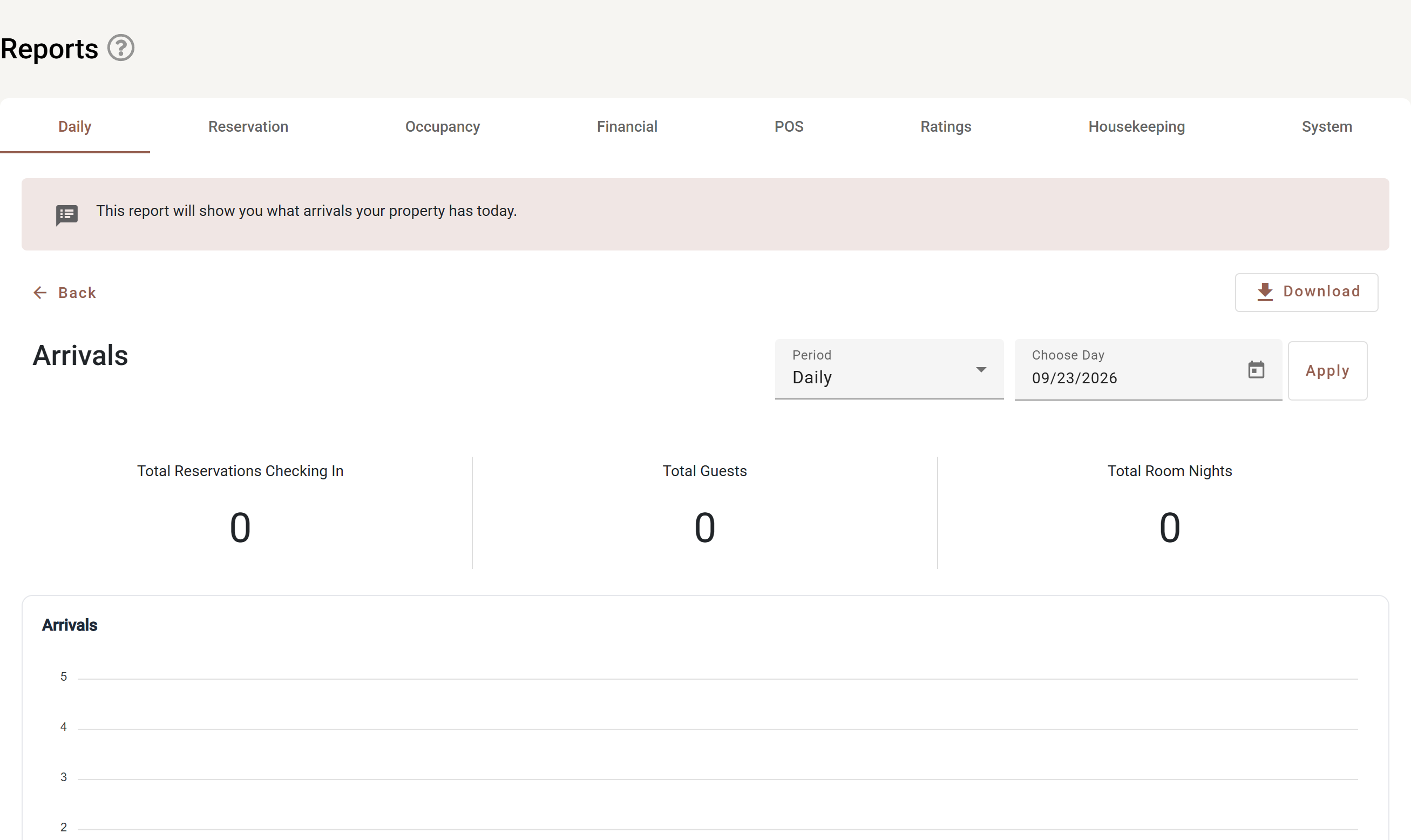
Every report page is laid out the same way:
| Control | What it does |
|---|---|
| The tabs across the top | Daily, Reservation, Occupancy, Financial, POS, Ratings, Housekeeping, System — the report families. |
| Back | Returns to the list of reports in that family. |
| Period | Daily, Monthly, Yearly or Custom. |
| Choose day / From and To | The date or range, depending on the period chosen. |
| Apply | Runs the report. Nothing recalculates until you press it. |
| Download | Exports what is on screen. |
The totals sit directly under the filters, and the detail rows below them.
Choosing a period
| Option | What you pick |
|---|---|
| Daily | A single day. |
| Monthly | A month and a year. |
| Yearly | A year. |
| Custom | A from and a to date. |
Apply runs the report. Nothing is recalculated until you do, so you can change several filters and run once.
Some reports add their own filters — the breakfast checklist filters by tag, the housekeeping report by who cleaned. These apply on top of the period.
Downloading
Download offers the report in two forms:
- CSV — opens in Excel or Google Sheets. Use this when the numbers are going into a spreadsheet, an accounts package, or somebody else’s template.
- PDF — keeps the layout, totals and headings. Use this for anything being printed, filed or sent outside the property.
The download contains exactly what is on screen: the same period, the same filters, the same rows. If the export looks wrong, change the filters and look at the screen first.
What exporting does not do
- There is no scheduled delivery. Reports are not emailed on a timetable; someone runs and sends them.
- There is no saved report. Filters are not remembered between visits — set them each time.
- Nothing is deleted by exporting. Downloading a report changes no data.
The reports themselves
- Daily reports — arrivals, departures, breakfast checklist, end of day.
- Financial reports — transactions, debtors, deposits.
- Occupancy reports — how full you were.
- Reservation reports — bookings by source, guest app usage.
- Housekeeping reports — rooms cleaned, by whom.
- POS reports — restaurant sales by category, item and order.
- Rating reports — what guests thought.
- System reports — activity and audit.