
Master Rates
The base price for each room type and the rate plans you sell it under.
A master rate is one way of selling one room type at one price. A Deluxe Room might be sold four ways — Standard Rate, Walk-in Standard Rate, Non-refundable Rate, Bed & Breakfast — each with its own price and its own cancellation terms. Each of those is a master rate.
It is the base price. A seasonal rate replaces it for the dates it covers, and the Inventory page can override a single night. With neither of those, this is what a guest pays.
Opening the page
- Open Settings from the left sidebar.
- Choose the Rates tab.
- Press Manage Master Rates.
← Back at the top left returns to the three Rates cards.
What is on the page
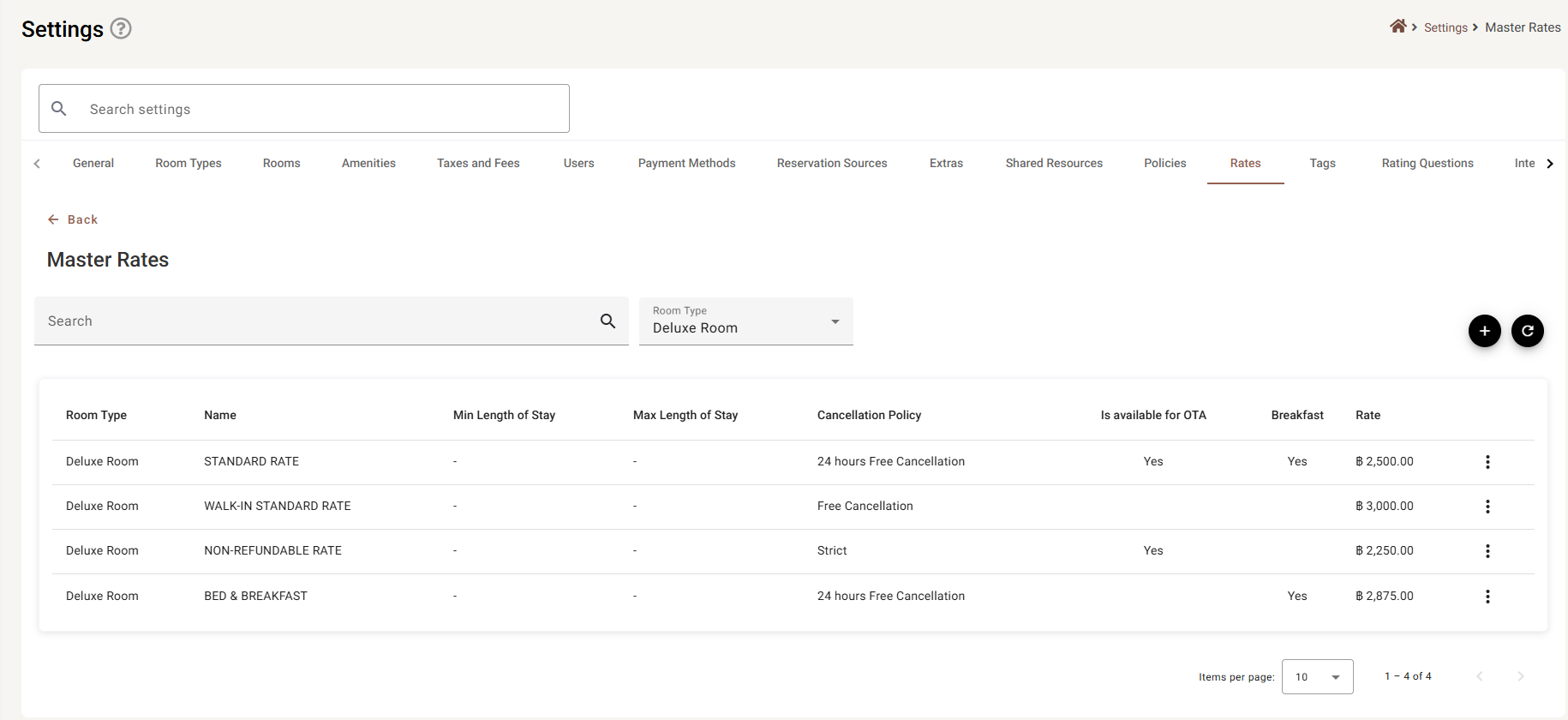
| Column | What it shows |
|---|---|
| Room Type | Which room type this price is for. |
| Name | The rate plan’s name. Staff pick from these when taking a booking, so make it read clearly on its own. |
| Min / Max Length of Stay | The nights this plan is restricted to. A dash means no restriction — either the rule is switched off, or no figure was given. |
| Cancellation Policy | The terms attached to this plan, from Policies. |
| Is available for OTA | Yes, or blank. Blank means this plan is not sent to the channels. |
| Breakfast | Yes, or blank. |
| Rate | The nightly price, in the property’s currency. |
Finding a rate
Room Type is not really a filter — the list shows one room type at a time, so switching it is how you move between them. If a rate you expect is missing, check you are looking at the right room type before anything else.
Search narrows within that room type, and ⟳ reloads. Items per page takes 5, 10, 25 or 100.
The row menu
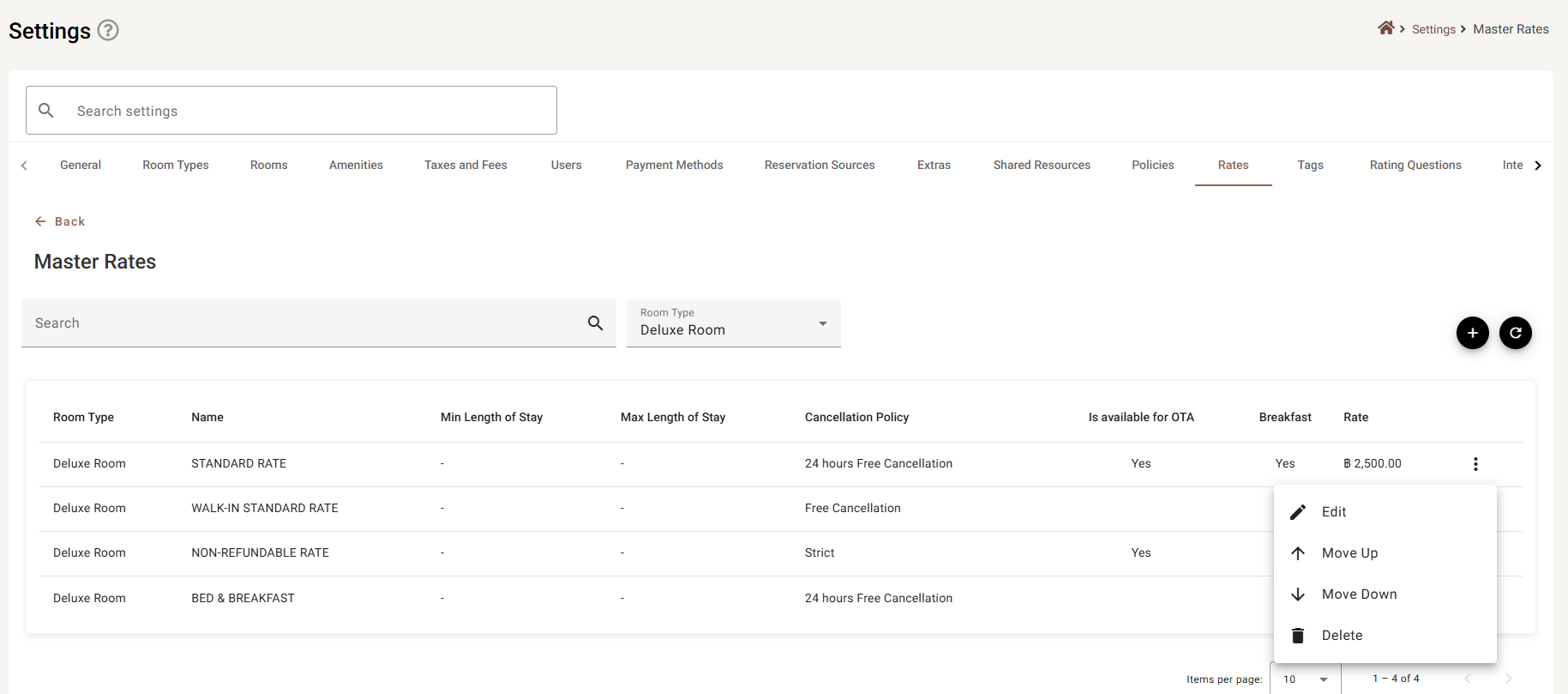
Move Up and Move Down matter more here than on most lists: this is the order the plans are offered in. Put the one you want taken most often at the top.
Delete asks you to confirm. Unlike a room type, nothing stops you deleting a plan that has already been sold — so if you only want to stop offering it, consider renaming it or moving it to the bottom instead.
Adding or editing a rate plan
+ opens an empty form, Edit opens a filled one.
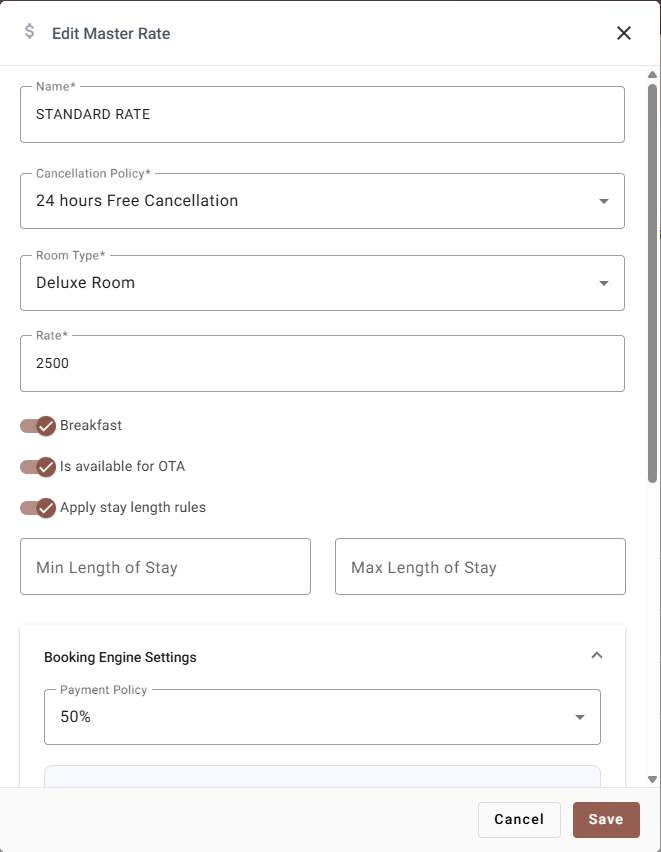
| Field | Required | What it does |
|---|---|---|
| Name | Yes | What this way of selling is called. Shown to staff when booking and, if the plan reaches the booking engine, to guests. |
| Cancellation Policy | Yes | The terms this price buys. A cheaper price with stricter terms is the whole point of having more than one plan. From Policies. |
| Room Type | Yes | Which room type is being priced. One plan covers one type — a second type needs its own plan. |
| Rate | Yes | The nightly price. It must be greater than zero; zero and negative figures are refused. |
| Breakfast | — | Whether breakfast is part of this price. Shown as Yes in the list. |
| Is available for OTA | — | Whether this plan is sent to the channel manager and sold online. Switching it off also hides the Booking Engine Settings below. |
| Apply stay length rules | — | Off, the plan has no night restrictions. On, it reveals the two fields below. |
| Min / Max Length of Stay | No | Only visible while the toggle above is on. Switching that toggle back off clears both fields, so turning it on again starts from empty. |
Booking engine settings
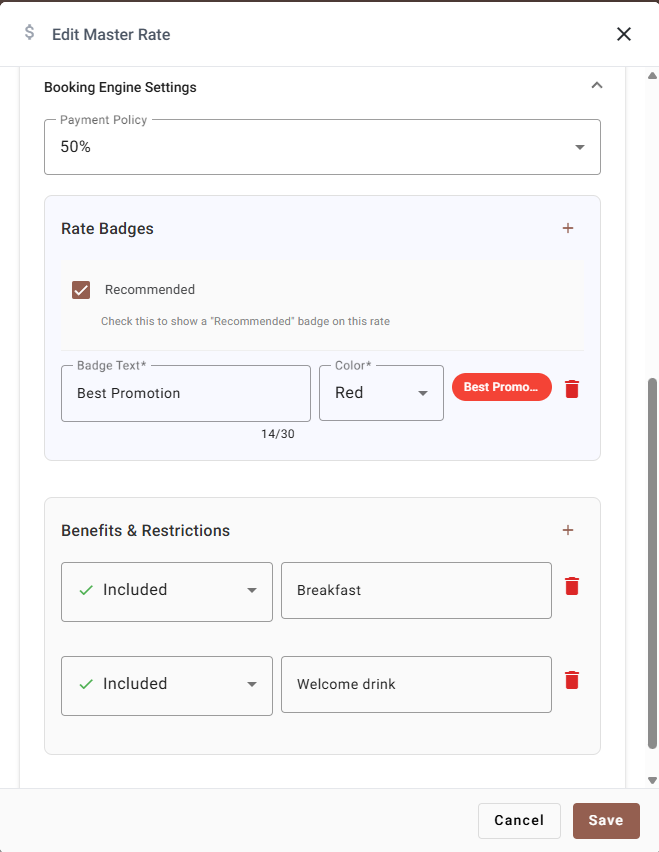
This panel is about how the plan is presented on your own booking website. It only appears when both of these are true:
- your property has a booking engine, and
- Is available for OTA is switched on for this plan.
If you cannot find it, that is why. On an existing plan the panel opens already expanded when it has something in it — a badge, a benefit, or the Recommended tick.
Payment policy
What the guest is asked to pay at the time of booking — a deposit, the full amount, nothing. — None — leaves it to the booking engine’s own default. The options come from Payment policy.
Rate badges
A badge is the coloured label on the rate while a guest is choosing.
| Control | What it does |
|---|---|
| Recommended | Puts a standard Recommended badge on the plan. Separate from the badges below, and it needs no text. |
| + | Adds a badge row. |
| Badge Text | Your own wording, up to 30 characters — the counter is under the field. Required once a badge row exists, so an empty row blocks Save. |
| Color | Blue, Orange, Red, Green or Cyan. |
| (the chip) | A live preview. It updates as you type, so you see the badge before a guest does. |
| 🗑 | Removes that badge. |
With no badges the section says so rather than sitting empty.
Benefits and restrictions
The bullet list under the rate on the booking engine — what this price includes, and what it does not.
Each line is a dropdown and a description:
- Included — a green tick. Breakfast, Welcome drink, Late checkout.
- Excluded — a red cross. Non-refundable, Airport transfer not included.
+ adds a line and 🗑 removes one. The description is required, so a blank line blocks Save.
Saving
Save checks the form first. If anything is wrong nothing is sent — look for red text, and remember that an empty badge or benefit line down in the booking engine panel counts.
Cancel and ✕ discard everything.
If something does not work
| What you see | Why |
|---|---|
| A rate plan is missing from the list | The Room Type picker is on a different type. The list shows one type at a time. |
| “Please enter a rate greater than zero” | The price is 0 or blank. A master rate cannot be free. |
| Min / Max Length of Stay disappeared | Apply stay length rules was switched off, which also clears both figures. |
| A dash in the length-of-stay columns | No restriction on that plan — the rule is off, or the figure was never given. |
| No Booking Engine Settings panel | Either the property has no booking engine, or Is available for OTA is off for this plan. |
| Save does nothing, with no obvious error | Scroll down. An empty Badge Text or benefit description is required and blocks the save. |
| The plan is not showing on an OTA | Is available for OTA is off, or the plan has not been mapped in the channel manager. |
| The price a guest sees is not this one | A seasonal rate covers those dates, or a night was overridden in Inventory. |