
Discount Coupons
Fixed or percentage discounts, their limits, and how staff apply one to a booking.
A coupon takes an amount off a booking. Unlike a seasonal rate, it does not change what the room costs — the room is still priced normally and the discount appears as its own line on the bill, so you can always see what was given away and why.
This page is where coupons are created. Applying one happens on the reservation — see Using a coupon on a booking.
Opening the page
- Open Settings from the left sidebar.
- Choose the Rates tab.
- Press Manage Coupons.
← Back returns to the three Rates cards.
What is on the page
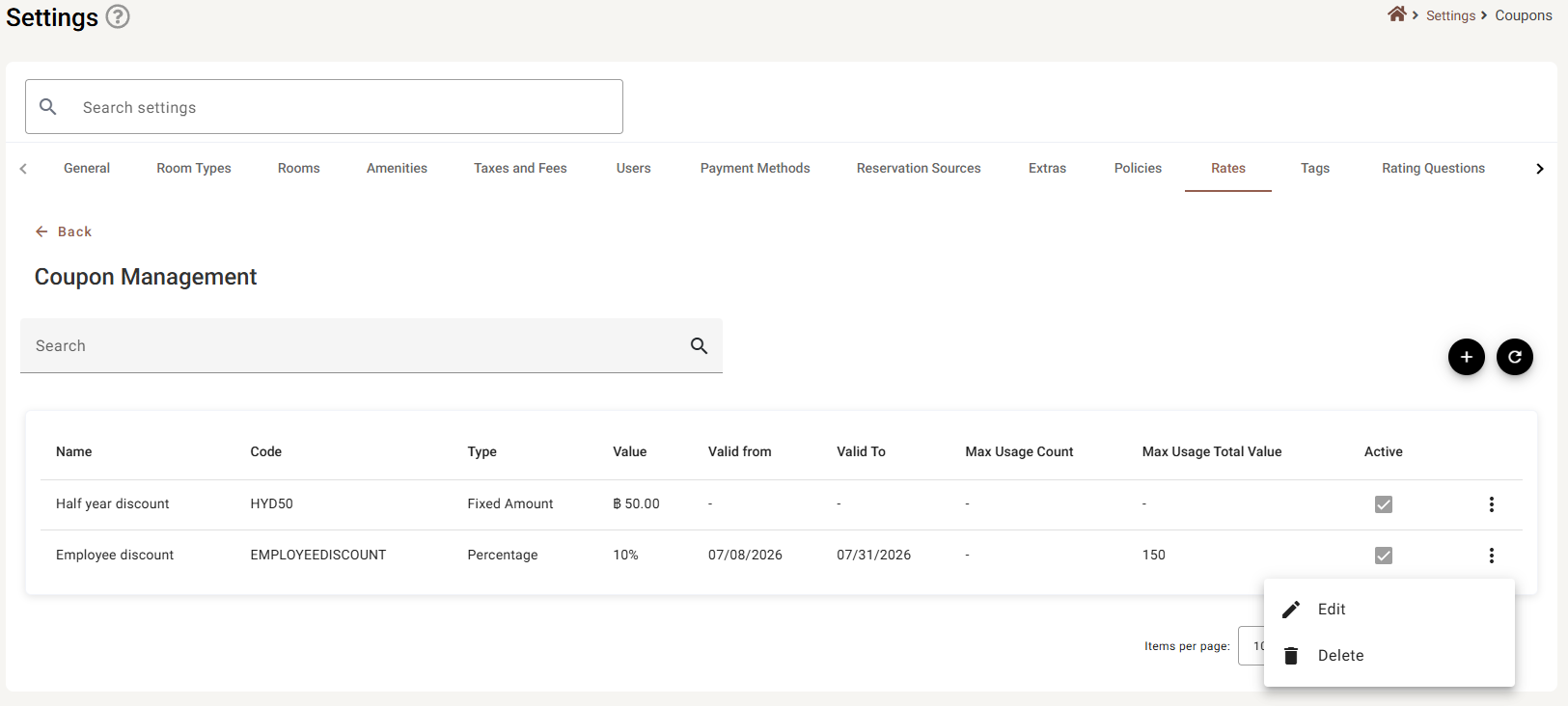
| Column | What it shows |
|---|---|
| Name | What the coupon is for, in your words. This is what staff see when applying it, so it should say who it is for — Employee discount, not EMP10. |
| Code | The code itself. |
| Type | Fixed Amount or Percentage. |
| Value | Formatted to match the type: ฿50.00 for a fixed amount, 10% for a percentage. |
| Valid from / Valid To | The dates it can be used between. A dash means no limit on that end. |
| Max Usage Count | How many times it may be used in total. A dash means unlimited. |
| Max Usage Total Value | The total discount it may give away before it stops. A dash means unlimited. |
| Active | Ticked when the coupon is available. The box is for reading only — switch it in Edit. |
Name, Code, Type and Value sort; the rest do not. Search narrows the list, ⟳ reloads, and Items per page takes 5, 10, 25 or 100.
Creating a coupon
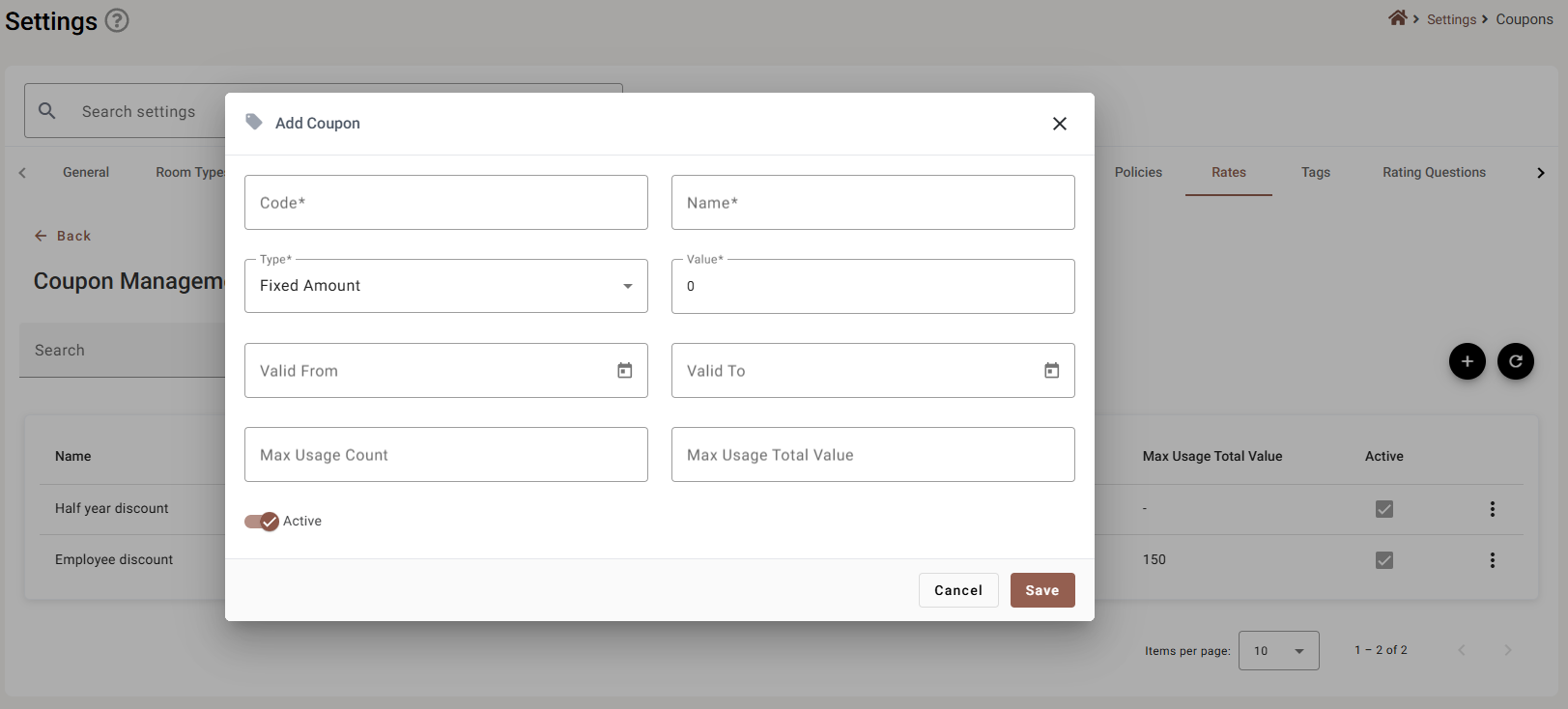
| Field | Required | What it does |
|---|---|---|
| Code | Yes | The code. Nothing forces upper case or bans spaces, so pick a convention and stick to it — SUMMER25 is easier to read down a phone line than summer 25. |
| Name | Yes | What it is for. Staff choose a coupon by name, not by code, so this is the one that has to be unambiguous. |
| Type | Yes | Fixed Amount takes a set sum off. Percentage takes a share off. Defaults to Fixed Amount. |
| Value | Yes | The amount, or the percentage. It is read against Type — 10 means ฿10 on a fixed coupon and 10% on a percentage one. |
| Valid From / Valid To | No | The window it can be used in. Leave either empty for no limit at that end; leave both empty and it never expires. The two constrain each other, so the end cannot be before the start. |
| Max Usage Count | No | How many bookings may use it. Empty means unlimited. |
| Max Usage Total Value | No | A ceiling on the total discount it may give away. Empty means unlimited. |
| Active | — | On by default. See below. |
The two usage limits do different jobs
They are easy to confuse and they protect against different things:
- Max Usage Count caps how many times — this may be used 100 times. Good for a first-100-bookings promotion.
- Max Usage Total Value caps how much — this may give away ฿150 in total, however many bookings that takes. Good for a percentage coupon, where a handful of expensive stays could cost far more than you planned.
A percentage coupon with no total-value cap is the one worth being careful with: 10% off is a different amount on a one-night stay and on a fortnight in a suite.
Active
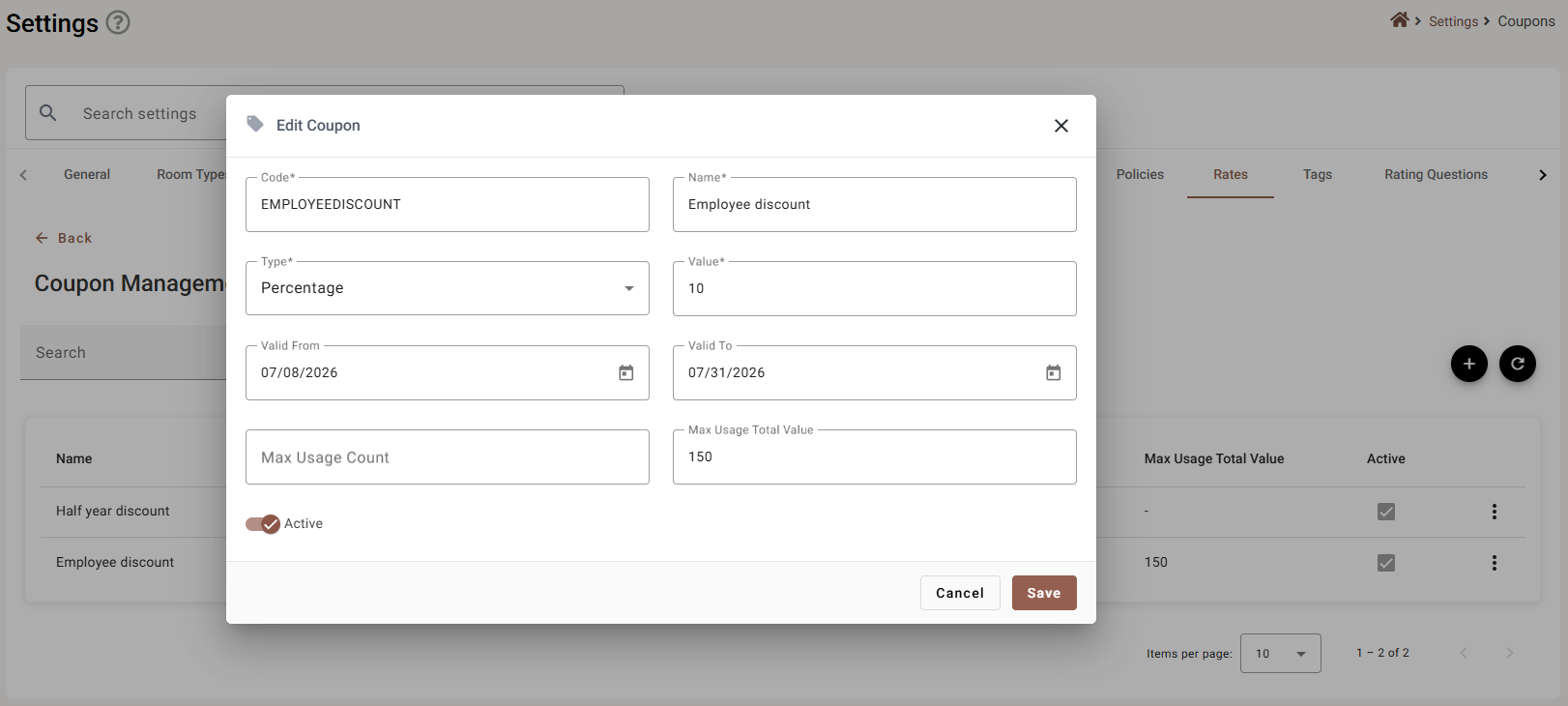
Only active coupons are offered to staff. Switching it off removes it from the list they choose from immediately, while keeping the coupon and its settings for next time.
That makes Active the right control for a promotion that runs every year, and Delete the wrong one — deleting is for a coupon created by mistake.
Using a coupon on a booking
Coupons are not typed in here; they are applied to a reservation.
- Open the reservation and go to its Charges.
- Choose Add Coupon.
- Pick the coupon by name from the list — only active coupons appear.
- Press Apply.
The discount lands as its own Coupon Discount line on the bill, showing which coupon was used. The ✏ beside it swaps it for a different coupon and the 🗑 removes it.
Which discount to reach for
| You want to | Use |
|---|---|
| Charge less for a season, on set weekdays, for everyone | Seasonal rate |
| Charge less on one particular night | Inventory |
| Give one guest, or one group, money off | A coupon |
| Sell the same room on different terms at a different price | A second master rate |
The difference that matters at the bill: a rate change alters what the room costs, while a coupon leaves the room at full price and records the discount separately. When someone later asks why was this booking cheaper, only the coupon leaves an answer behind.
If something does not work
| What you see | Why |
|---|---|
| A coupon is not in the list staff choose from | It is switched off. Only active coupons are offered. |
| The discount is far larger than expected | A Percentage coupon with no Max Usage Total Value. Set a ceiling. |
| A coupon kept working after the promotion ended | Valid To was left empty, which means no end date. |
| The value is wrong by a factor of ten | Type and Value disagree — 10 is ฿10 on a fixed coupon and 10% on a percentage one. |
| Add Coupon is greyed out on a reservation | The billing group is locked, or the stay falls in a closed accounting period. |
| A dash in the list | That limit is not set, which means unlimited. |
| A coupon vanished from the settings list | It was deleted rather than switched off. Deleting is permanent. |