
Seasonal Rates
A different price for a date range and chosen weekdays, replacing the master rate.
A seasonal rate replaces one master rate with a different price, for a range of dates, on the days of the week you choose.
Non-refundable Rate on Deluxe Room is ฿2,250 all year. Through December, on Friday, Saturday and Sunday, it is ฿3,500. That sentence is one seasonal rate.
It does not create a new thing to sell. The plan the guest books, its cancellation terms, whether breakfast is included and whether it reaches the OTAs all still come from the master rate underneath — only the price changes.
Opening the page
- Open Settings from the left sidebar.
- Choose the Rates tab.
- Press Manage Seasonal Rates.
← Back returns to the three Rates cards.
What is on the page
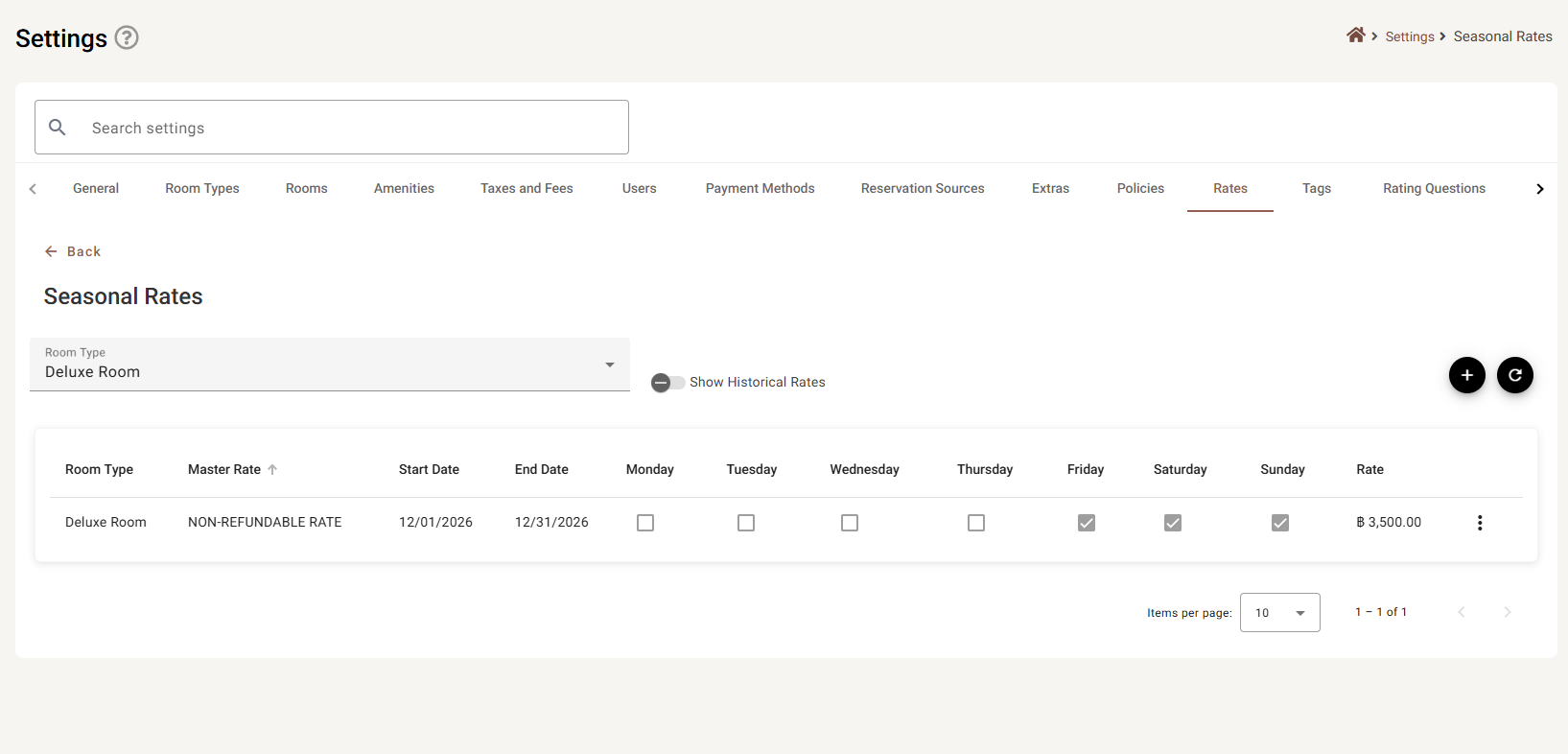
| Column | What it shows |
|---|---|
| Room Type | Which room type is affected. |
| Master Rate | The plan being overridden. This is the link back to Master Rates — the terms come from there. |
| Start Date / End Date | The range this price applies over, inclusive. |
| Monday … Sunday | A tick on every day of the week the override applies. These boxes are for reading only — you cannot tick them here; open Edit to change them. |
| Rate | The price that replaces the master rate on those days. |
Every heading except Room Type sorts. Items per page takes 5, 10, 25 or 100.
Show Historical Rates
Off by default, and that is the setting to reach for first when something seems to be missing.
Seasons that have already finished are hidden. Last December’s pricing is still stored; it is simply not in your way while you work on next year. Switch the toggle on to see it — useful when you want to price a season the way you priced it last time.
Room Type
Like Master Rates, this shows one room type at a time rather than filtering a combined list. If an override you expect is missing, check this before anything else — then check Show Historical Rates.
The row menu
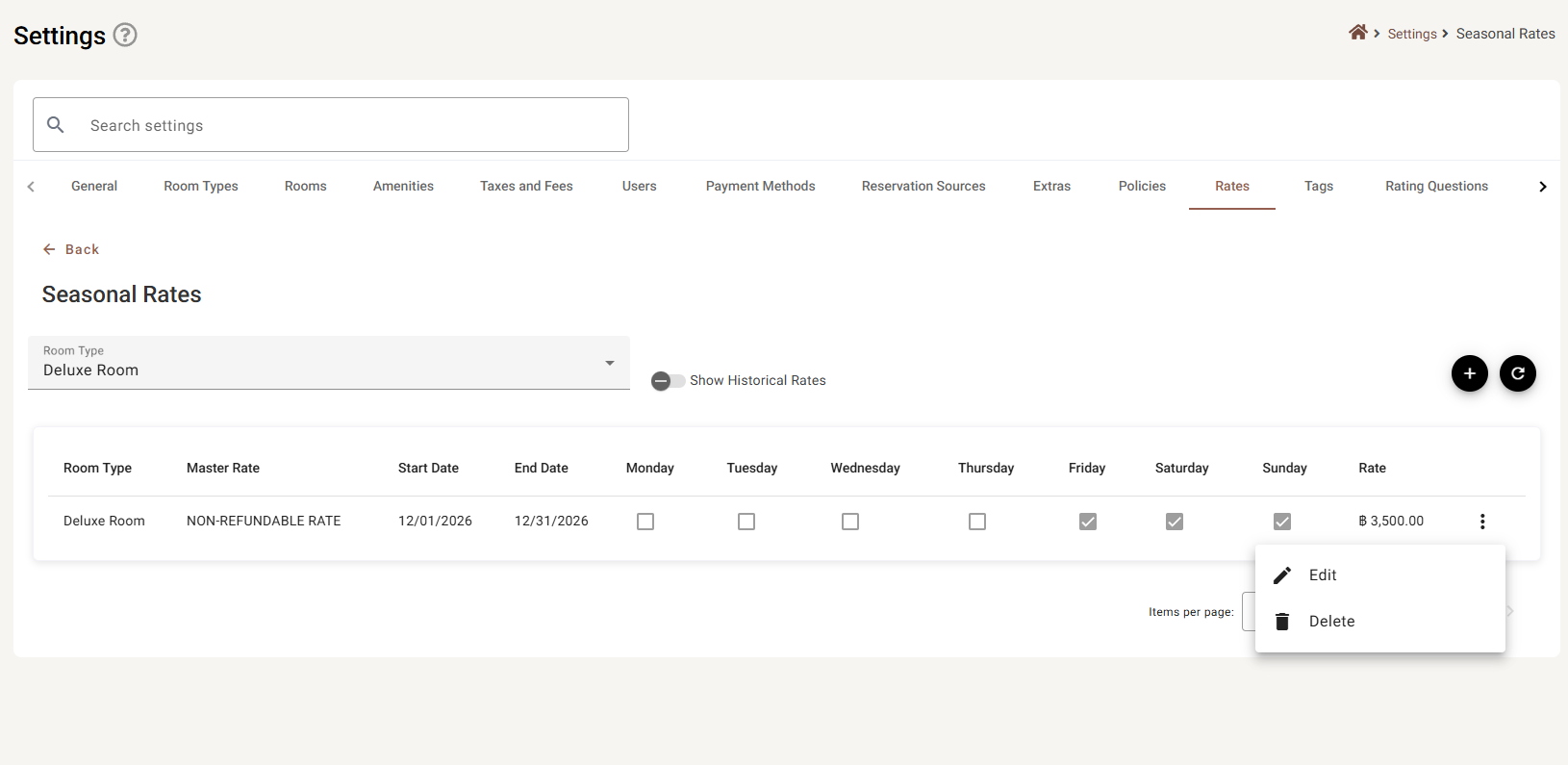
There is no Move Up or Move Down, because nothing is decided by position. A seasonal rate applies when today’s date falls in its range and the weekday is ticked.
Delete asks you to confirm. Deleting an override does not touch the master rate; the price simply goes back to it.
Adding a seasonal rate
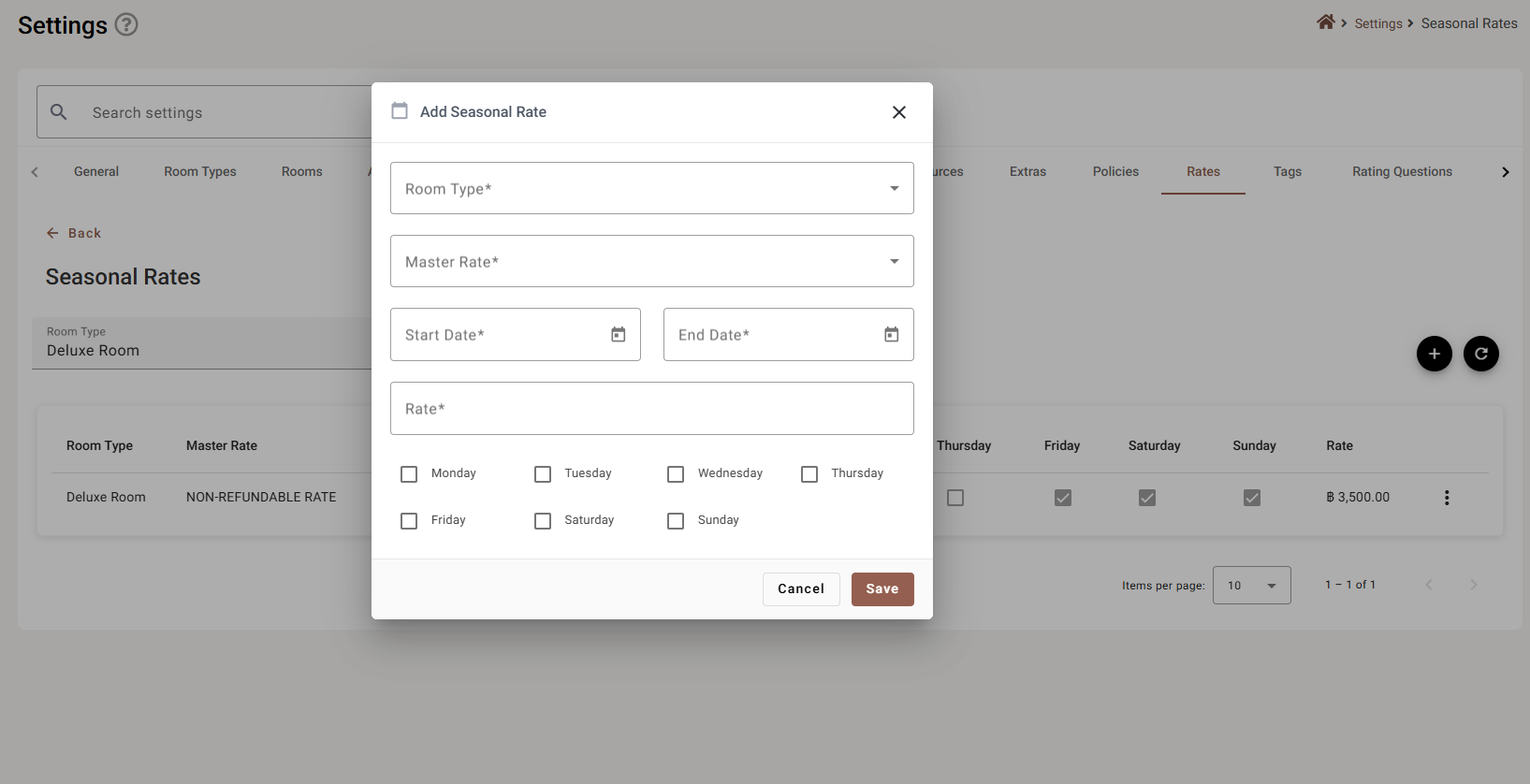
The fields are in this order for a reason — each one narrows the next.
- Room Type — which type you are repricing.
- Master Rate — only the plans belonging to that room type appear. Choosing a different room type rebuilds this list. If it is empty, that room type has no master rates yet.
- Start Date and End Date — the range, inclusive. Both required.
- Rate — the price that applies instead.
- The days of the week — tick every day this price should apply on.
Save creates it. On an existing rate the same form opens with Update instead.
The dates
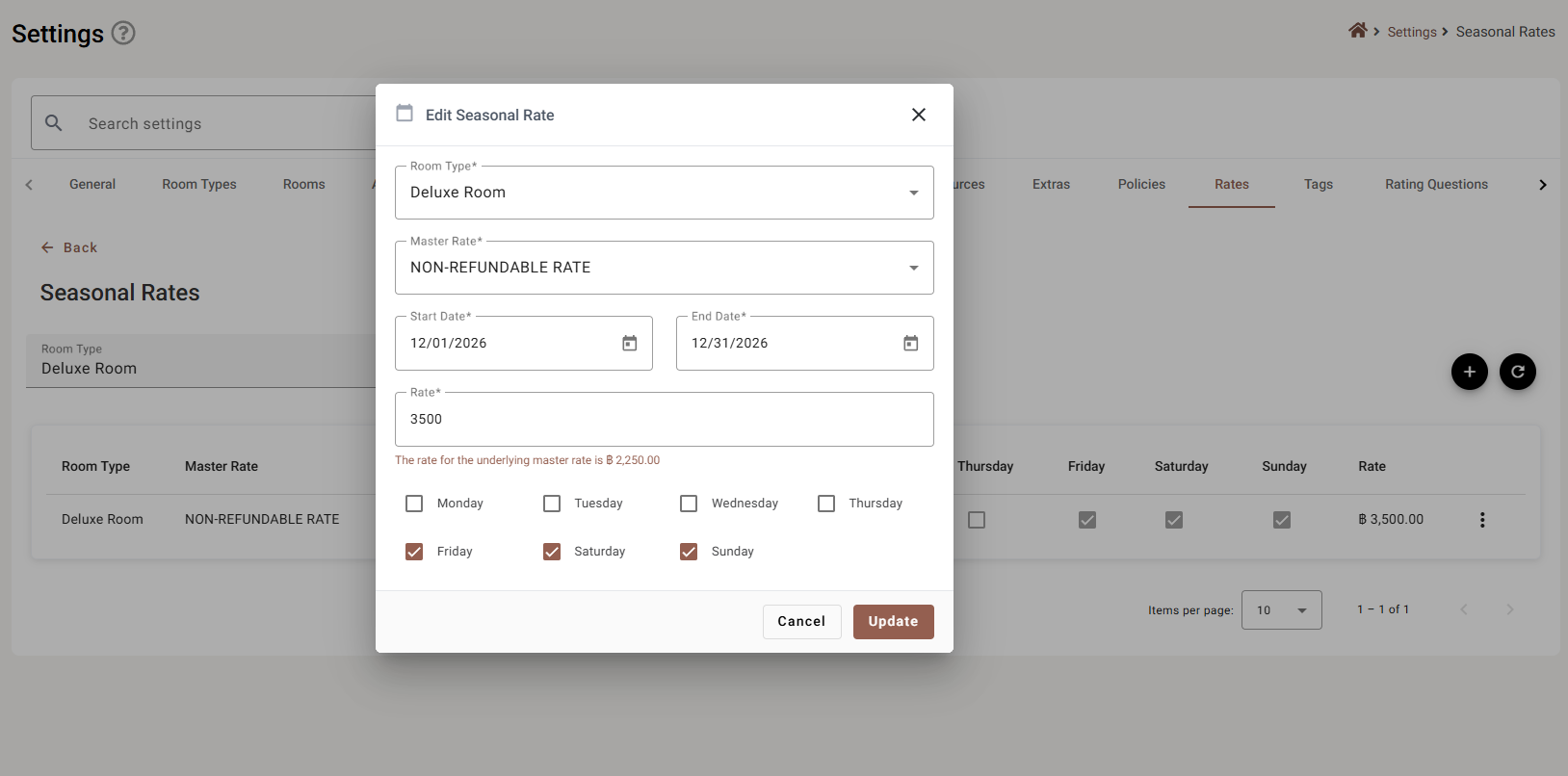
A new seasonal rate cannot start in the past. The date picker will not go back beyond today — pricing that has already been sold is not something to change after the fact.
Editing is the exception: a season that already began keeps its own start date as the earliest it will allow, so you can adjust a running season without the form rejecting the date it already has.
The two fields also constrain each other — the end date cannot be before the start — and if they do end up the wrong way round the form says so in red beneath them.
Knowing what you are replacing
Once a master rate is chosen, a line appears under Rate:
The rate for the underlying master rate is ฿2,250.00
That is the price you are overriding, in your property’s currency. It is the quickest way to see whether ฿3,500 is the increase you meant.
How it fits with the other prices
| Layer | What it does |
|---|---|
| Master rate | The base price. Always there. |
| Seasonal rate | Replaces it, for a date range and the ticked weekdays. |
| Inventory | Overrides a single night, above both of the above. |
| Coupon | Comes off whatever the guest was going to pay. |
A seasonal rate is the right tool for a season — a month of high season, every weekend of the summer. For one night, or for a scattered handful of dates, Inventory is quicker and leaves no rule behind to remember later.
If something does not work
| What you see | Why |
|---|---|
| An override you created is not in the list | The Room Type picker is on a different type, or the season has finished — switch Show Historical Rates on. |
| Master Rate is empty | No room type is chosen yet, or the one chosen has no master rates. Create one in Master Rates. |
| The start date cannot be set to last month | New overrides cannot start in the past. An existing one keeps the start date it already has. |
| “Start date must be on or before end date” | The two dates are the wrong way round. |
| Save does nothing, and every field looks filled in | No day of the week is ticked. The day boxes are not marked in red when this happens. |
| The price a guest sees is still the master rate | The date falls outside the range, or that weekday is not ticked. |
| The price is neither the master nor the seasonal rate | That night was overridden in Inventory, or a coupon was applied. |
| The terms changed but the price did not | Cancellation policy, breakfast and OTA availability belong to the master rate, not to the override. |