
Sticky Notes & Reminders
The shared noticeboard: shift notes that belong to the property, not to one person.
Sticky Notes is a shared noticeboard for the property. It is the digital version of the notes taped to the back of the front desk: the promotion that is running, the room that is out of action, the watch somebody left in the lobby.
Two things make it different from a note in a reservation:
- It belongs to the property, not to a person or a booking. Everyone sees the same board, and it does not disappear when a guest checks out.
- Everyone can see it, whatever their role. Sticky Notes is the one thing in SupremeStay that every role reaches — reception, housekeeping, restaurant and transport alike. That makes it the natural place for anything the whole property needs to know.
Opening the page
- Click Sticky Notes in the left sidebar.
If it is not there, the module is switched off — see General settings.
What is on the page
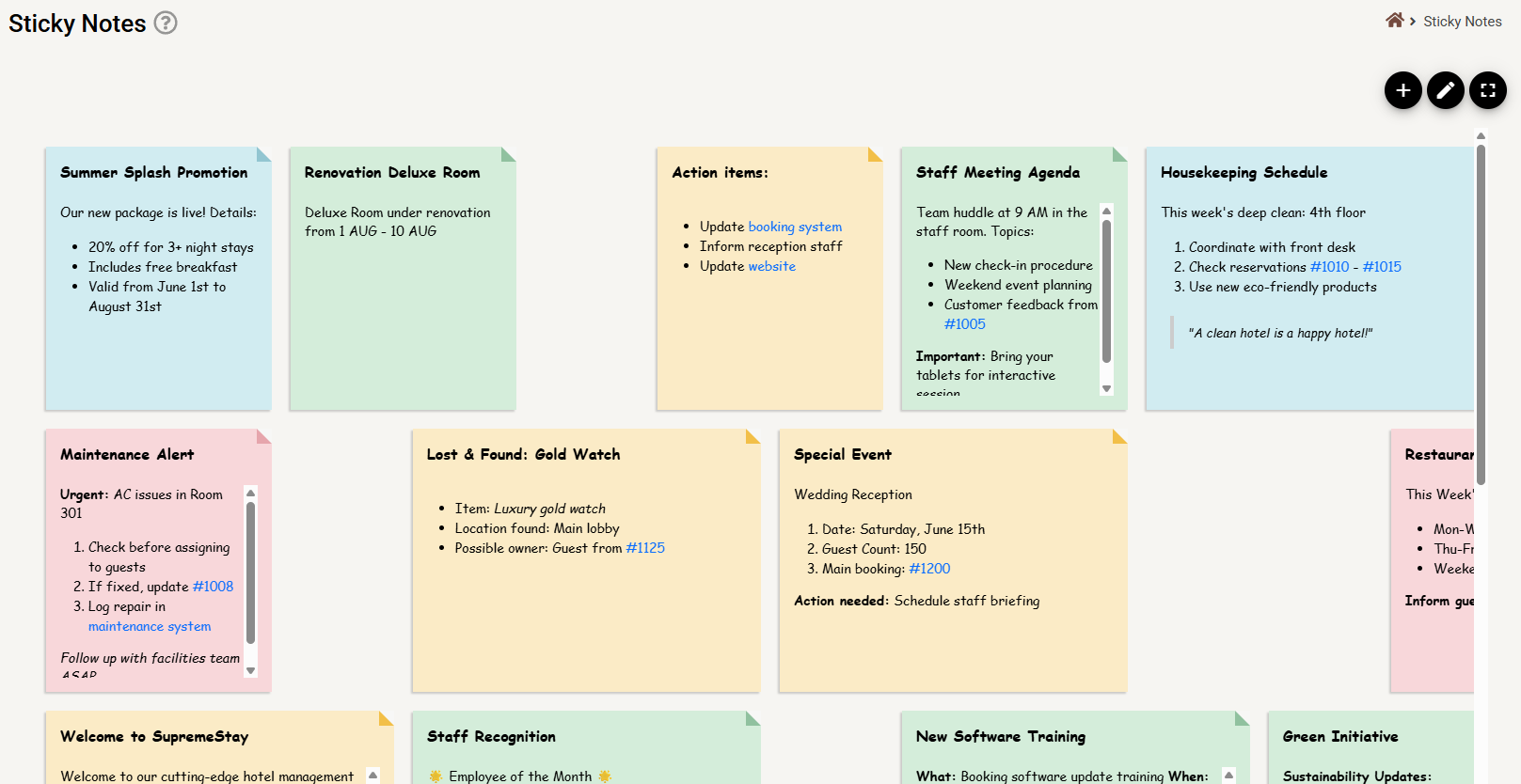
| Button | What it does |
|---|---|
| + | Adds a note. |
| Pencil | Enters edit mode, where notes can be moved, resized and deleted. |
| Full screen | Fills the screen — for a board left up on a back-office monitor. Press Esc to come out. |
Notes taller than their tile scroll inside themselves, so a long note does not force the tile to grow.
Adding a note
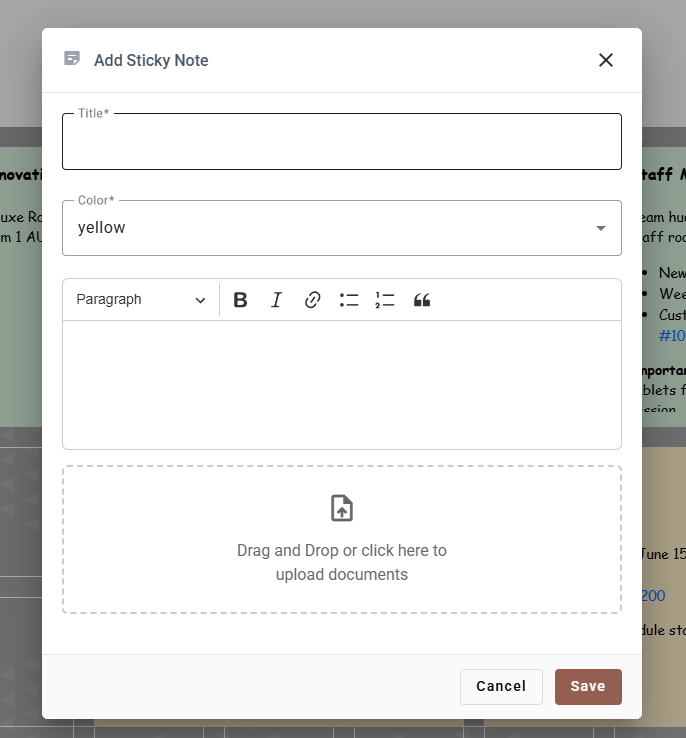
| Field | Required | What it does |
|---|---|---|
| Title | Yes | The heading on the note. |
| Color | Yes | One of four: yellow, green, blue, pink. |
| Body | Yes | The note itself, in a small rich text editor. |
| Documents | No | Drag a file in, or click to browse. |
The editor
The body is a proper editor, not a plain box. The toolbar offers headings, bold, italic, links, bulleted and numbered lists, and block quotes — enough to make a note scannable, which matters when it is being read at a glance across a desk.
Attaching a document
Drag a file onto the drop zone or click it to browse.
| Accepted | PDF · JPG · JPEG · PNG · GIF · WEBP · DOC · DOCX · XLS · XLSX · PPT · PPTX · TXT · RTF |
| Maximum size | 5 MB per file |
Anything else is refused with a message saying which rule it broke.
Editing, moving and deleting
The pencil puts the board into edit mode. The layout grid appears, every note grows a pencil and a red bin, and the buttons at the top right change to +, ✕ and save.
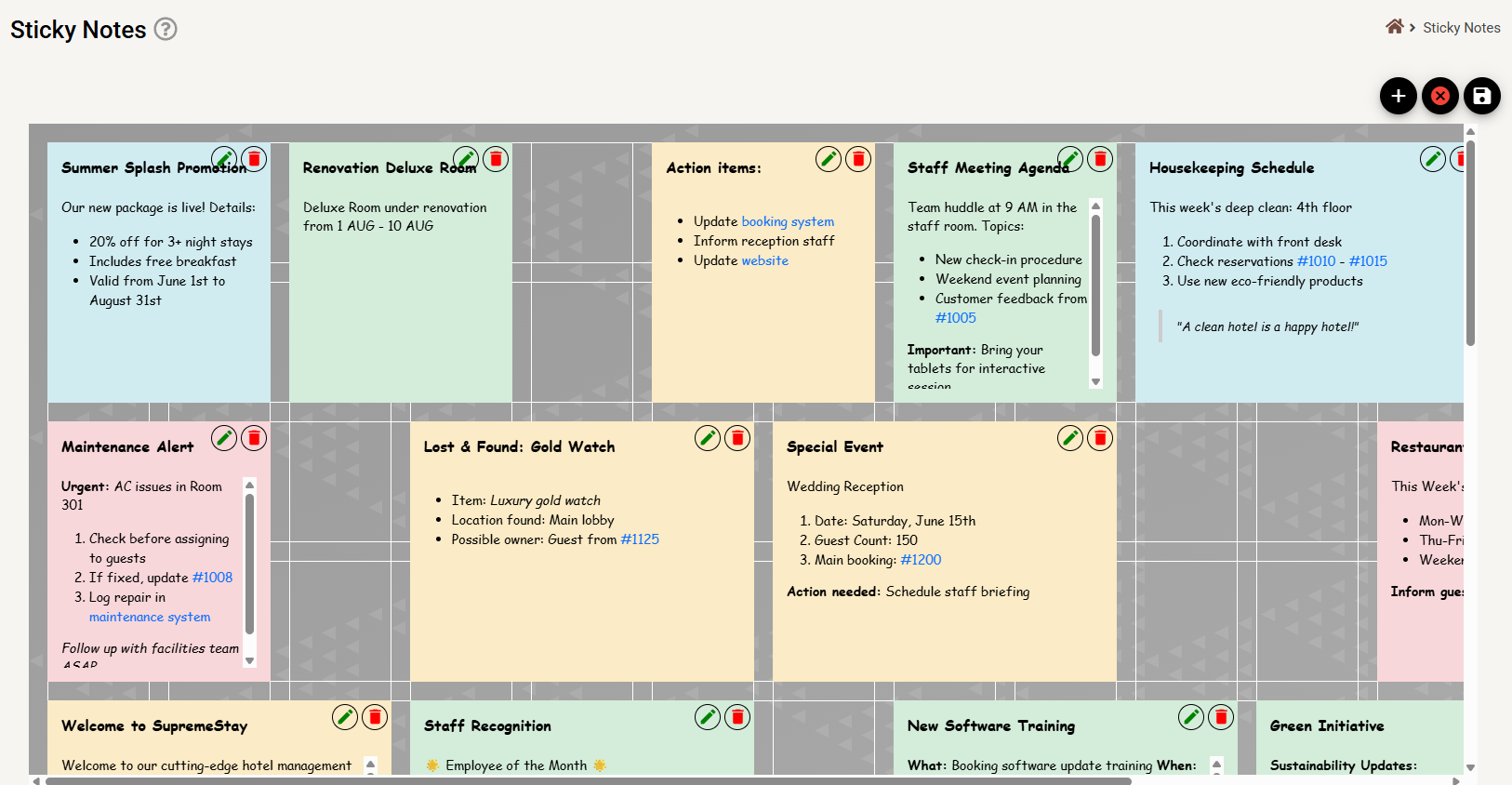
In edit mode you can:
- Drag a note to move it.
- Drag its corner to resize it. A note is at least two columns wide.
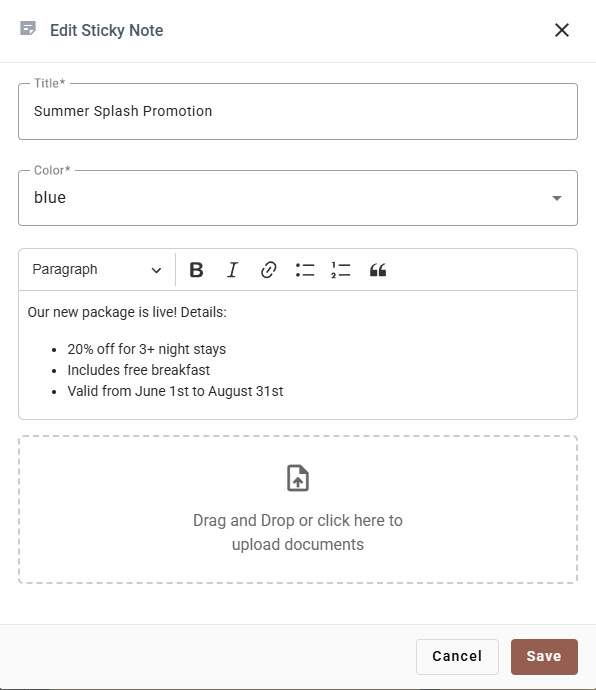
- Pencil on a note to change its title, colour, body or document.
- Red bin to remove it.
Using the board well
A noticeboard everybody can write on becomes wallpaper if nobody prunes it. A few habits keep it readable:
- Give the colours meanings and stick to them. There are only four, which is a feature — pick a scheme such as pink for anything urgent, blue for promotions, green for information, yellow for tasks, and the board becomes readable before anybody reads a word.
- Put the reservation number in. It costs four characters and saves a lookup.
- Write the note so a stranger can act on it. The person reading it may be on a different shift in a different department.
- Take notes down. The promotion that ended in August is noise in September.
- Keep it short. A note that scrolls is a note nobody finishes.
If something does not work
| What you see | Why |
|---|---|
| My changes were gone when I came back | Edit mode was not saved. Press Save — the disk icon — before leaving. |
| A note I added disappeared | Same reason. Adding enters edit mode; the board still needs saving. |
| I deleted the wrong note | Press ✕ to cancel out of edit mode. It comes back, along with everything else you changed. |
| The file was refused | It is over 5 MB, or not one of the accepted types. |
| Only one of my documents opens | The board opens the first file only. Split it into two notes. |
#1125 did not become a link | It links on save, and needs to be # immediately followed by digits. |
| I cannot drag or resize | You are not in edit mode. Press the pencil first. |
| Sticky Notes is not in the sidebar | The module is off. See General settings. |
| The board looks stacked on a tablet | Below 640 pixels wide the grid stacks into one column. The notes are all there. |