
Restaurant
Table service, room service, orders, and posting a bill to a guest room.
Restaurant is the point of sale for your outlets. Staff open a table, add items, send them to the kitchen, and settle the bill — taking payment there and then, or charging it to a guest’s room so it lands on their reservation folio.
The thing that makes this more than a till: it knows who is staying. A bill can go to a room because the order can be linked to a reservation, and that link is what the whole right-hand half of this article depends on.
Opening the page
- Click Restaurant in the left sidebar.
If it is not there, the Point of Sale module is off — see General settings.
Before you start
The page needs two things before an order can be taken: your tables and your menu items. If either is missing, a banner says which one and links straight to the settings screen that fixes it — Tables and Food categories and items.
The sidebar
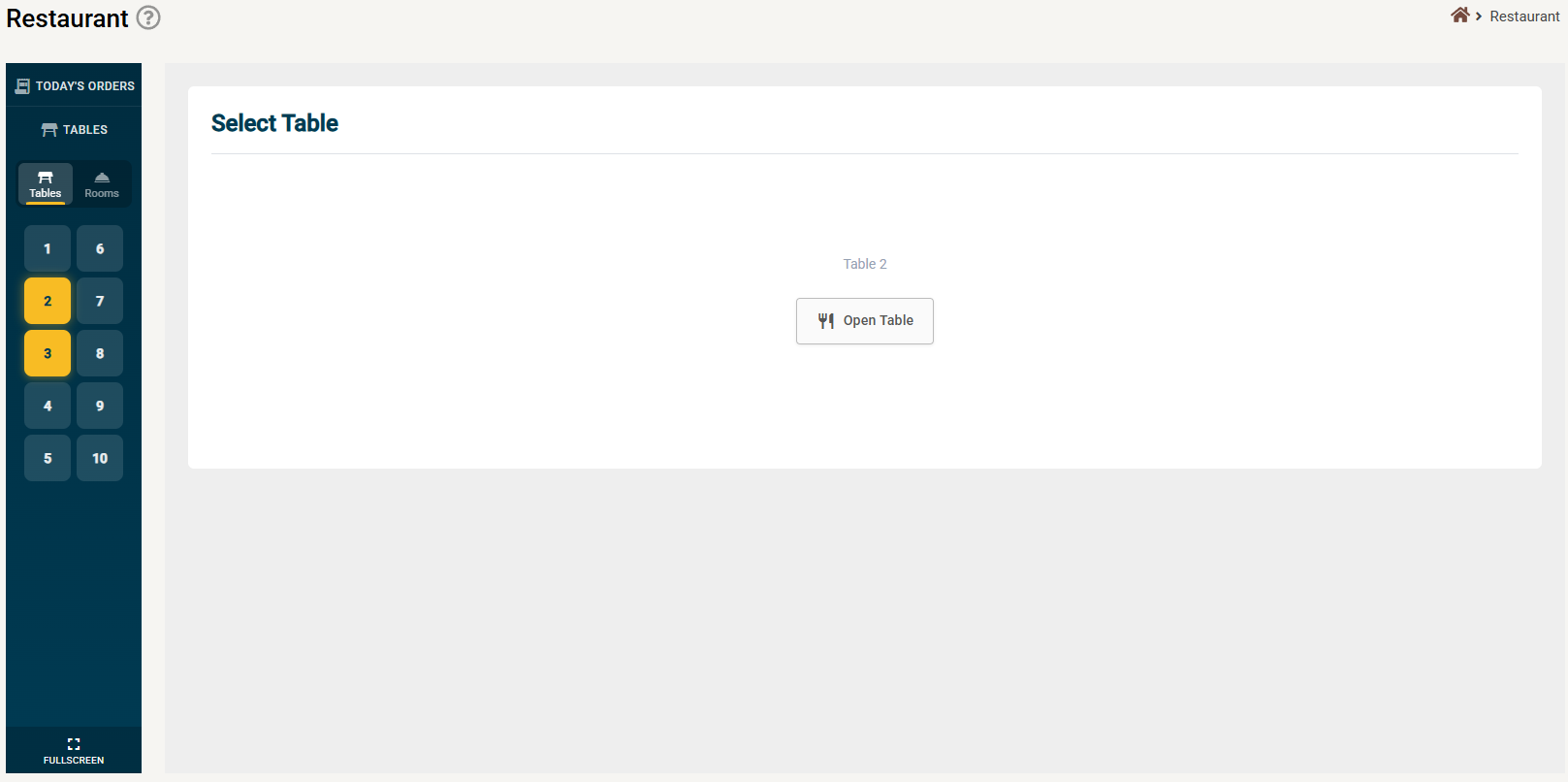
The dark panel down the left is where every order starts, and it has four parts:
| What it does | |
|---|---|
| Today’s Orders | Steps out of a single table to see the whole service. |
| Tables / Rooms | Switches the panel between table service and room service. |
| The table grid | One button per table, split into two columns. |
| Fullscreen | Hides the rest of the back office — for a dedicated POS terminal or tablet. |
Reading the table colours
The colour of a table button tells you where it is in the service, and this is the fastest thing on the page to learn:
| Colour | Meaning |
|---|---|
| Dark / plain | Empty. Nobody seated. |
| Amber | An order is open and not yet settled. |
| Green | Every item on the order has been completed and paid. The party may still be sitting there, but the money is in. |
| Gold outline | The table you have selected right now. |
The amber-versus-green distinction is what lets a supervisor glance at the panel and see which tables still owe money, without opening a single one.
Room service
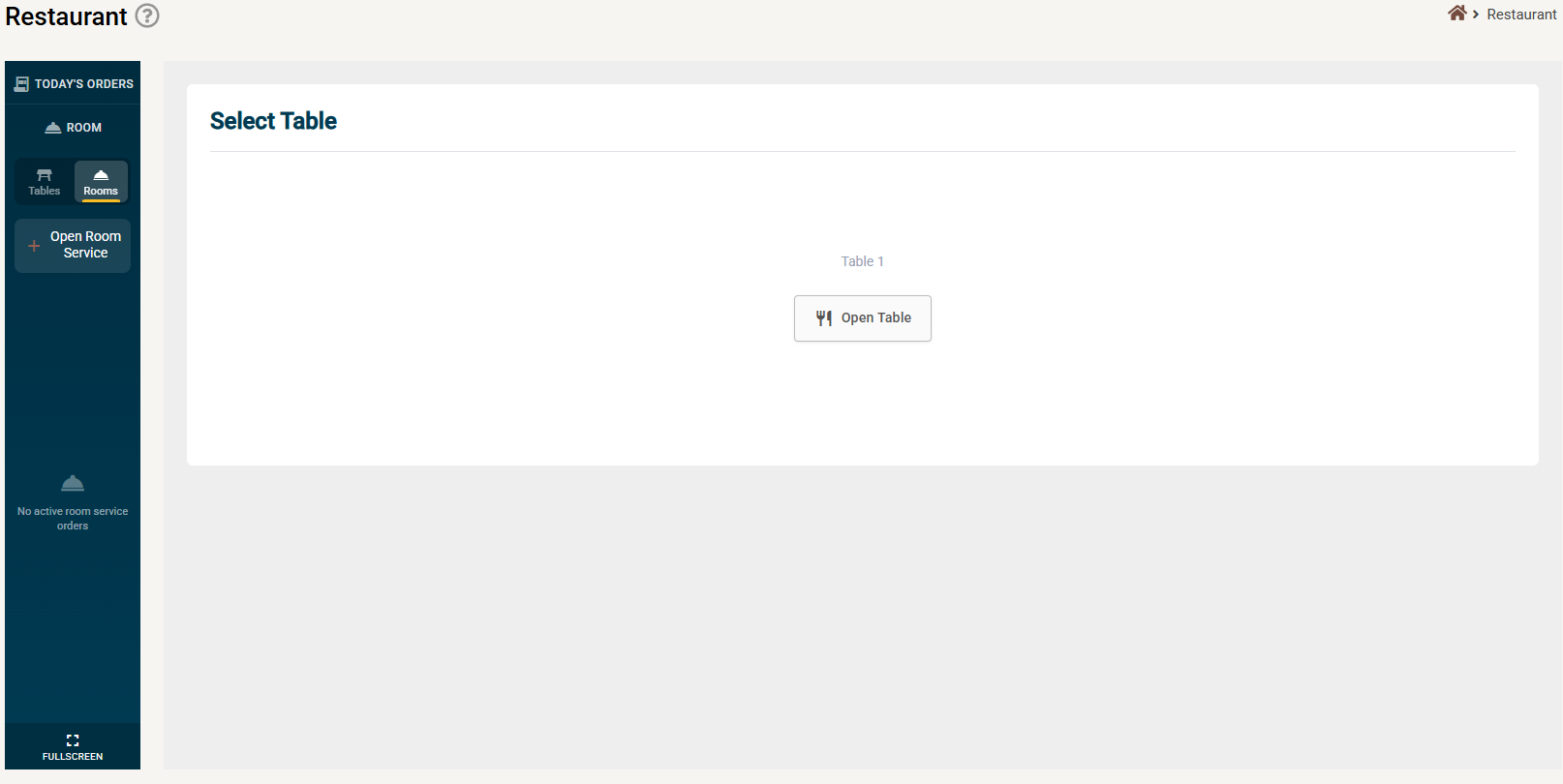
Switching the panel to Rooms replaces the table grid with room service. Open Room Service starts an order going to a guest room rather than a table, and active room service orders are listed below it. When there are none, it says so plainly rather than showing an empty grid.
Selecting a table
Clicking a table opens the Select Table panel. An empty table offers Open Table; one with an order on it opens that order.
The same screen carries Today’s Reservations, so a waiter can see who is booked in before seating anyone. A reservation can name a requested table, and allergy flags show against the booking — worth a look before the party sits down.
Working with tables
- Open a table and record how many people are seated.
- Merge tables when a group moves together, combining their orders onto one bill.
- Change table to move an order somewhere else.
- Add note — free text on the whole order, separate from per-item notes.
- Release the table once the party has left, which frees it for the next guests.
Building an order
- Menu — items grouped by category. Tap to add, then adjust the quantity on the order line.
- Comment — free text per item, for an allergy or how something should be cooked. It prints on the kitchen ticket.
- Special requests — quick-select tags you attach without typing. Set up under Special requests.
- Discount — applied to the order.
- Order items list — everything on the bill, with quantity, price and running total.
Sending to the kitchen
Send to kitchen confirms the selected items and prints the ticket, so the kitchen only ever sees what has actually been ordered rather than a bill still being built.
If a ticket is lost or the printer jams, reprint kitchen issues it again. Where more than one printer is set up you choose the destination; if none is configured the page tells you rather than failing quietly. See Printers and kitchen routing.
Guests and reservations
- Link reservation — ties the order to a staying guest. This is what makes charging to the room possible, and it is required before a receipt can be raised against a reservation.
- Members — several guests on one table, so a bill can be split or attributed.
- Customer lookup — finds an existing customer record to attach.
Settling the bill
| Option | What it does |
|---|---|
| Bill to room | Posts the order to the linked reservation’s folio, paid at check-out. Where a reservation has more than one billing group you are asked which. |
| Bill to account | Charges it to a customer account rather than a room. |
| Cashier payment | Takes payment now, showing the remaining balance as it is paid down. |
| Split a bill | At checkout every item is listed with a checkbox and a Select All. Untick items to bill only part of the order. |
| Preview and print receipt | The guest’s copy. A receipt needs an invoice behind it, so raise the charge first. |
Room charges appear on the reservation like any other charge — see Transactions.
Today’s Orders
The whole service in one list, separated into pending and completed, with a search box. To look further back, switch to historical orders and give a date range — which is how you answer a query about a bill from an earlier shift.
For the numbers rather than the individual orders, see POS reports.
If something does not work
| What you see | Why |
|---|---|
| A banner says tables or items are missing | The POS is not set up yet. The banner links to the screen that fixes it. |
| Restaurant is not in the sidebar | The Point of Sale module is off in General settings. |
| A table stays amber after the guests paid | Amber means not every item is settled. Check for an unpaid line on the order. |
| A table is still occupied after the party left | It has not been released. Release it to seat the next guests. |
| Bill to room does nothing | No reservation is linked to the order. Link it first. |
| The kitchen never got an order | It was added to the bill but not sent. Only Send to kitchen prints the ticket. |
| I cannot print a receipt | A receipt needs an invoice behind it. Raise the charge first. |
| Nothing prints and no error appears | No printer is configured — see Printers and kitchen routing. |