
Food categories and items
Building the POS menu: categories, which of them go to the kitchen, and the dishes with their price, tax, stock and photo.
The menu the Restaurant page sells from has two levels: food categories, which become the tabs on the menu, and food items, the dishes and drinks in each category. The same categories group the sales in POS reports.
Both are under Settings → Point of Sale (POS). Set up the categories first.
Food categories
Open Food Categories → Manage.
| Column | What it shows |
|---|---|
| Name | The category, shown as a tab on the menu. |
| Category Theme Color | The colour of its dishes’ tiles when they have no photo, or —. |
| Kitchen Product | Whether the category’s dishes go to the kitchen. |
Press + to add a category. To add several at once, separate the names with commas — Appetizers, Mains.
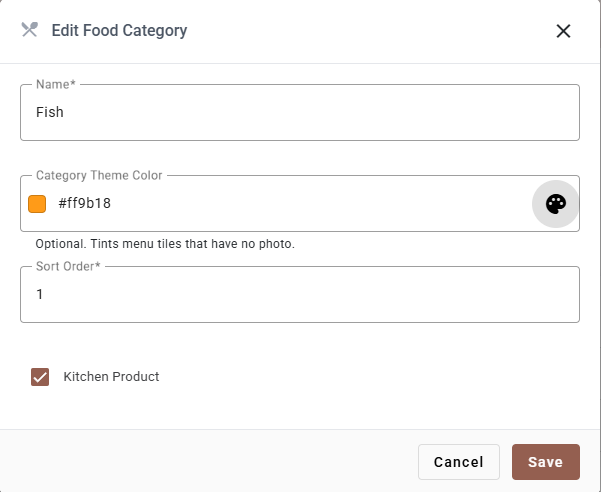
| Field | What it does |
|---|---|
| Name | Required, at least 2 characters, and not used by another category. |
| Category Theme Color | Optional. Tints menu tiles that have no photo. It shows when the menu uses square tiles — Items Per Row 5 or more in Operations. |
| Sort Order | The position of the tab on the menu. |
| Kitchen Product | Ticked for food the kitchen prepares. |
The ⋮ of a row has Edit, Move Up, Move Down — the order of the tabs — and Delete.
Food items
Open Food Items → Manage.
| Column | What it shows |
|---|---|
| Product Name | The dish. |
| Category | Its tab on the menu. Category above the list shows one category, or All Categories. |
| Price | The selling price. |
| VAT | The tax rate applied. |
| Active | Whether it is on the menu. Inactive dishes are hidden from the Restaurant page. |
Press + to add a dish.
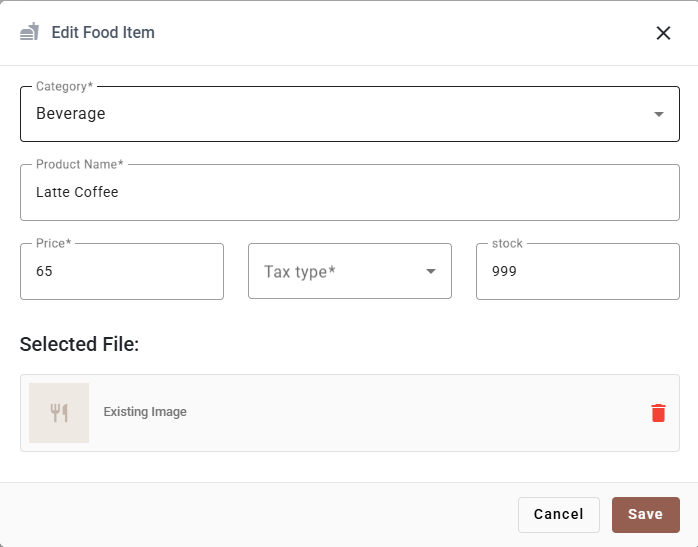
| Field | What it does |
|---|---|
| Category | Required. |
| Product Name | Required, 2 to 100 characters, and not used by another dish anywhere on the menu. |
| Price | Required, up to 2 decimals. |
| Tax type | Required. One of your taxes. |
| stock | How many you have, up to 99,999. Shown only when stock tracking is on in Operations. When it reaches 0 the dish shows Out of stock on the Restaurant page. |
| Image | One photo — JPG, PNG, GIF, BMP or TIFF, up to 5 MB. The bin removes it. |
The ⋮ of a row has Edit, Move Up and Move Down within the category, Activate or Deactivate, and Delete. A dish that has been ordered cannot be deleted — Cannot delete item that is used in orders. Deactivate it instead.
The order of dishes inside a category can also be changed on the Restaurant page with Change sort order (the gear next to the search box).