
Using the kitchen screen
Signing in on the kitchen device, reading the order board, marking dishes ready and clearing tickets.
The kitchen screen is a separate website that runs on a screen or tablet in the kitchen. It shows the dishes sent from the Restaurant page. The kitchen ticks each dish as it is ready, then clears the ticket when the order goes out. The top bar shows POS and the kitchen code. The screen is in English only.
Before a device can sign in, add the kitchen and create a passcode under Point of Sale settings.
Signing in
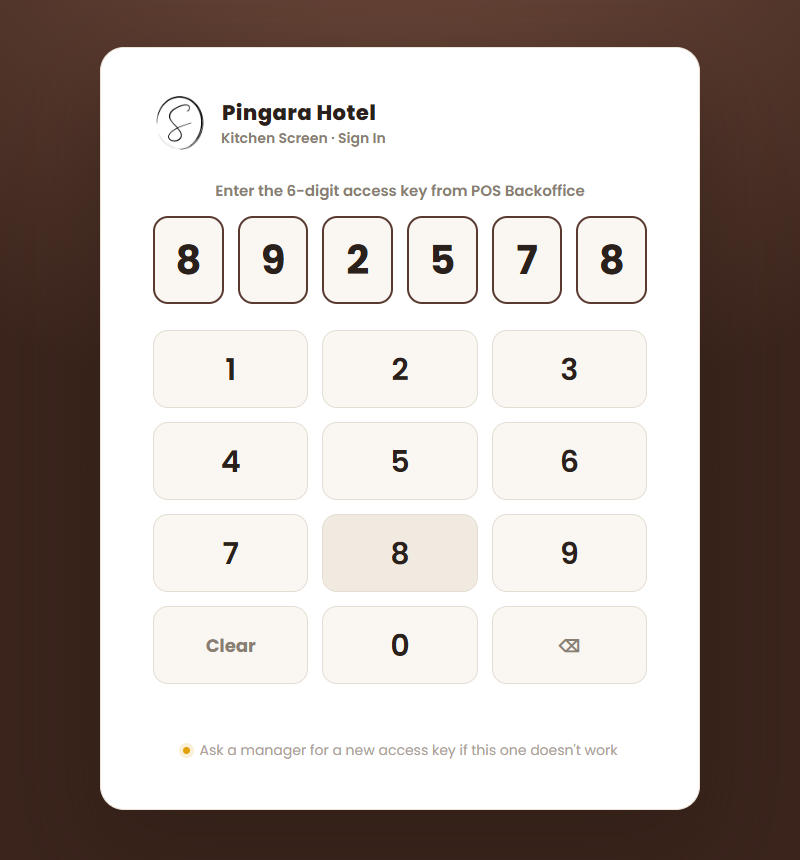
- Open the kitchen’s Kitchen website URL in the device’s web browser. You can copy it from the Kitchen display screen settings page.
- The page shows Kitchen Screen · Sign In under your hotel’s name. It also shows your hotel’s logo, or the SupremeStay logo if the hotel has none.
- Type the 6-digit passcode with the keypad or a keyboard. The screen calls it the access key. Clear empties the boxes and ⌫ removes the last digit.
- After the sixth digit, the screen signs in by itself and opens the order board.
The device stays signed in after the page is reloaded or the device restarts, so normally you only sign in once.
| Message | What to do |
|---|---|
| Kitchen code not valid | The address is wrong, or the kitchen has been deleted. Copy the address again from the settings page. |
| Invalid or expired access key. Please try again. | The digits are wrong or the passcode has expired. Check the digits, or create a new passcode in the settings. |
| Kitchen screens are disabled for this restaurant. Ask a manager. | The POS module is switched off. |
| Could not reach the server. Please try again. | The device is offline, or there were more than five attempts in a minute. Wait a minute and try again. |
Sending dishes to the kitchen
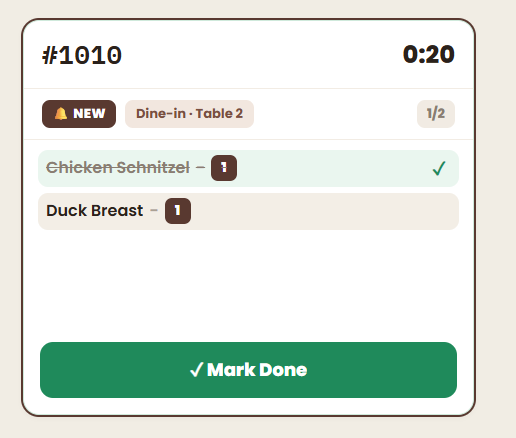
On the Restaurant page, press Send to Kitchen under the order.
- Every kitchen dish that has not been sent is listed and ticked. To hold a dish back for later, untick it. For example, a main course can wait until the starters are finished.
- Switch on Rush order to mark the order ⚡ RUSH. Rush tickets are placed first on the board.
- Confirm sends the dishes. They appear on the kitchen screen within about five seconds.
Only dishes in a Kitchen Product category are sent. Drinks and other items never appear on the kitchen screen.
The order board
| In the top bar | What it does |
|---|---|
| Hotel name, POS #20542 · Main Kitchen | Your hotel, then the kitchen code and the kitchen name. |
| Active / Completed | Active shows the tickets still being made. Completed shows the tickets cleared today. |
| Cards / List | Shows each ticket as a card, or as a row. The device remembers the choice. |
| Clock | The current time. |
| ☾ / ☀ | Switches between the dark and light themes. The device remembers the choice. |
| ⏻ | Signs this device out. |
| On a ticket | What it shows |
|---|---|
| #1012 | The order number, the same as on the Restaurant page. |
| Timer | Minutes and seconds since the dishes were sent. |
| 🔔 NEW | Sent in the last minute. The card also has a dark outline. |
| ⚡ RUSH | Sent with Rush order. |
| ↑ Updated | A waiter changed a dish after sending it. That dish’s quantity turns orange (Updated from POS). |
| Dine-in · Table 7 or Room Service · Room 305 | Where the order goes. |
| 0/4 | How many of the dishes are ready. |
| Dishes | Each dish with its quantity, and its comment and special requests. |
| Card outline | How long the ticket has waited. Green is under 5 minutes, amber is 5 to 10 minutes, and red is over 10 minutes. |
Rush tickets come first, then the rest from oldest to newest. Keep the page open in front. A tab that is minimised or hidden behind another one stops updating.
Marking dishes ready
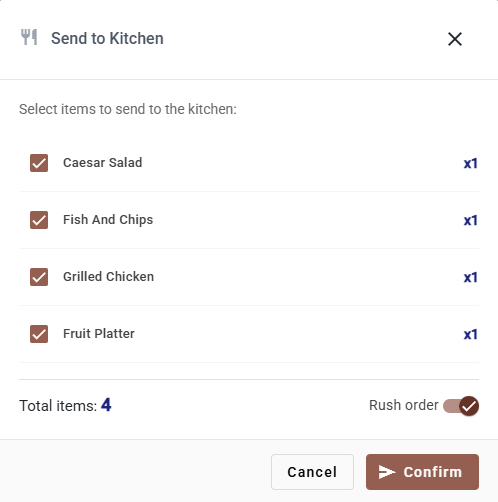
Tap a dish when it is ready. It is struck through and ticked, and the count goes up. Tap it again to undo.
Clearing a ticket
When the order leaves the kitchen, press ✓ Mark Done:
- If every dish is ticked, one tap clears the ticket.
- If not, the button changes to ✓ All ready — bump. Tap it again within 5 seconds to clear the ticket with all its dishes. If you don’t, it goes back to ✓ Mark Done, so a stray tap does nothing.
Completed tickets and Recall
Completed lists the tickets cleared today that are not paid yet, newest first. It shows up to 50 tickets, and each has a tick and the time it was cleared. ↩ Recall puts a ticket back on the Active board. Its dishes come back already ticked, so untick any that still need to be made.
When an order is paid on the Restaurant page, its dishes leave both boards.
Signing out
Press ⏻ and confirm Sign out this screen?. The device returns to the sign-in page and needs a valid passcode to come back. A manager can also disconnect a device from the settings page.
When something is wrong
| What you see | Why |
|---|---|
| Offline — showing last update from … | The device lost its connection. It keeps showing the last orders it received and catches up when the connection returns. |
| Can’t reach the kitchen server | The connection is down. Orders reappear by themselves once it is back. |
| Kitchen display disabled | The POS module has been switched off. Ask a manager, then press Retry. |
| The sign-in page appears on its own | The device was disconnected, the kitchen was deleted, or the device was not used for 30 days. Sign in again with a valid passcode. |
| Could not update this item. The previous status has been restored. | The tap could not be saved. Try again. |
| A dish is missing | It has not been sent with Send to Kitchen, or its category is not a Kitchen Product. |
| No pending orders | Nothing is waiting to be made. |