
Widget Captions
Renaming the five buttons on the guest app home screen.
The guest app home screen has five shortcut buttons. Theme Settings → Widget Captions lets you write what each one says, so the wording fits your property rather than a generic default.
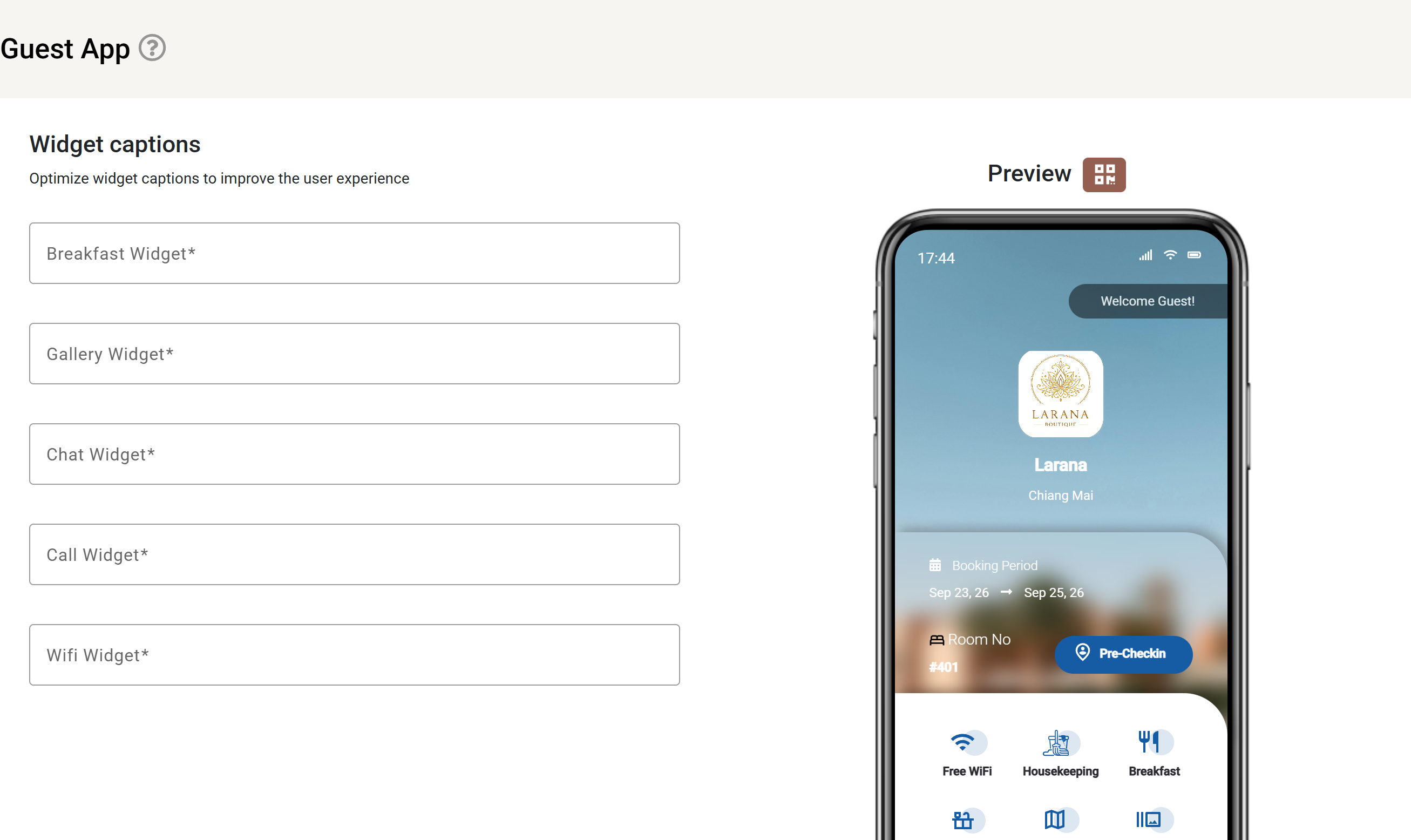
The phone on the right is a live Preview: type a caption and it changes there before you save. The QR button above the preview shows a code you can scan to open the same screen on a real phone, which is worth doing before publishing — text that fits the preview can still wrap on a narrow device.
The five widgets
| Widget | What it opens | Typical wording |
|---|---|---|
| Breakfast | Breakfast details for this guest. | Breakfast, Morning dining |
| Gallery | Photographs of the property. | Gallery, Explore the hotel |
| Chat | A conversation with the front desk. | Chat, Message us |
| Call | Calls reception. | Call, Call reception |
| Wi-Fi | Wi-Fi details. | Wi-Fi, Get online |
Each caption is required and must be at least four characters. Save publishes them to the guest app straight away.
Captions and languages
Captions are the words you type here, used as typed. If you host guests in more than one language, write them in the language most of your guests read, or keep them short and universally understood.